- 1.1 Troubleshooting Non-DWDM Circuit Paths with Loopbacks
- 1.2 Troubleshooting Electrical Circuit Paths With Loopbacks
- 1.2.1 Perform a Facility (Line) Loopback on a Source Electrical Port (West to East)
- Create the Facility (Line) Loopback on the Source DS-1, DS-3, DS3N-12, DS3i-N-12, or EC1 Port
- Test and Clear the DS-3, DS3N-12, DS3i-N-12, or EC1 Port Facility Loopback Circuit
- Create the Facility (Line) Loopback on the Source DS3E or DS3XM Port
- Test and Clear the DS3E or DS3XM Port Facility Loopback Circuit
- Test the Electrical Cabling
- Test the Electrical Card
- Test the EIA
- 1.2.2 Perform a Hairpin Test on a Source-Node Electrical Port (West to East)
- 1.2.3 Perform an XC Loopback on a Destination-Node OC-N STS (West to East) Carrying an Electrical Signal
- 1.2.4 Perform a Terminal (Inward) Loopback on a Destination Electrical Port Port (West to East)
- Create the Terminal (Inward) Loopback on a Destination DS-3, DS3N-12, DS3i-N-12, or EC1 Port
- Test and Clear the DS-3, DS3N-12, DS3i-N-12, or EC1 Destination Port Terminal Loopback Circuit
- Create the Terminal (Inward) Loopback on a Destination DS-3E or DS3XM Port
- Test and Clear the DS-3E or DS3XM Destination Port Terminal Loopback Circuit
- Test the Destination Electrical Card
- 1.2.5 Perform a Facility (Line) Loopback on a Destination-Node Electrical Port (East to West)
- Create the Facility (Line) Loopback on the Destination DS-1, DS-3, DS3N-12, DS3i-N-12, or EC1 Port
- Test and Clear the DS-3, DS3N-12, DS3i-N-12, or EC1 Port Facility Loopback Circuit
- Create the Facility (Line) Loopback on the Source DS3E or DS3XM Port
- Test and Clear the DS3E or DS3XM Port Facility Loopback Circuit
- Test the Electrical Cabling
- Test the Electrical Card
- Test the EIA
- 1.2.6 Perform a Hairpin Test on a Destination-Node Electrical Port (East to West)
- 1.2.7 Perform an XC Loopback on a Source-Node OC-N STS (East to West)
Carrying an Electrical Circuit - 1.2.8 Perform a Terminal (Inward) Loopback on a Source-Node Electrical Port (East to West)
- Create the Terminal (Inward) Loopback on a Source DS-1, DS-3, DS3N-12, DS3i-N-12, or EC1 Port
- Test and Clear the DS-3, DS3N-12, DS3i-N-12, or EC1 Port Terminal Loopback
- Create the Terminal (Inward) Loopback on a Source DS3E or DS3XM Port
- Test and Clear the DS3E or DS3XM Port Terminal Loopback Circuit
- Test the Source Electrical Card
- 1.2.1 Perform a Facility (Line) Loopback on a Source Electrical Port (West to East)
- 1.5.1 Perform a Facility (Line) Loopback on a Source-Node Optical Port
- 1.5.2 Perform a Terminal (Inward) Loopback on a Source-Node Optical Port
- 1.5.3 Perform an XC Loopback on the Source Optical Port
- 1.5.4 Perform a Facility (Line) Loopback on an Intermediate-Node Optical Port
- 1.5.5 Perform a Terminal (Inward) Loopback on Intermediate-Node Optical Ports
- 1.5.6 Perform a Facility (Line) Loopback on a Destination-Node Optical Port
- 1.5.7 Perform a Terminal Loopback on a Destination-Node Optical Port
- 1.6.1 Perform a Facility (Line) Loopback on a Source-Node Ethernet Port
- 1.6.2 Perform a Terminal (Inward) Loopback on a Source-Node Ethernet Port
- 1.6.3 Create a Facility (Line) Loopback on an Intermediate-Node Ethernet Port
- 1.6.4 Create a Terminal (Inward) Loopback on Intermediate-Node Ethernet Ports
- 1.6.5 Perform a Facility (Line) Loopback on a Destination-Node Ethernet Port
- 1.6.6 Perform a Terminal Loopback on a Destination-Node Ethernet Port
- 1.7.1 Perform a Facility (Line) Loopback on a Source-Node MXP/TXP/FC_MR-4 Port
- 1.7.2 Perform a Terminal (Inward) Loopback on a Source-Node MXP/TXP/FC_MR-4 Port
- 1.7.3 Create a Facility (Line) Loopback on an Intermediate-Node MXP/TXP/FC_MR-4 Port
- 1.7.4 Create a Terminal (Inward) Loopback on Intermediate-Node MXP/TXP/FC_MR-4 Ports
- 1.7.5 Perform a Facility (Line) Loopback on a Destination-Node MXP/TXP/FC_MR-4 Port
- 1.7.6 Perform a Terminal Loopback on a Destination-Node MXP/TXP/FC_MR-4 Port
- 1.11.1 PC System Minimum Requirements
- 1.11.2 Sun System Minimum Requirements
- 1.11.3 Supported Platforms, Browsers, and JREs
- 1.11.4 Unsupported Platforms and Browsers
- 1.11.5 Unable to Verify the IP Configuration of Your PC
- 1.11.6 Browser Login Does Not Launch Java
- 1.11.7 Unable to Verify the NIC Connection on Your PC
- 1.11.8 Verify PC Connection to the ONS 15454 (ping)
- 1.11.9 The IP Address of the Node is Unknown
- 1.12.1 CTC Colors Do Not Appear Correctly on a UNIX Workstation
- 1.12.2 Unable to Launch CTC Help After Removing Netscape
- 1.12.3 Unable to Change Node View to Network View
- 1.12.4 Browser Stalls When Downloading CTC JAR Files From TCC2/TCC2P Card
- 1.12.5 CTC Does Not Launch
- 1.12.6 Slow CTC Operation or Login Problems
- 1.12.7 Node Icon is Gray on CTC Network View
- 1.12.8 CTC Cannot Launch Due to Applet Security Restrictions
- 1.12.9 Java Runtime Environment Incompatible
- 1.12.10 Different CTC Releases Do Not Recognize Each Other
- 1.12.11 Username or Password Do Not Match
- 1.12.12 No IP Connectivity Exists Between Nodes
- 1.12.13 DCC Connection Lost
- 1.12.14 "Path in Use" Error When Creating a Circuit
- 1.12.15 Calculate and Design IP Subnets
- 1.12.16 Ethernet Connections
- 1.12.17 VLAN Cannot Connect to Network Device from Untag Port
- 1.13.1 OC-N Circuit Transitions to Partial State
- 1.13.2 AIS-V on DS3XM-6 or DS3XM-12 Unused VT Circuits
- 1.13.3 Circuit Creation Error with VT1.5 Circuit
- 1.13.4 Unable to Create Circuit From DS-3 Card to DS3XM-6 or DS3XM-12 Card
- 1.13.5 DS-3 Card Does Not Report AIS-P From External Equipment
- 1.13.6 OC-3 and DCC Limitations
- 1.13.7 ONS 15454 Switches Timing Reference
- 1.13.8 Holdover Synchronization Alarm
- 1.13.9 Free-Running Synchronization Mode
- 1.13.10 Daisy-Chained BITS Not Functioning
- 1.13.11 Blinking STAT LED after Installing a Card
General Troubleshooting

Note  The terms "Unidirectional Path Switched Ring" and "UPSR" may appear in Cisco literature. These terms do not refer to using Cisco ONS 15xxx products in a unidirectional path switched ring configuration. Rather, these terms, as well as "Path Protected Mesh Network" and "PPMN," refer generally to Cisco's path protection feature, which may be used in any topological network configuration. Cisco does not recommend using its path protection feature in any particular topological network configuration.
This chapter provides procedures for troubleshooting the most common problems encountered when operating a Cisco ONS 15454. To troubleshoot specific ONS 15454 alarms, see Chapter 2, "Alarm Troubleshooting." If you cannot find what you are looking for, contact the Cisco Technical Assistance Center (1 800 553-2447).
This chapter includes the following sections on network problems:
•1.1 Troubleshooting Non-DWDM Circuit Paths with Loopbacks, page 1-2—Describes loopbacks and hairpin circuits, which you can use to test circuit paths through the network or logically isolate faults.
Note For dense wavelength division multiplexing (DWDM) network acceptance tests, refer to NTP-G16 in the Cisco ONS 15454 DWDM Installation and Operations Guide.
•1.2 Troubleshooting Electrical Circuit Paths With Loopbacks, page 1-9—Explains how to use loopback tests described in "1.1 Troubleshooting Non-DWDM Circuit Paths with Loopbacks" to isolate trouble on DS-1, DS-3, or EC-1 electrical circuits.
•1.3 Troubleshooting DS3XM-6 or DS3XM-12 Card Electrical Paths With FEAC Loopbacks, page 1-46—Describes how DS3XM-6 and DS3XM-12 card far-end alarm and control (FEAC) functions.
•1.4 Troubleshooting DS1-E1-56 Card with Far End Loopcodes, page 1-47
•1.5 Troubleshooting Optical Circuit Paths With Loopbacks, page 1-48—Explains how to use loopback tests described in "1.1 Troubleshooting Non-DWDM Circuit Paths with Loopbacks" to isolate trouble on OC-N optical circuits.
•1.6 Troubleshooting Ethernet Circuit Paths With Loopbacks, page 1-71—Explains how to use loopback tests described in "1.1 Troubleshooting Non-DWDM Circuit Paths with Loopbacks" to isolate trouble on G-Series or CE-Series Ethernet circuits.
•1.7 Troubleshooting MXP, TXP, or FC_MR-4 Circuit Paths With Loopbacks, page 1-90—Explains how to use loopbacks tests described in "1.1 Troubleshooting Non-DWDM Circuit Paths with Loopbacks" to isolate trouble on muxponder (MXP), transponder (TXP), or Fibre Channel (FC_MR) circuits.
•1.8 Troubleshooting DWDM Circuit Paths With ITU-T G.709 Monitoring, page 1-105—Explains how to utilize performance monitoring (PM) and threshold crossing alerts (TCA) to locate signal degrades on DWDM circuit paths.
The remaining sections describe symptoms, problems, and solutions that are categorized according to the following topics:
•1.9 Using CTC Diagnostics, page 1-113—Explains how to perform card LED tests, download a diagnostic file for Cisco Technical Support, and create a bidirectional diagnostic VT circuit.
•1.10 Restoring the Database and Default Settings, page 1-119—Provides procedures for restoring software data and restoring the node to the default setup.
•1.11 PC Connectivity Troubleshooting, page 1-119—Provides troubleshooting procedures for PC and network connectivity to the ONS 15454.
•1.12 CTC Operation Troubleshooting, page 1-125—Provides troubleshooting procedures for Cisco Transport Controller (CTC) login or operation problems.
•1.13 Circuits and Timing, page 1-140—Provides troubleshooting procedures for circuit creation and error reporting as well as timing reference errors and alarms.
•1.14 Fiber and Cabling, page 1-145—Provides troubleshooting procedures for fiber and cabling connectivity errors.
•1.15 Power Supply Problems, page 1-155—Provides troubleshooting procedures for power supply problems.
1.1 Troubleshooting Non-DWDM Circuit Paths with Loopbacks
Use loopbacks and hairpin circuits to test newly created SONET circuits before running live traffic or to logically locate the source of a network failure. All ONS 15454 electrical cards, OC-N cards, G-Series Ethernet cards, MXP, TXP cards, and FC_MR-4 cards allow loopbacks and hairpin test circuits. Other cards do not allow loopbacks, including E-Series Ethernet, ML-Series Ethernet, and DWDM cards such as Optical Booster (OPT-BST), Optical Preamplifier (OPT-PRE), Optical Service Channel and Combiner/Splitter Module (OSC-CSM), Band Optical Add/Drop Multiplexing (AD-xB-xx.x), and Channel Optical Add/Drop Multiplexing (AD-xC-xx.x) cards.
To create a loopback on a port, the port must be in the Out-of-Service and Management, Maintenance (OOS-MA,MT) service state. After you create the loopback, the service state becomes Out-of-Service and Management, Loopback and Maintenance (OOS-MA,LPBK & MT).
 Facility (line) or terminal loopbacks can be service-affecting. To protect traffic, apply a lockout or Force switch to the target loopback port. Basic directions for these procedures exist in the
Chapter 2, "Alarm Troubleshooting." For more information about these operations, refer to the "Maintain the Node" chapter in the
Cisco ONS 15454 Procedure Guide.
On all OC-N cards, a facility (line) loopback applies to the entire card and not an individual circuit. Exercise caution when using loopbacks on an OC-N card carrying live traffic.
Facility (line) or terminal loopbacks can be service-affecting. To protect traffic, apply a lockout or Force switch to the target loopback port. Basic directions for these procedures exist in the
Chapter 2, "Alarm Troubleshooting." For more information about these operations, refer to the "Maintain the Node" chapter in the
Cisco ONS 15454 Procedure Guide.
On all OC-N cards, a facility (line) loopback applies to the entire card and not an individual circuit. Exercise caution when using loopbacks on an OC-N card carrying live traffic.
1.1.1 Facility Loopbacks
The following sections give general information about facility loopback operations and specific information about ONS 15454 card loopback activity.
1.1.1.1 General Behavior
A facility (line) loopback tests the line interface unit (LIU) of a card, the electrical interface assembly (EIA), and related cabling. After applying a facility loopback on a port, use a test set to run traffic over the loopback. A successful facility loopback isolates the LIU, the EIA, or the cabling plant as the potential cause of a network problem. Figure 1-1 shows a facility loopback on a DS-N electrical card.
Figure 1-1 Facility (Line) Loopback Path on a Near-End DS-N Card

To test an OC-N card LIU, connect an optical test set to the OC-N port and perform a facility (line) loopback. Alternately, use a loopback or hairpin circuit on a card that is farther along the circuit path. Figure 1-2 shows a facility loopback on an OC-N card.
Figure 1-2 Facility (Line) Loopback Path on a Near-End OC-N Card

In CTC, OC-N cards with facility loopbacks show an icon (Figure 1-3). Loopback icons are not shown on other cards in this release.
Figure 1-3 OC-N Facility Loopback Indicator

Before performing a facility (line) loopback on an OC-N card, be sure the card contains at least two data communications channel (DCC) paths to the node where the card is installed. A second DCC provides a nonlooped path to log into the node after the loopback is applied, enabling you to remove the facility loopback. Ensuring a second DCC is not necessary if you are directly connected to the ONS 15454 containing the loopback OC-N card.
Ensure that the facility being loopbacked is not line-timing the node. If it is, a timing loop will be created.
1.1.1.2 ONS 15454 Card Behavior
ONS 15454 port loopbacks either terminate or bridge the loopback signal. All ONS 15454 optical, electrical, Ethernet, MXP, TXP, and FC_MR-4 facility loopbacks are terminated as shown in Table 1-1.
When a port terminates a facility loopback signal, the signal only loops back to the originating port and is not transmitted downstream. When a port bridges a loopback signal, the signal loops back to the originating port and is also transmitted downstream.
Note In Table 1-1, no alarm indication signal (AIS) is injected if the signal is bridged. If the signal is terminated, an applicable AIS is injected downstream for all cards except Ethernet cards.
|
|
|
|---|---|
DS-1 |
Terminated |
DS-3 |
Terminated |
DS3XM-6 or DS3XM-12 |
Terminated |
All OC-N cards |
Terminated |
EC-1 |
Terminated |
G-Series Ethernet |
Terminated1 |
MXP, MXPP trunk ports |
Bridged |
MXP, MXPP client ports |
Terminated |
TXP, MXPP trunk ports |
Bridged |
TXP, MXPP client ports |
Terminated |
1 G-Series facility loopback is terminated and no AIS is sent downstream. However, the Cisco Link Integrity signal continues to be sent downstream. |
The loopback itself is listed in the Conditions window. For example, the window would list the LPBKFACILITY condition for a tested port. (The Alarms window will show AS-MT, which means that alarms are suppressed on the facility during loopback.)
In addition to the Conditions window listing, the following behaviors occur:
•If an electrical or optical port is in the Out-of-Service and Management, Disabled (OOS-MA,DSBLD) service state, it injects an AIS signal upstream and downstream.
•When an electrical or optical port is placed in the OOS-MA,MT service state before loopback testing, the port clears the AIS signal upstream and downstream unless there is a service-affecting defect that would also cause an AIS signal to be injected. For more information about placing ports into alternate states for testing, refer to the "Change Card Settings" chapter in the Cisco ONS 15454 Procedure Guide.
MXP, TXP, and FC_MR-4 card facility loopbacks behave differently from other ONS 15454 cards. With a client-side facility loopback, the client port service state is OOS-MA,LPBK & MT; however the remaining client and trunk ports can be in any other service state. For cards in a trunk-side facility loopback, the trunk port service state is OOS-MA,LPBK & MT service state and the remaining client and trunk ports can be in any other service state.
A lock out of protection must be executed before putting a two-fiber or four-fiber BLSR span into a facility loopback state. That is, a span lockout of one side (such as the east side) of a two-fiber BLSR is required before operating a facility loopback on the same (east) side of the ring. A span lockout of one protection side (such as the east protection side) of a four-fiber BLSR is required before operating a facility loopback on the same (east) side working line of the ring. If you do not execute the lockout prior to creating the loopback, the ring can become stuck in an anomalous state after you release the loopback.
1.1.2 Terminal Loopbacks
The following sections give general information about terminal loopback operations and specific information about ONS 15454 card loopback activity.
1.1.2.1 General Behavior
A terminal loopback tests a circuit path as it passes through the cross-connect card and loops back from the card with the loopback. Figure 1-4 shows a terminal loopback on an OC-N card. The test-set traffic comes into the electrical port and travels through the cross-connect card to the optical card. The terminal loopback on the optical card turns the signal around before it reaches the LIU and sends it back through the cross-connect card to the electrical card. This test verifies that the cross-connect card and terminal circuit paths are valid, but does not test the LIU on the optical card.
Figure 1-4 Terminal Loopback Path on an OC-N Card

In CTC, OC-N cards with terminal loopbacks show an icon (Figure 1-5). Loopback icons are not shown on other cards in this release.
Figure 1-5 Terminal Loopback Indicator

Figure 1-6 shows a terminal loopback on a DS-N electrical card. The test-set traffic comes in on the optical card and travels through the cross-connect card to the electrical card. The terminal loopback on the electrical card turns the signal around before it reaches the LIU and sends it back through the cross-connect card to the optical card. This test verifies that the cross-connect card and terminal circuit paths are valid, but does not test the LIU on the electrical card.
Figure 1-6 Terminal Loopback Path on a DS-N Card

1.1.2.2 ONS 15454 Card Behavior
ONS 15454 terminal port loopbacks can either terminate or bridge the signal. In the ONS 15454 system, all optical, electrical, Ethernet, MXP, TXP, and FC_MR-4 terminal loopbacks are terminated as shown in Table 1-2. During terminal loopbacks, some ONS 15454 cards bridge the loopback signal while others terminate it.
If a port terminates a terminal loopback signal, the signal only loops back to the originating port and is not transmitted downstream. If the port bridges a loopback signal, the signal loops back to the originating port and is also transmitted downstream.
ONS 15454 card terminal loopback bridging and terminating behaviors are listed in Table 1-2.
Note In Table 1-2, no AIS signal is injected if the signal is bridged. If the signal is terminated, an applicable AIS is injected downstream for all cards except Ethernet cards.
|
|
|
|---|---|
DS-1 |
Terminated |
DS-3 |
Bridged |
DS3XM-6 or DS3XM-12 |
Bridged |
All OC-N cards |
Bridged |
EC-1 |
Bridged |
G-Series Ethernet |
Terminated1 |
MXP, MXPP trunk ports |
Bridged |
MXP, MXPP client ports |
Terminated |
TXP, MXPP trunk ports |
Bridged |
TXP, MXPP client ports |
Terminated |
1 G-Series Ethernet terminal loopback is terminated and Ethernet transmission is disabled. No AIS is inserted for Ethernet, but a TPTFAIL alarm is raised on the far-end Ethernet port. |
Bridged DS-N and OC-N terminal loopback examples are shown in Figure 1-7 and Figure 1-8.
Figure 1-7 Terminal Loopback on a DS-N Card with Bridged Signal

Figure 1-8 Terminal Loopback on an OC-N Card with Bridged Signal

G-Series Ethernet cards placed in terminal loopback have different performance monitoring behavior from other ONS 15454 cards. (For more information about performance monitoring counters, see Chapter 5, "Performance Monitoring.") Setting a terminal loopback on the G-Series Ethernet card might not stop the Tx Packets counter or the Rx Packet counters on the CTC card-level view Performance > Statistics page from increasing. The counters can increment even though the loopbacked port has temporarily disabled the transmit laser and is dropping any received packets.
The Tx Packet statistic continues to increment because the statistics are not based on packets transmitted by the transmit (Tx) laser but on the Tx signal inside the G-Series card. In normal in-service port operation, the Tx signal being recorded results in the Tx laser transmitting packets, but in a terminal loopback this signal is being looped back within the G-Series card and does not result in the Tx laser transmitting packets.
The Rx Packet counter might also continue to increment when the G-Series card is in terminal loopback. Receive (Rx) packets from any connected device are dropped and not recorded, but the internally loopbacked packets follow the G-Series card's normal receive path and register on the Rx Packet counter.
MXP and TXP trunk and client ports have different service state behaviors and requirements from other ONS 15454 cards. The cards can simultaneously maintain different service states.
•For TXP and TXPP cards with a client-side terminal loopback, the client port is in the OOS-MA,LPBK & MT service state and trunk port must be in IS-NR service state.
•For MXP and MXPP cards with a client-side terminal loopback, the client port is in the OOS-MA,LPBK & MT service state and the remaining client and trunk ports can be in any service state.
•In MXP or TXP trunk-side terminal loopbacks, the trunk port is in the OOS-MA,LPBK & MT service state and the client ports must be in IS-NR service state for complete loopback functionality. A terminal loopback affects all client ports because it is performed on the aggregate signal.
The loopback itself is listed in the Conditions window. For example, the window would list the LPBKTERMINAL condition or LPBKFACILITY condition for a tested port. (The Alarms window would show AS-MT, which indicates that all alarms are suppressed on the port during loopback testing.)
In addition to the Conditions window listing, the following behaviors occur:
•If an electrical or optical port is in the OOS-MA,DSBLD service state, it injects an AIS signal upstream and downstream.
•When an electrical or optical port is placed in the OOS-MA,MT service state before loopback testing, the port clears the AIS signal upstream and downstream unless there is a service-affecting defect that would also cause an AIS signal to be injected. For more information about placing ports into alternate states for testing, refer to the "Change Card Settings" chapter of the Cisco ONS 15454 Procedure Guide.
A lock out of protection must be executed before putting a two-fiber or four-fiber BLSR span into a terminal loopback state. That is, a span lockout of one side (such as the east side) of a two-fiber BLSR is required before operating a facility loopback on the same (east) side of the ring. A span lockout of one protection side (such as the east protection side) of a four-fiber BLSR is required before operating a terminal loopback on the same (east) side working line of the ring. If you do not execute the lockout prior to creating the loopback, the ring can become stuck in an anomalous state after you release the loopback.
1.1.3 Hairpin Circuits
A hairpin circuit sends traffic in and out an electrical port rather than sending the traffic onto the OC-N card. A hairpin loops back only the specific synchronous transport signal (STS) or virtual tributary (VT) circuit and does not cause an entire OC-N port to loop back, preventing all traffic on the OC-N port from dropping. The hairpin allows you to test a specific STS or VT circuit on nodes running live traffic. Figure 1-9 shows the hairpin circuit path on a DS-N card.
Figure 1-9 Hairpin Circuit Path on a DS-N Card

1.1.4 Cross-Connect Loopbacks
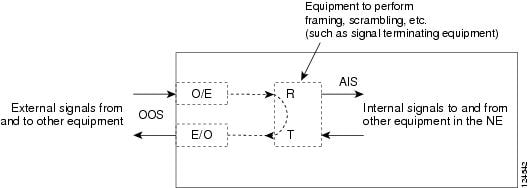
A cross-connect (XC) loopback tests an OC-N circuit path as it passes through the cross-connect card and loops back to the port being tested without affecting other traffic on the optical port. Cross-connect loopbacks are less invasive than terminal or facility loopbacks. Facility and terminal loopback testing and circuit verification often involve taking down the whole line; however, a cross-connect loopback allows you to create a loopback on any embedded channel at supported payloads of STS-1 granularity and higher. For example, you can place a loopback on a single STS-1, STS-3c, STS-6c, etc. on an optical facility (line) without interrupting the other STS circuits.
This test can be conducted locally or remotely through the CTC interface without on-site personnel. It takes place only on an OC-N card and tests the traffic path on that STS (or higher) circuit through the port and cross-connect card. The signal path is similar to a facility loopback.
The XC loopback breaks down the existing path and creates a new cross-connect—a hairpin—while the source of the original path is set to inject a line-side AIS-P. The loopback signal path and AIS injection are shown in Figure 1-10.
Figure 1-10 Network Element with SONET Cross-Connect Loopback Function
When creating cross-connect loopbacks, consult the following rules:
•You can create a cross-connect loopback on all working or protect optical ports unless the protect port is used in a 1+1 protection group and is in working mode.
•If a terminal or facility loopback exists on a port, you cannot use the cross-connect loopback.
1.2 Troubleshooting Electrical Circuit Paths With Loopbacks
Facility (line) loopbacks, terminal (inward) loopbacks, and hairpin circuits are often used to test a circuit path through the network or to logically isolate a fault. Performing a loopback test at each point along the circuit path systematically isolates possible points of failure.
The example in this section tests an electrical circuit on a two-node bidirectional line-switched ring (BLSR). Using a series of facility loopbacks, terminal loopbacks, hairpins, and (where appropriate) cross-connect loopbacks on optical paths carrying electrical circuits, the path of the circuit is traced and the possible points of failure are tested and eliminated. A logical progression of eight network test procedures apply to this sample scenario:
Note These procedures apply to DS-1, DS-3, and EC-1 cards. The test sequence for your circuits will differ according to the type of circuit and network topology.
West-to-east direction (left to right):
1. A facility (line) loopback on the source-node electrical port (DS-N or EC-N)
2. A hairpin on the source-node electrical port
3. An XC loopback on the destination-node OC-N STS (carrying the electrical circuit)
4. A terminal (inward) loopback on the destination-node electrical port
East-to-west direction (right to left):
1. A facility (line) loopback on the destination-node electrical port
2. A hairpin on the destination-node electrical port
3. An XC loopback on the source-node OC-N STS (carrying the electrical circuit)
4. A terminal (inward) loopback on the source-node electrical port
Note Facility, hairpin, and terminal loopback tests require on-site personnel.
1.2.1 Perform a Facility (Line) Loopback on a Source Electrical Port (West to East)
The facility (line) loopback test is performed on the node source electrical port in the network circuit; in this example, the DS-N port in the source node. Completing a successful facility (line) loopback on this port isolates the cabling, the electrical card, and the EIA as possible failure points. Figure 1-11 shows an example of a facility loopback on a source DS-N port.
Figure 1-11 Facility (Line) Loopback on a Circuit Source DS-N Port

Performing a loopback on an in-service circuit is service-affecting. To protect traffic, apply a lockout or Force switch to the target loopback port. For more information about these operations, refer to the "Maintain the Node" chapter in the
Cisco ONS 15454 Procedure Guide.
Note Facility loopbacks require on-site personnel.
Note ONS 15454 DS-3 terminal (inward) loopbacks do not transmit an AIS in the direction away from the loopback. Instead of AIS, a continuance of the signal transmitted into the loopback is provided. A DS3/EC1-48 card can be provisioned to transmit AIS for a terminal loopback if desired.
Depending upon your card type, complete the "Create the Facility (Line) Loopback on the Source DS-1, DS-3, DS3N-12, DS3i-N-12, or EC1 Port" procedure on page 1-11 or the "Create the Facility (Line) Loopback on the Source DS3E or DS3XM Port" procedure on page 1-12, then test and clear the loopbacks as instructed.
Create the Facility (Line) Loopback on the Source DS-1, DS-3, DS3N-12, DS3i-N-12, or EC1 Port
Step 1 Connect an electrical test set to the port you are testing.
Use appropriate cabling to attach the Tx and Rx terminals of the electrical test set to the EIA connectors or DSx panel for the port you are testing. The Tx and Rx terminals connect to the same port.
Step 2 Adjust the test set accordingly. (For specific procedures to use the test set equipment, consult the manufacturer.)
Step 3 In node view, double-click the card to display the card view.
Step 4 Click the Maintenance > Loopback tab.
Step 5 Choose OOS,MT from the Admin State column for the port being tested. If this is a multiport card, select the appropriate row for the port being tested.
Step 6 Choose Facility (Line) from the Loopback Type column for the port being tested. If this is a multiport card, select the appropriate row for the port being tested.
Step 7 Click Apply.
Step 8 Click Yes in the confirmation dialog box.
Note It is normal for the "LPBKFACILITY (DS1, DS3)" condition on page 2-152 to appear during loopback setup. The condition clears when you remove the loopback.
Step 9 Complete the "Test and Clear the DS-3, DS3N-12, DS3i-N-12, or EC1 Port Facility Loopback Circuit" procedure on page 1-11.
Test and Clear the DS-3, DS3N-12, DS3i-N-12, or EC1 Port Facility Loopback Circuit
Step 1 If the test set is not already sending traffic, send test traffic on the loopback circuit.
Step 2 Examine the traffic received by the test set. Look for errors or any other signal information that the test set is capable of indicating.
Step 3 If the test set indicates a good circuit, no further testing is necessary with the facility loopback. Double-click the card to display the card view.
Step 4 Depending upon the card type, click the Maintenance > Loopback tab.
Step 5 Choose None from the Loopback Type column for the port being tested.
Step 6 Choose the appropriate state (IS; OOS,DSBLD; OOS,MT; IS,AINS) from the Admin State column for the port being tested.
Step 7 Click Apply.
Step 8 Click Yes in the confirmation dialog box.
Step 9 Complete the "Test the Electrical Cabling" procedure on page 1-13.
Create the Facility (Line) Loopback on the Source DS3E or DS3XM Port
This procedure applies to DS3E, DS3XM-6, and DS3XM-12 cards. It does not utilize the DS3XM card FEAC loopback functions. For this information, refer to the "1.3 Troubleshooting DS3XM-6 or DS3XM-12 Card Electrical Paths With FEAC Loopbacks" section on page 1-46.
Step 1 Connect an electrical test set to the port you are testing.
Use appropriate cabling to attach the Tx and Rx terminals of the electrical test set to the EIA connectors or DSx panel for the port you are testing. The Tx and Rx terminals connect to the same port.
Step 2 Adjust the test set accordingly. (For specific procedures to use the test set equipment, consult the manufacturer.)
Step 3 In node view, double-click the card to display the card view.
Step 4 For any of these cards, click the Maintenance > DS3 tabs.
Note The DS-3 Admin State is the basis of the DS-1 Derived State.
Step 5 For the DS3 tab, choose OOS,MT from the Admin State column for the port being tested. If this is a multiport card, select the appropriate row for the port being tested. For the DS1 tab, no state selection is necessary unless the DS-1 has been placed in service. The loopback/send code cannot be selected for a DS-1 if the derived state is OOS,DSBLD.
Step 6 Choose Facility (Line) from the Loopback Type column for the port being tested. If this is a multiport card, select the appropriate row for the port being tested.
Step 7 Click Apply.
Step 8 Click Yes in the confirmation dialog box.
Note It is normal for the "LPBKFACILITY (DS1, DS3)" condition on page 2-152 to appear during loopback setup. The condition clears when you remove the loopback.
Step 9 Complete the "Test and Clear the DS3E or DS3XM Port Facility Loopback Circuit" procedure on page 1-12.
Test and Clear the DS3E or DS3XM Port Facility Loopback Circuit
Step 1 If the test set is not already sending traffic, send test traffic on the loopback circuit.
Step 2 Examine the traffic received by the test set. Look for errors or any other signal information that the test set is capable of indicating.
Step 3 If the test set indicates a good circuit, no further testing is necessary with the facility loopback. Double-click the card to display the card view.
Step 4 For any of these cards, click the Maintenance > DS3 tabs.
Note The DS-3 Admin State is the basis of the DS-1 Derived State.
Step 5 Choose None from the Loopback Type column for the port being tested.
Step 6 Choose the appropriate state (IS; OOS,DSBLD; OOS,MT; IS,AINS) from the Admin State column for the port being tested.
Step 7 Click Apply.
Step 8 Click Yes in the confirmation dialog box.
Step 9 Complete the "Test the Electrical Cabling" procedure on page 1-13.
Test the Electrical Cabling
Step 1 Replace the suspected bad cabling (the cables from the test set to the DSx panel or the EIA ports) with a known-good cable. For instructions, refer to the "Install Cards and Fiber-Optic Cable" chapter in the Cisco ONS 15454 Procedure Guide.
If a known-good cable is not available, test the suspected bad cable with a test set. Remove the suspected bad cable from the DSx panel or the EIA and connect the cable to the Tx and Rx terminals of the test set. Run traffic to determine whether the cable is good or defective.
Step 2 Resend test traffic on the loopback circuit with a known-good cable installed. If the test set indicates a good circuit, the problem was probably the defective cable.
Step 3 Replace the defective cable.
Step 4 In card view for the electrical card, depending upon the type, click the Maintenance > Loopback tab, Maintenance > DS1 tab, or Maintenance > DS3 tab.
Note The DS-3 Admin State is the basis of the DS-1 Derived State.
Step 5 Choose None from the Loopback Type column for the port being tested.
Step 6 Choose the appropriate state (IS; OOS,DSBLD; OOS,MT; IS,AINS) from the Admin State column for the port being tested.
Step 7 Click Apply.
Step 8 Click Yes in the confirmation dialog box.
Step 9 Complete the "Test the Electrical Card" procedure on page 1-13.
Test the Electrical Card
Step 1 Complete the "Physically Replace a Traffic Card" procedure on page 2-242 for the suspected bad card and replace it with a known-good one.
Removing a card that currently carries traffic on one or more ports can cause a traffic hit. To avoid this, perform an external switch if a switch has not already occurred. refer to the procedures in the
"2.10.2 Protection Switching, Lock Initiation, and Clearing" section on page 2-231. For more information, refer to the "Maintain the Node" chapter in the
Cisco ONS 15454 Procedure Guide.
Step 2 Resend test traffic on the loopback circuit with a known-good card installed.
Step 3 If the test set indicates a good circuit, the problem was probably the defective card. Return the defective card to Cisco through the Return Materials Authorization (RMA) process. Contact Cisco Technical Support (1 800 553-2447).
Step 4 Complete the "Physically Replace a Traffic Card" procedure on page 2-242 for the faulty card.
Step 5 In card view for the electrical card, depending upon the type, click the Maintenance > Loopback tab, Maintenance > DS1 tab, or Maintenance > DS3 tab.
Note The DS-3 Admin State is the basis of the DS-1 Derived State.
Step 6 Choose None from the Loopback Type column for the port being tested.
Step 7 Choose the appropriate state (IS; OOS,DSBLD; OOS,MT; IS,AINS) from the Admin State column for the port being tested.
Step 8 Click Apply.
Step 9 Click Yes in the confirmation dialog box.
Step 10 Complete the "Test the EIA" procedure on page 1-14.
Test the EIA
Step 1 Remove and reinstall the EIA to ensure a proper seating:
a. Remove the lower backplane cover. Loosen the five screws that secure it to the ONS 15454 and pull it away from the shelf assembly.
b. Loosen the nine perimeter screws that hold the EIA panel in place.
c. Lift the EIA panel by the bottom to remove it from the shelf assembly.
d. Follow the installation procedure for the appropriate EIA. Refer to the "Install the Shelf and Backplane Cable" procedure in the Cisco ONS 15454 Procedure Guide for instructions.
Step 2 Resend test traffic on the loopback circuit with known-good cabling, a known-good card, and the reinstalled EIA. If the test set indicates a good circuit, the problem was probably an improperly seated EIA, and you can proceed to Step 16. If the problem persists and the EIA is not shown to be improperly seated, proceed to Step 3.
Step 3 In card view for the electrical card, depending upon the type, click the Maintenance > Loopback tab, Maintenance > DS1 tab, or Maintenance > DS3 tab.
Note The DS-3 Admin State is the basis of the DS-1 Derived State.
Step 4 Choose None from the Loopback Type column for the port being tested.
Step 5 Choose the appropriate state (IS; OOS,DSBLD; OOS,MT; IS,AINS) from the Admin State column for the port being tested.
Step 6 Click Apply.
Step 7 Click Yes in the confirmation dialog box. Proceed to Step 16.
Step 8 If the test set indicates a faulty circuit, the problem is probably a defective EIA. Return the defective EIA to Cisco through the RMA process. Contact Cisco Technical Support (1 800 553-2447).
Step 9 Replace the faulty EIA by completing the "Replace the Electrical Interface Assembly" procedure on page 2-250.
Step 10 Resend test traffic on the loopback circuit with known-good cabling, a known-good card, and the replacement EIA. If the test set indicates a faulty circuit, repeat all of the facility loopback procedures.
Step 11 If the test set indicates a good circuit, the problem was probably the defective EIA. Clear the facility (line) loopback by clicking the Maintenance > Loopback tab, Maintenance > DS1 tab, or Maintenance > DS3 tab.
Step 12 Choose None from the Loopback Type column for the port being tested.
Step 13 Choose the appropriate state (IS; OOS,DSBLD; OOS,MT; IS,AINS) from the Admin State column for the port being tested.
Step 14 Click Apply.
Step 15 Click Yes in the confirmation dialog box.
Step 16 Complete the "1.2.2 Perform a Hairpin Test on a Source-Node Electrical Port (West to East)" procedure on page 1-15.
1.2.2 Perform a Hairpin Test on a Source-Node Electrical Port (West to East)
The hairpin test is performed on the cross-connect card in the network circuit. A hairpin circuit uses the same port for both source and destination. Completing a successful hairpin through the port isolates the possibility that the cross-connect card is the cause of the faulty circuit. Figure 1-12 shows an example of a hairpin loopback on a source-node port.
Figure 1-12 Hairpin on a Source-Node Port

Note The ONS 15454 does not support simplex operation on the cross-connect card. Two cross-connect cards of the same type must be installed for each node.
Note Hairpin loopbacks require on-site personnel.
Complete the "Create the Hairpin Circuit on the Source-Node Electrical Port" procedure on page 1-16.
Create the Hairpin Circuit on the Source-Node Electrical Port
Step 1 Connect an electrical test set to the port you are testing:
a. If you just completed the "1.2.1 Perform a Facility (Line) Loopback on a Source Electrical Port (West to East)" procedure on page 1-10, leave the electrical test set hooked up to the electrical port in the source node.
b. If you are starting the current procedure without the electrical test set hooked up to the DS-N port, use appropriate cabling to attach the Tx and Rx terminals of the electrical test set to the DSx panel or the EIA connectors for the port you are testing. The Tx and Rx terminals connect to the same port.
Step 2 Adjust the test set accordingly. (Refer to manufacturer instructions for test-set use.)
Step 3 Use CTC to set up the hairpin circuit on the test port:
a. In node view, click the Circuits tab and click Create.
b. In the Circuit Creation dialog box, choose the type, such as STS, and number, such as 1.
c. Click Next.
d. In the next Circuit Creation dialog box, give the circuit an easily identifiable name such as Hairpin1.
e. Choose the Size, such as STS-1.
f. Uncheck the Bidirectional check box. Leave the default values for State, SD Threshold, and SF Threshold.
g. Click Next.
h. In the Circuit Creation source dialog box, select the same Node, card Slot, Port, and STS (or VT) where the test set is connected. Leave Use Secondary Source unchecked.
i. Click Next.
j. In the Circuit Creation destination dialog box, use the same Node, card Slot, Port, and STS (or VT) used for the source dialog box. Leave Use Secondary Destination unchecked.
k. Click Next.
l. In the Circuit Creation circuit routing preferences dialog box, leave all defaults. Click Finish.
Step 4 Confirm that the newly created circuit appears on the Circuits tab and that the Dir column describes it as a one-way circuit.
Step 5 Complete the "Test and Delete the Electrical Port Hairpin Circuit" procedure on page 1-16.
Test and Delete the Electrical Port Hairpin Circuit
Step 1 If the test set is not already sending traffic, send test traffic on the loopback circuit.
Step 2 Examine the test traffic received by the test set. Look for errors or any other signal information that the test set is capable of indicating.
Step 3 If the test set indicates a good circuit, no further testing is necessary with the hairpin circuit. Clear the hairpin circuit:
a. Click the Circuits tab.
b. Choose the hairpin circuit being tested.
c. Click Delete.
d. Click Yes in the Delete Circuits dialog box. Do not check any check boxes.
e. Confirm that the hairpin circuit is deleted from the Circuits tab list.
Step 4 Complete the "Test the Standby Cross-Connect Card" procedure on page 1-17.
Test the Standby Cross-Connect Card
Note Two cross-connect cards (active and standby) must be in use on a node to use this procedure.
Step 1 Perform a reset on the standby cross-connect card to make it the active card:
a. Determine the standby cross-connect card. On both the physical node and the CTC node view window, the standby cross-connect ACT/SBY LED is amber and the active card ACT/SBY LED is green.
b. Position the cursor over the standby cross-connect card.
c. Right-click and choose RESET CARD.
d. Click Yes in the confirmation dialog box.
Step 2 Initiate an external switching command (side switch) on the cross-connect cards before you retest the loopback circuit:
Cross-connect side switches, with the exception of side switches using XC-VXC-10G cards, are service-affecting. Any live traffic on any card in the node endures a hit of up to 50 ms. XC-VXC-10G side switches are errorless.
a. Determine the standby cross-connect card. On both the physical node and the CTC node view window, the standby cross-connect ACT/SBY LED is amber and the active card ACT/SBY LED is green.
b. In the node view, select the Maintenance > Cross-Connect > Cards tab.
c. In the Cross-Connect Cards area, click Switch.
d. Click Yes in the Confirm Switch dialog box.
Note After the active cross-connect goes into standby mode, the original standby card becomes active and its ACT/SBY LED turns green. The former active card becomes standby and its ACT/SBY LED turns amber.
Step 3 Resend test traffic on the loopback circuit.
The test traffic now travels through the alternate cross-connect card.
Step 4 If the test set indicates a faulty circuit, assume the cross-connect card is not causing the problem. Clear the hairpin circuit:
a. Click the Circuits tab.
b. Choose the hairpin circuit being tested.
c. Click Delete.
d. Click Yes in the Delete Circuits dialog box. Do not check any check boxes.
e. Confirm that the hairpin circuit is deleted from the Circuits tab list.
Step 5 To confirm a defective original cross-connect card, complete the "Retest the Original Cross-Connect Card" procedure on page 1-18.
Retest the Original Cross-Connect Card
Step 1 Initiate an external switching command (side switch) on the cross-connect cards:
a. Determine the standby cross-connect card. On both the physical node and the CTC node view window, the standby cross-connect ACT/SBY LED is amber and the active card ACT/SBY LED is green.
b. In node view, select the Maintenance > Cross-Connect > Cards tab.
c. From the Cross-Connect Cards menu, choose Switch.
d. Click Yes in the Confirm Switch dialog box.
Note After the active cross-connect goes into standby mode, the original standby card becomes active and its ACT/SBY LED turns green. The former active card becomes standby and its ACT/SBY LED turns amber.
Step 2 Resend test traffic on the loopback circuit.
Step 3 If the test set indicates a faulty circuit, the problem is probably the defective card. Return the defective card to Cisco through the RMA process. Contact Cisco Technical Support (1 800 553-2447) and proceed to Step 4. If the test does not indicate a faulty circuit, proceed to Step 5.
Step 4 Complete the "Physically Replace an In-Service Cross-Connect Card" procedure on page 2-243 for the defective card.
Step 5 If the test set indicates a good circuit, the cross-connect card might have had a temporary problem that was cleared by the side switch. Clear the hairpin circuit:
a. Click the Circuits tab.
b. Choose the hairpin circuit being tested.
c. Click Delete.
d. Click Yes in the Delete Circuits dialog box. Do not check any check boxes.
e. Confirm that the hairpin circuit is deleted from the Circuits tab list.
Step 6 Complete the "1.2.3 Perform an XC Loopback on a Destination-Node OC-N STS (West to East) Carrying an Electrical Signal" procedure on page 1-19.
1.2.3 Perform an XC Loopback on a Destination-Node OC-N STS (West to East) Carrying an Electrical Signal
The XC loopback tests whether any problem exists on the circuit's OC-N span, isolating this span from others present on the card. The loopback occurs on the cross-connect card in a network circuit. Figure 1-13 shows an example of an XC loopback on a destination OC-N port. The traffic pattern looks similar to a terminal loopback but traffic is only carried on one STS instead of affecting the entire port.
Note The XC loopback on an OC-N card does not affect traffic on other circuits.
Note XC loopbacks do not require on-site personnel.
Note You can perform an XC loopback on either the circuit source working or the protect port of a 1+1 protection group.
Figure 1-13 XC Loopback on a Destination OC-N Port

Create the XC Loopback on a Destination-Node OCN STS
Step 1 Connect an optical test set to the port you are testing:
Note For specific procedures to connect, set up, and use the test set equipment, consult the manufacturer.
a. If you just completed the "1.2.2 Perform a Hairpin Test on a Source-Node Electrical Port (West to East)" procedure on page 1-15, leave the optical test set hooked up to the destination-node port.
b. If you are starting the current procedure without the optical test set hooked up to the destination port, use appropriate cabling to attach the Tx and Rx terminals of the optical test set to the port you are testing. The Tx and Rx terminals connect to the same port.
Step 2 Adjust the test set accordingly. (Refer to manufacturer instructions for test-set use.)
Step 3 Use CTC to put the circuit being tested out of service:
a. In node view, click the Circuits tab.
b. Click the circuit and then click Edit.
c. In the Edit Circuit dialog box, click the State tab.
d. Choose OOS,MT from the Target Circuit Admin State drop-down list.
e. Click Apply.
f. Click Yes in the confirmation dialog box.
Step 4 Use CTC to set up the XC loopback on the circuit being tested:
a. In node view, double-click the OC-N card to display the card view.
b. Click the Maintenance > Loopback > SONET STS tab.
c. Click the check box in the XC Loopback column for the port being tested.
d. Check Apply.
e. Click Yes in the confirmation dialog box.
Step 5 Complete the "Test and Clear the XC Loopback Circuit" procedure on page 1-20.
Test and Clear the XC Loopback Circuit
Note This procedure is performed only on OC-N cards.
Step 1 If the test set is not already sending traffic, send test traffic on the loopback circuit.
Step 2 Examine the test traffic received by the test set. Look for errors or any other signal information that the test set is capable of indicating.
Step 3 If the test set indicates a good circuit, no further testing is necessary with the cross-connect. Clear the XC loopback:
a. In card view, click the Maintenance > Loopback > SONET STS tab.
b. Uncheck the check box in the XC Loopback column for the circuit being tested.
c. Click Apply.
d. Click Yes in the confirmation dialog box.
Step 4 Complete the "Test the Standby Cross-Connect Card" procedure on page 1-20.
Test the Standby Cross-Connect Card
Step 1 Perform a reset on the standby cross-connect card:
a. Determine the standby cross-connect card. On both the physical node and the CTC node view window, the standby cross-connect ACT/SBY LED is amber and the active card ACT/SBY LED is green.
b. Position the cursor over the standby cross-connect card.
c. Right-click and choose RESET CARD.
d. Click Yes in the confirmation dialog box.
Step 2 Initiate an external switching command (side switch) on the cross-connect cards before you retest the loopback circuit:
Cross-connect side switches, with the exception of side switches using XC-VXC-10G cards, are service-affecting. Any live traffic on any card in the node endures a hit of up to 50 ms. XC-VXC-10G side switches are errorless.
a. Determine the standby cross-connect card. On both the physical node and the CTC node view window, the standby cross-connect ACT/SBY LED is amber and the active card ACT/SBY LED is green.
b. In the node view, select the Maintenance > Cross-Connect > Card tab.
c. In the Cross-Connect Cards area, click Switch.
d. Click Yes in the Confirm Switch dialog box.
Note After the active cross-connect goes into standby mode, the original standby card becomes active and its ACT/SBY LED turns green. The former active card becomes standby and its ACT/SBY LED turns amber.
Step 3 Resend test traffic on the loopback circuit.
The test traffic now travels through the alternate cross-connect card.
Step 4 If the test set indicates a faulty circuit, assume the cross-connect card is not causing the problem. Clear the XC loopback circuit:
a. Click the Circuits tab.
b. Choose the XC loopback circuit being tested.
c. Click Delete.
d. Click Yes in the Delete Circuits dialog box. Do not check any check boxes.
e. Confirm that the XC loopback circuit is deleted from the Circuits tab list. If the test set indicates a good circuit, the problem might be a defective cross-connect card.
Step 5 To confirm a defective original cross-connect card, complete the "Retest the Original Cross-Connect Card" procedure on page 1-21.
Retest the Original Cross-Connect Card
Note This procedure is performed only on OC-N and cross-connect cards.
Step 1 Initiate an external switching command (side switch) on the cross-connect cards.
a. Determine the standby cross-connect card. On both the physical node and the CTC node view window, the standby cross-connect ACT/SBY LED is amber and the active card ACT/SBY LED is green.
b. In node view, select the Maintenance > Cross-Connect > Card tabs.
c. In the Cross-Connect Cards area, click Switch.
d. Click Yes in the Confirm Switch dialog box.
Note After the active cross-connect goes into standby mode, the original standby card becomes active and its ACT/SBY LED turns green. The former active card becomes standby and its ACT/SBY LED turns amber.
Step 2 Resend test traffic on the loopback circuit.
Step 3 If the test set indicates a faulty circuit, the problem is probably the defective card. Return the defective card to Cisco through the RMA process. Contact Cisco Technical Support (1 800 553-2447) and proceed to Step 4. If the circuit is not shown to be faulty and the card is not shown to be defective, you are finished with testing.
Step 4 Complete the "Physically Replace an In-Service Cross-Connect Card" procedure on page 2-243 for the defective cross-connect card and perform Step 5.
Step 5 If the test set indicates a good circuit, the cross-connect card might have had a temporary problem that was cleared by the side switch. Clear the XC loopback circuit:
a. Click the Circuits tab.
b. Choose the XC loopback circuit being tested.
c. Click Delete.
d. Click Yes in the Delete Circuits dialog box. Do not check any check boxes.
Step 6 If the tests indicate further problems, go to the "1.2.4 Perform a Terminal (Inward) Loopback on a Destination Electrical Port Port (West to East)" procedure on page 1-22.
1.2.4 Perform a Terminal (Inward) Loopback on a Destination Electrical Port Port (West to East)
The terminal (inward) loopback test is performed on the destination-node electrical port in the circuit, such as a destination-node electrical port. You create a bidirectional circuit that starts on the source-node electrical port and loops back on the destination-node electrical port. Then you proceed with the terminal loopback test. Completing a successful terminal loopback to a destination-node electrical port verifies that the circuit is good to the destination electrical port. Figure 1-14 shows an example of a terminal loopback on a destination DS-N port.
Figure 1-14 Terminal (Inward) Loopback to a Destination DS-N Port

Performing a loopback on an in-service circuit is service-affecting. To protect traffic, apply a lockout or Force switch to the target loopback port. For more information about these operations, refer to the "Maintain the Node" chapter in the
Cisco ONS 15454 Procedure Guide.
Note Terminal loopbacks require on-site personnel.
Note ONS 15454 DS-3 terminal (inward) loopbacks do not transmit an AIS in the direction away from the loopback. Instead of AIS, a continuance of the signal transmitted into the loopback is provided. A DS3/EC1-48 card can be provisioned to transmit AIS for a terminal loopback if desired.
Depending upon your card type, complete the "Create the Terminal (Inward) Loopback on a Destination DS-3, DS3N-12, DS3i-N-12, or EC1 Port" procedure on page 1-23 or the"Create the Terminal (Inward) Loopback on a Destination DS-3E or DS3XM Port" procedure on page 1-25. Then test and clear the loopback as instructed.
Create the Terminal (Inward) Loopback on a Destination DS-3, DS3N-12, DS3i-N-12, or EC1 Port
Step 1 Connect an electrical test set to the port you are testing:
a. If you just completed the "1.2.3 Perform an XC Loopback on a Destination-Node OC-N STS (West to East) Carrying an Electrical Signal" procedure on page 1-19, leave the electrical test set hooked up to the source-node port.
b. If you are starting the current procedure without the electrical test set hooked up to the electrical port, use appropriate cabling to attach the Tx and Rx terminals of the electrical test set to the DSx panel or the EIA connectors for the port you are testing. Both Tx and Rx connect to the same port.
Step 2 Adjust the test set accordingly. (Refer to manufacturer instructions for test-set use.)
Step 3 In CTC node view, click the Circuits tab and click Create.
Step 4 In the Circuit Creation dialog box, choose the type, such as STS, and number, such as 1.
Step 5 Click Next
Step 6 In the next Circuit Creation dialog box, give the circuit an easily identifiable name such as DS1toDS2.
Step 7 Leave the Bidirectional check box checked.
Step 8 Click Next.
Step 9 In the Circuit Creation source dialog box, select the Node, card Slot, Port, and STS (or VT) where the test set is connected.
Step 10 Click Next.
Step 11 In the Circuit Creation destination dialog box, use the same Node, card Slot, Port, and STS (or VT) used for the source dialog box.
Step 12 Click Next.
Step 13 In the Circuit Creation circuit routing preferences dialog box, leave all defaults. Click Finish.
Step 14 Confirm that the newly created circuit appears in the Dir column as a two-way circuit.
Note It is normal for the "LPBKTERMINAL (DS1, DS3)" condition on page 2-156 to appear during a loopback setup. The condition clears when you remove the loopback.
Note ONS 15454 DS-3 terminal (inward) loopbacks do not transmit an AIS in the direction away from the loopback. Instead of AIS, a continuance of the signal transmitted into the loopback is provided. A DS3/EC1-48 card can be provisioned to transmit AIS for a terminal loopback if desired.
Step 15 Create the terminal (inward) loopback on the destination port being tested:
a. Go to the node view of the destination node:
•Choose View > Go To Other Node from the menu bar.
•Choose the node from the drop-down list in the Select Node dialog box and click OK.
b. In node view, double-click the card that requires the loopback, such as a DS-N card in the destination node.
c. Click the Maintenance > Loopback tab.
d. Select OOS,MT from the Admin State column. If this is a multiport card, select the row appropriate for the desired port.
e. Select Terminal (Inward) from the Loopback Type column. If this is a multiport card, select the row appropriate for the desired port.
f. Click Apply.
g. Click Yes in the confirmation dialog box.
Step 16 Complete the "Test and Clear the DS-3, DS3N-12, DS3i-N-12, or EC1 Destination Port Terminal Loopback Circuit" procedure on page 1-24.
Test and Clear the DS-3, DS3N-12, DS3i-N-12, or EC1 Destination Port Terminal Loopback Circuit
Step 1 If the test set is not already sending traffic, send test traffic on the loopback circuit.
Step 2 Examine the test traffic being received by the test set. Look for errors or any other signal information that the test set is capable of indicating.
Step 3 If the test set indicates a good circuit, no further testing is necessary on the loopback circuit. Double-click the electrical card in the destination node with the terminal loopback.
Step 4 Click the Maintenance > Loopback tab.
Step 5 Select None from the Loopback Type column for the port being tested.
Step 6 Select the appropriate state (IS; OOS,DSBLD; OOS,MT; IS,AINS) in the Admin State column for the port being tested.
Step 7 Click Apply.
Step 8 Click Yes in the confirmation dialog box.
Step 9 Clear the terminal loopback:
a. Click the Circuits tab.
b. Choose the loopback circuit being tested.
c. Click Delete.
d. Click Yes in the Delete Circuits dialog box. Do not check any check boxes.
Step 10 Complete the "Test the Destination Electrical Card" procedure on page 1-27.
Create the Terminal (Inward) Loopback on a Destination DS-3E or DS3XM Port
Step 1 Connect an electrical test set to the port you are testing:
a. If you just completed the "1.2.3 Perform an XC Loopback on a Destination-Node OC-N STS (West to East) Carrying an Electrical Signal" procedure on page 1-19, leave the electrical test set hooked up to the electrical port in the source node.
b. If you are starting the current procedure without the electrical test set hooked up to the electrical port, use appropriate cabling to attach the Tx and Rx terminals of the electrical test set to the DSx panel or the EIA connectors for the port you are testing. Both Tx and Rx connect to the same port.
c. Adjust the test set accordingly. (Refer to manufacturer instructions for test-set use.)
Step 2 In CTC node view, click the Circuits tab and click Create.
Step 3 In the Circuit Creation dialog box, choose the type, such as STS, and number, such as 1.
Step 4 Click Next.
Step 5 In the next Circuit Creation dialog box, give the circuit an easily identifiable name such as DS1toDS3.
Step 6 Leave the Bidirectional check box checked.
Step 7 Click Next.
Step 8 In the Circuit Creation source dialog box, select the Node, card Slot, Port, and STS (or VT) where the test set is connected.
Step 9 Click Next.
Step 10 In the Circuit Creation destination dialog box, use the same Node, card Slot, Port, and STS (or VT) used for the source dialog box.
Step 11 Click Next.
Step 12 In the Circuit Creation circuit routing preferences dialog box, leave all defaults. Click Finish.
Step 13 Confirm that the newly created circuit appears in the Dir column as a two-way circuit.
Note It is normal for the "LPBKTERMINAL (DS1, DS3)" condition on page 2-156 to appear during a loopback setup. The condition clears when you remove the loopback.
Note ONS 15454 DS-3 terminal (inward) loopbacks do not transmit an AIS in the direction away from the loopback. Instead of AIS, a continuance of the signal transmitted into the loopback is provided. A DS3/EC1-48 card can be provisioned to transmit AIS for a terminal loopback if desired.
Step 14 Create the terminal (inward) loopback on the destination port being tested:
a. Go to the node view of the destination node:
•Choose View > Go To Other Node from the menu bar.
•Choose the node from the drop-down list in the Select Node dialog box and click OK.
b. In node view, double-click the card that requires the loopback, such as the DS-N card in the destination node.
c. Click the Maintenance > DS3 tabs.
Note The DS-3 Admin State is the basis of the DS-1 Derived State.
d. For the DS3 tab, choose OOS,MT from the Admin State column for the port being tested. If this is a multiport card, select the appropriate row for the port being tested. For the DS1 tab, no state selection is necessary unless the DS-1 has been placed in service. The loopback/send code cannot be selected for a DS-1 if the derived state is OOS,DSBLD.
e. Select Terminal (Inward) from the Loopback Type column. If this is a multiport card, select the row appropriate for the desired port.
f. Click Apply.
g. Click Yes in the confirmation dialog box.
Step 15 Complete the "Test and Clear the DS-3E or DS3XM Destination Port Terminal Loopback Circuit" procedure on page 1-26.
Test and Clear the DS-3E or DS3XM Destination Port Terminal Loopback Circuit
Step 1 If the test set is not already sending traffic, send test traffic on the loopback circuit.
Step 2 Examine the test traffic being received by the test set. Look for errors or any other signal information that the test set is capable of indicating.
Step 3 If the test set indicates a good circuit, no further testing is necessary on the loopback circuit. Double-click the electrical card in the destination node with the terminal loopback.
Step 4 Click the Maintenance > DS3 tabs.
Note The DS-3 Admin State is the basis of the DS-1 Derived State.
Step 5 Select None from the Loopback Type column for the port being tested.
Step 6 Select the appropriate state (IS; OOS,DSBLD; OOS,MT; IS,AINS) in the Admin State column for the port being tested.
Step 7 Click Apply.
Step 8 Click Yes in the confirmation dialog box.
Step 9 Clear the terminal loopback:
a. Click the Circuits tab.
b. Choose the loopback circuit being tested.
c. Click Delete.
d. Click Yes in the Delete Circuits dialog box. Do not check any check boxes.
Step 10 Complete the "Test the Destination Electrical Card" procedure on page 1-27.
Test the Destination Electrical Card
Step 1 Complete the "Physically Replace a Traffic Card" procedure on page 2-242 for the suspected bad card and replace it with a known-good one.
Removing a card that currently carries traffic on one or more ports can cause a traffic hit. To avoid this, perform an external switch if a switch has not already occurred. Refer to the procedures in the
"2.10.2 Protection Switching, Lock Initiation, and Clearing" section on page 2-231. For more information, refer to the "Maintain the Node" chapter in the
Cisco ONS 15454 Procedure Guide.
Step 2 Resend test traffic on the loopback circuit with a known-good card.
Step 3 If the test set indicates a good circuit, the problem was probably the defective card. Return the defective card to Cisco through the RMA process. Contact Cisco Technical Support (1 800 553-2447).
Step 4 Complete the "Physically Replace a Traffic Card" procedure on page 2-242 for the defective electrical card.
Step 5 Clear the terminal (inward) loopback state on the port:
a. Double-click the electrical card in the destination node with the terminal loopback.
b. Depending upon the card type, click the Maintenance > Loopback tab, Maintenance > DS1 tab, or Maintenance > DS3 tab.
Note The DS-3 Admin State is the basis of the DS-1 Derived State.
c. Select None from the Loopback Type column for the port being tested.
d. Select the appropriate state (IS; OOS,DSBLD; OOS,MT; IS,AINS) in the Admin State column for the port being tested.
e. Click Apply.
f. Click Yes in the confirmation dialog box.
Step 6 Delete the terminal (inward) loopback circuit:
a. Click the Circuits tab.
b. Choose the loopback circuit being tested.
c. Click Delete.
d. Click Yes in the Delete Circuits dialog box. Do not check any check boxes.
Step 7 Complete the "1.2.5 Perform a Facility (Line) Loopback on a Destination-Node Electrical Port (East to West)" procedure on page 1-28.
1.2.5 Perform a Facility (Line) Loopback on a Destination-Node Electrical Port (East to West)
The facility (line) loopback test is performed on the destination-node electrical port in the network circuit. Completing a successful facility (line) loopback on this port isolates the cabling, the electrical card, and the EIA as possible failure points. Figure 1-15 shows an example of a facility loopback on a destination DS-N port.
Figure 1-15 Facility (Line) Loopback on a Circuit Destination DS-N Port

Performing a loopback on an in-service circuit is service-affecting. To protect traffic, apply a lockout or Force switch to the target loopback port. For basic instructions, refer to the
"2.10.2 Protection Switching, Lock Initiation, and Clearing" section on page 2-231. For more information about these operations, refer to the "Maintain the Node" chapter in the
Cisco ONS 15454 Procedure Guide.
Note Facility loopbacks require on-site personnel.
Note ONS 15454 DS-3 terminal (inward) loopbacks do not transmit an AIS in the direction away from the loopback. Instead of AIS, a continuance of the signal transmitted into the loopback is provided. A DS3/EC1-48 card can be provisioned to transmit AIS for a terminal loopback if desired.
Depending upon your card type, complete the "Create the Facility (Line) Loopback on the Destination DS-1, DS-3, DS3N-12, DS3i-N-12, or EC1 Port" procedure on page 1-29 or the "Create the Facility (Line) Loopback on the Source DS3E or DS3XM Port" procedure on page 1-30. Then test and clear the loopback as instructed.
Create the Facility (Line) Loopback on the Destination DS-1, DS-3, DS3N-12, DS3i-N-12, or EC1 Port
Step 1 Connect an electrical test set to the port you are testing:
a. If you just completed the "1.2.4 Perform a Terminal (Inward) Loopback on a Destination Electrical Port Port (West to East)" procedure on page 1-22, leave the electrical test set hooked up to the destination-node port.
b. Use appropriate cabling to attach the Tx and Rx terminals of the electrical test set to the EIA connectors or DSx panel for the port you are testing. The Tx and Rx terminals connect to the same port.
Step 2 Adjust the test set accordingly. (Refer to manufacturer instructions for test-set use.)
Step 3 In CTC node view, double-click the card to display the card view.
Step 4 Click the Maintenance > Loopback tab.
Step 5 Choose OOS,MT from the Admin State column for the port being tested. If this is a multiport card, select the appropriate row for the port being tested.
Step 6 Choose Facility (Line) from the Loopback Type column for the port being tested. If this is a multiport card, select the appropriate row for the port being tested.
Step 7 Click Apply.
Step 8 Click Yes in the confirmation dialog box.
Note It is normal for a "LPBKFACILITY (DS1, DS3)" condition on page 2-152 to appear during loopback setup. The condition clears when you remove the loopback.
Step 9 Complete the "Test and Clear the DS-3, DS3N-12, DS3i-N-12, or EC1 Port Facility Loopback Circuit" procedure on page 1-29.
Test and Clear the DS-3, DS3N-12, DS3i-N-12, or EC1 Port Facility Loopback Circuit
Step 1 If the test set is not already sending traffic, send test traffic on the loopback circuit.
Step 2 Examine the traffic received by the test set. Look for errors or any other signal information that the test set is capable of indicating.
Step 3 If the test set indicates a good circuit, no further testing is necessary with the facility loopback. Double-click the card to display the card view.
Step 4 Click the Maintenance > Loopback tab.
Step 5 Choose None from the Loopback Type column for the port being tested.
Step 6 Choose the appropriate state (IS; OOS,DSBLD; OOS,MT; IS,AINS) from the Admin State column for the port being tested.
Step 7 Click Apply.
Step 8 Click Yes in the confirmation dialog box.
Step 9 Complete the "Test the Electrical Cabling" procedure on page 1-31.
Create the Facility (Line) Loopback on the Source DS3E or DS3XM Port
This procedure applies to DS3E, DS3XM-6, and DS3XM-12 cards. It does not utilize the DS3XM card FEAC loopback functions. For this information, refer to the "1.3 Troubleshooting DS3XM-6 or DS3XM-12 Card Electrical Paths With FEAC Loopbacks" section on page 1-46.
Step 1 Connect an electrical test set to the port you are testing.
Use appropriate cabling to attach the Tx and Rx terminals of the electrical test set to the EIA connectors or DSx panel for the port you are testing. The Tx and Rx terminals connect to the same port. Adjust the test set accordingly. (Refer to manufacturer instructions for test-set use.)
Step 2 In CTC node view, double-click the card to display the card view.
Step 3 For any of these cards, click the Maintenance > DS3 tabs.
Note The DS-3 Admin State is the basis of the DS-1 Derived State.
Step 4 For the DS3 tab, choose OOS,MT from the Admin State column for the port being tested. If this is a multiport card, select the appropriate row for the port being tested. For the DS1 tab, no state selection is necessary unless the DS-1 has been placed in service. The loopback/send code cannot be selected for a DS-1 if the derived state is OOS,DSBLD.
Step 5 Choose Facility (Line) from the Loopback Type column for the port being tested. If this is a multiport card, select the appropriate row for the port being tested.
Step 6 Click Apply.
Step 7 Click Yes in the confirmation dialog box.
Note It is normal for the "LPBKFACILITY (DS1, DS3)" condition on page 2-152 to appear during loopback setup. The condition clears when you remove the loopback.
Step 8 Complete the "Test and Clear the DS3E or DS3XM Port Facility Loopback Circuit" procedure on page 1-30.
Test and Clear the DS3E or DS3XM Port Facility Loopback Circuit
Step 1 If the test set is not already sending traffic, send test traffic on the loopback circuit.
Step 2 Examine the traffic received by the test set. Look for errors or any other signal information that the test set is capable of indicating.
Step 3 If the test set indicates a good circuit, no further testing is necessary with the facility loopback. Double-click the card to display the card view.
Step 4 For any of these cards, click the Maintenance > DS3 tabs.
Note The DS-3 Admin State is the basis of the DS-1 Derived State.
Step 5 Choose None from the Loopback Type column for the port being tested.
Step 6 Choose the appropriate state (IS; OOS,DSBLD; OOS,MT; IS,AINS) from the Admin State column for the port being tested.
Step 7 Click Apply.
Step 8 Click Yes in the confirmation dialog box.
Step 9 Complete the "Test the Electrical Cabling" procedure on page 1-31.
Test the Electrical Cabling
Step 1 Replace the suspected bad cabling (from the test set to the DSx panel or the EIA ports) with known-good cable. For instructions, refer to the "Install Cards and Fiber-Optic Cable" chapter in the Cisco ONS 15454 Procedure Guide.
If a known-good cable is not available, test the suspected bad cable with a test set. (Refer to manufacturer instructions for test-set use.) Remove the suspected bad cable from the DSx panel or the EIA and connect the cable to the Tx and Rx terminals of the test set. Run traffic to determine whether the cable is good or defective.
Step 2 Resend test traffic on the loopback circuit with a known-good cable installed. If the test set indicates a good circuit, the problem was probably the defective cable.
Step 3 Replace the defective cable.
Step 4 In card view for the electrical card, depending upon the type, click the Maintenance > Loopback tab, Maintenance > DS1 tab, or Maintenance > DS3 tab.
Note The DS-3 Admin State is the basis of the DS-1 Derived State.
Step 5 Choose None from the Loopback Type column for the port being tested.
Step 6 Choose the appropriate state (IS; OOS,DSBLD; OOS,MT; IS,AINS) from the Admin State column for the port being tested.
Step 7 Click Apply.
Step 8 Click Yes in the confirmation dialog box.
Step 9 Complete the "Test the Electrical Card" procedure on page 1-31.
Test the Electrical Card
Step 1 Complete the "Physically Replace a Traffic Card" procedure on page 2-242 for the suspected bad card and replace it with a known-good one.
Removing a card that currently carries traffic on one or more ports can cause a traffic hit. To avoid this, perform an external switch if a switch has not already occurred. Refer to the
"2.10.2 Protection Switching, Lock Initiation, and Clearing" section on page 2-231 for basic procedures. For more information, refer to the "Maintain the Node" chapter in the
Cisco ONS 15454 Procedure Guide.
Step 2 Resend test traffic on the loopback circuit with a known-good card installed.
Step 3 If the test set indicates a good circuit, the problem was probably the defective card. Return the defective card to Cisco through the RMA process. Contact Cisco Technical Support (1 800 553-2447).
Step 4 Complete the "Physically Replace a Traffic Card" procedure on page 2-242 for the faulty card.
Step 5 In card view for the electrical card, depending upon the type, click the Maintenance > Loopback tab, Maintenance > DS1 tab, or Maintenance > DS3 tab.
Note The DS-3 Admin State is the basis of the DS-1 Derived State.
Step 6 Choose None from the Loopback Type column for the port being tested.
Step 7 Choose the appropriate state (IS; OOS,DSBLD; OOS,MT; IS,AINS) from the Admin State column for the port being tested.
Step 8 Click Apply.
Step 9 Click Yes in the confirmation dialog box.
Step 10 Complete the "Test the EIA" procedure on page 1-32.
Test the EIA
Step 1 Remove and reinstall the EIA to ensure a proper seating:
a. Remove the lower backplane cover. Loosen the five screws that secure it to the ONS 15454 and pull it away from the shelf assembly.
b. Loosen the nine perimeter screws that hold the EIA panel in place.
c. Lift the EIA panel by the bottom to remove it from the shelf assembly.
d. Follow the installation procedure for the appropriate EIA. Refer to the "Install the Shelf and Backplane Cable" chapter in the Cisco ONS 15454 Procedure Guide for instructions.
Step 2 Resend test traffic on the loopback circuit with known-good cabling, a known-good card, and the reinstalled EIA. If the test set indicates a good circuit, the problem was probably an improperly seated EIA, and you can proceed to Step 16. If the problem persists and the EIA is not shown to be improperly seated, proceed to Step 3.
Step 3 In card view for the electrical card, depending upon the type, click the Maintenance > Loopback tab, Maintenance > DS1 tab, or Maintenance > DS3 tab.
Note The DS-3 Admin State is the basis of the DS-1 Derived State.
Step 4 Choose None from the Loopback Type column for the port being tested.
Step 5 Choose the appropriate state (IS; OOS,DSBLD; OOS,MT; IS,AINS) from the Admin State column for the port being tested.
Step 6 Click Apply.
Step 7 Click Yes in the confirmation dialog box.
Step 8 If the test set indicates a faulty circuit, the problem is probably a defective EIA. Return the defective EIA to Cisco through the RMA process. Contact Cisco Technical Support (1 800 553-2447).
Step 9 Replace the faulty EIA. Complete the "Replace the Electrical Interface Assembly" procedure on page 2-250.
Step 10 Resend test traffic on the loopback circuit with known-good cabling, a known-good card, and the replacement EIA. If the test set indicates a faulty circuit, repeat all of the facility loopback procedures.
Step 11 If the test set indicates a good circuit, the problem was probably the defective EIA. Clear the facility (line) loopback by clicking the Maintenance > Loopback tab, Maintenance > DS1 tab, or Maintenance > DS3 tab.
Step 12 Choose None from the Loopback Type column for the port being tested.
Step 13 Choose the appropriate state (IS; OOS,DSBLD; OOS,MT; IS,AINS) from the Admin State column for the port being tested.
Step 14 Click Apply.
Step 15 Click Yes in the confirmation dialog box.
Step 16 Complete the "1.2.6 Perform a Hairpin Test on a Destination-Node Electrical Port (East to West)" procedure on page 1-33.
1.2.6 Perform a Hairpin Test on a Destination-Node Electrical Port (East to West)
The hairpin test is performed on the cross-connect card in the network circuit and uses the same port as source as well as destination. Completing a successful hairpin through the card isolates the possibility that the cross-connect card is the cause of the faulty circuit. Figure 1-16 shows an example of a hairpin loopback on a destination-node port.
Figure 1-16 Hairpin on a Destination-Node DS-N Port

Note The ONS 15454 does not support simplex operation on the cross-connect card. Two cross-connect cards of the same type must be installed for each node.
Note Hairpin loopbacks require on-site personnel.
Complete the "Create the Hairpin Circuit on the Destination-Node Port" procedure on page 1-34.
Create the Hairpin Circuit on the Destination-Node Port
Step 1 Connect an electrical test set to the port you are testing:
a. If you just completed the "1.2.5 Perform a Facility (Line) Loopback on a Destination-Node Electrical Port (East to West)" procedure on page 1-28, leave the electrical test set hooked up to the electrical port in the destination node.
b. If you are starting the current procedure without the electrical test set hooked up to the electrical port, use appropriate cabling to attach the Tx and Rx terminals of the electrical test set to the DSx panel or the EIA connectors for the port you are testing. The Tx and Rx terminals connect to the same port.
Step 2 Adjust the test set accordingly. (Refer to manufacturer instructions for test-set use.)
Step 3 Use CTC to set up the hairpin circuit on the test port:
a. In node view, click the Circuits tab and click Create.
b. In the Circuit Creation dialog box, choose the type, such as STS, and number, such as 1.
c. Click Next.
d. In the next Circuit Creation dialog box, give the circuit an easily identifiable name such as Hairpin1.
e. Choose the Size, such as STS-1.
f. Uncheck the Bidirectional check box. Leave the default values for State, SD Threshold, and SF Threshold.
g. Click Next.
h. In the Circuit Creation source dialog box, select the same Node, card Slot, Port, and STS (or VT) where the test set is connected. Leave Use Secondary Source unchecked.
i. Click Next.
j. In the Circuit Creation destination dialog box, use the same Node, card Slot, Port, and STS (or VT) used for the source dialog box. Leave Use Secondary Destination unchecked.
k. Click Next.
l. In the Circuit Creation circuit routing preferences dialog box, leave all defaults. Click Finish.
Step 4 Confirm that the newly created circuit appears on the Circuits tab and that the Dir column describes it as a one-way circuit.
Step 5 Complete the "Test and Delete the Electrical Hairpin Circuit" procedure on page 1-34.
Test and Delete the Electrical Hairpin Circuit
Step 1 If the test set is not already sending traffic, send test traffic on the loopback circuit.
Step 2 Examine the test traffic received by the test set. Look for errors or any other signal information that the test set is capable of indicating.
Step 3 If the test set indicates a good circuit, no further testing is necessary with the hairpin circuit. Clear the hairpin circuit:
a. Click the Circuits tab.
b. Choose the hairpin circuit being tested.
c. Click Delete.
d. Click Yes in the Delete Circuits dialog box. Do not check any check boxes.
e. Confirm that the hairpin circuit is deleted from the Circuits tab list.
Step 4 Complete the "Test the Standby Cross-Connect Card" procedure on page 1-35.
Test the Standby Cross-Connect Card
Note Two cross-connect cards (active and standby) must be in use on a node to use this procedure.
Step 1 Perform a reset on the standby cross-connect card to make it the active card:
a. Determine the standby cross-connect card. On both the physical node and the CTC node view window, the standby cross-connect ACT/SBY LED is amber and the active card ACT/SBY LED is green.
b. Position the cursor over the standby cross-connect card.
c. Right-click and choose RESET CARD.
d. Click Yes in the confirmation dialog box.
Step 2 Initiate an external switching command (side switch) on the cross-connect cards before you retest the loopback circuit:
Cross-connect side switches, with the exception of side switches using XC-VXC-10G cards, are service-affecting. Any live traffic on any card in the node endures a hit of up to 50 ms. XC-VXC-10G side switches are errorless.
a. Determine the standby cross-connect card. On both the physical node and the CTC node view window, the standby cross-connect ACT/SBY LED is amber and the active card ACT/SBY LED is green.
b. In the node view, select the Maintenance > Cross-Connect > Cards tab.
c. In the Cross-Connect Cards area, click Switch.
d. Click Yes in the Confirm Switch dialog box.
Note After the active cross-connect goes into standby mode, the original standby card becomes active and its ACT/SBY LED turns green. The former active card becomes standby and its ACT/SBY LED turns amber.
Step 3 Resend test traffic on the loopback circuit.
The test traffic now travels through the alternate cross-connect card.
Step 4 If the test set indicates a faulty circuit, assume the cross-connect card is not causing the problem. Clear the hairpin circuit:
a. Click the Circuits tab.
b. Choose the hairpin circuit being tested.
c. Click Delete.
d. Click Yes in the Delete Circuits dialog box. Do not check any check boxes.
e. Confirm that the hairpin circuit is deleted from the Circuits tab list.
Step 5 To confirm a defective original cross-connect card, complete the "Retest the Original Cross-Connect Card" procedure on page 1-36.
Retest the Original Cross-Connect Card
Step 1 Initiate an external switching command (side switch) on the cross-connect cards:
a. Determine the standby cross-connect card. On both the physical node and the CTC node view window, the standby cross-connect ACT/SBY LED is amber and the active card ACT/SBY LED is green.
b. In node view, select the Maintenance > Cross-Connect > Cards tab.
c. From the Cross-Connect Cards menu, choose Switch.
d. Click Yes in the Confirm Switch dialog box.
Note After the active cross-connect goes into standby mode, the original standby card becomes active and its ACT/SBY LED turns green. The former active card becomes standby and its ACT/SBY LED turns amber.
Step 2 Resend test traffic on the loopback circuit.
Step 3 If the test set indicates a faulty circuit, the problem is probably the defective card. Return the defective card to Cisco through the RMA process. Contact Cisco Technical Support (1 800 553-2447) and proceed to Step 4. If the test does not indicate a faulty circuit, proceed to Step 5.
Step 4 Complete the "Physically Replace an In-Service Cross-Connect Card" procedure on page 2-243 for the defective cross-connect card.
Step 5 If the test set indicates a good circuit, the cross-connect card might have had a temporary problem that was cleared by the side switch. Clear the hairpin circuit:
a. Click the Circuits tab.
b. Choose the hairpin circuit being tested.
c. Click Delete.
d. Click Yes in the Delete Circuits dialog box. Do not check any check boxes.
e. Confirm that the hairpin circuit is deleted from the Circuits tab list.
Step 6 Complete the "1.2.7 Perform an XC Loopback on a Source-Node OC-N STS (East to West) Carrying an Electrical Circuit" procedure on page 1-37.
1.2.7 Perform an XC Loopback on a Source-Node OC-N STS (East to West)
Carrying an Electrical Circuit
The XC loopback tests whether any problem exists on the circuit's OC-N span, isolating this span from others present on the card. It also eliminates the cross-connect card as the source of trouble for a faulty circuit. The loopback occurs on the cross-connect card in a network circuit. Figure 1-17 shows an example of an XC loopback on a source OC-N port.
Note The XC loopback on an OC-N card does not affect traffic on other circuits.
Note XC loopbacks do not require on-site personnel.
Note You can perform an XC loopback on either the circuit source working or the protect port of a 1+1 protection group.
Figure 1-17 XC Loopback on a Source OC-N Port

Complete the "Create the XC Loopback on the Source OC-N Port Carrying an Electrical Circuit" procedure on page 1-37.
Create the XC Loopback on the Source OC-N Port Carrying an Electrical Circuit
Step 1 Connect an optical test set to the port you are testing:
Note For specific procedures to use the connect, set up, and use the test set equipment, consult the manufacturer.
a. If you just completed the "1.2.6 Perform a Hairpin Test on a Destination-Node Electrical Port (East to West)" section on page 1-33, leave the optical test set hooked up to the source-node port.
b. If you are starting the current procedure without the optical test set hooked up to the source port, use appropriate cabling to attach the Tx and Rx terminals of the optical test set to the port you are testing. The Tx and Rx terminals connect to the same port.
Step 2 Adjust the test set accordingly. (Refer to manufacturer instructions for test-set use.)
Step 3 Use CTC to put the circuit being tested out of service:
a. In node view, click the Circuits tab.
b. Click the circuit and then click Edit.
c. In the Edit Circuit dialog box, click the State tab.
d. Choose OOS,MT from the Target Circuit Admin State drop-down list.
e. Click Apply.
f. Click Yes in the confirmation dialog box.
Step 4 Use CTC to set up the XC loopback on the circuit being tested:
a. In node view, double-click the OC-N card to display the card view.
b. Click the Maintenance > Loopback > SONET STS tab.
c. Check the XC Loopback column check box for the port being tested.
d. Click Apply.
e. Click Yes in the confirmation dialog box.
Step 5 Complete the "Test and Clear the XC Loopback Circuit" procedure on page 1-38.
Test and Clear the XC Loopback Circuit
Note This procedure is performed only on OC-N cards.
Step 1 If the test set is not already sending traffic, send test traffic on the loopback circuit.
Step 2 Examine the test traffic received by the test set. Look for errors or any other signal information that the test set is capable of indicating.
Step 3 If the test set indicates a good circuit, no further testing is necessary with the cross-connect. Clear the XC loopback:
a. In card view, click the Maintenance > Loopback > SONET STS tab.
b. Uncheck the check box in the XC Loopback column for the circuit being tested.
c. Click Apply.
d. Click Yes in the confirmation dialog box.
Step 4 Complete the "Test the Standby Cross-Connect Card" procedure on page 1-38.
Test the Standby Cross-Connect Card
Step 1 Perform a reset on the standby cross-connect card:
a. Determine the standby cross-connect card. On both the physical node and the CTC node view window, the standby cross-connect ACT/SBY LED is amber and the active card ACT/SBY LED is green.
b. Position the cursor over the standby cross-connect card.
c. Right-click and choose RESET CARD.
d. Click Yes in the confirmation dialog box.
Step 2 Initiate an external switching command (side switch) on the cross-connect cards before you retest the loopback circuit:
Cross-connect side switches, with the exception of side switches using XC-VXC-10G cards, are service-affecting. Any live traffic on any card in the node endures a hit of up to 50 ms. XC-VXC-10G side switches are errorless.
a. Determine the standby cross-connect card. On both the physical node and the CTC node view window, the standby cross-connect ACT/SBY LED is amber and the active card ACT/SBY LED is green.
b. In the node view, select the Maintenance > Cross-Connect > Cards tab.
c. In the Cross-Connect Cards area, click Switch.
d. Click Yes in the Confirm Switch dialog box.
Note After the active cross-connect goes into standby mode, the original standby card becomes active and its ACT/SBY LED turns green. The former active card becomes standby and its ACT/SBY LED turns amber.
Step 3 Resend test traffic on the loopback circuit.
The test traffic now travels through the alternate cross-connect card.
Step 4 If the test set indicates a faulty circuit, assume the cross-connect card is not causing the problem. Clear the XC loopback circuit:
a. Click the Circuits tab.
b. Choose the XC loopback circuit being tested.
c. Click Delete.
d. Click Yes in the Delete Circuits dialog box. Do not check any check boxes.
e. Confirm that the XC loopback circuit is deleted from the Circuits tab list. If the test set indicates a good circuit, the problem might be a defective cross-connect card.
Step 5 To confirm a defective original cross-connect card, complete the "Retest the Original Cross-Connect Card" procedure on page 1-39.
Retest the Original Cross-Connect Card
Note This procedure is performed only on OC-N and cross-connect cards.
Step 1 Initiate an external switching command (side switch) on the cross-connect cards.
a. Determine the standby cross-connect card. On both the physical node and the CTC node view window, the standby cross-connect ACT/SBY LED is amber and the active card ACT/SBY LED is green.
b. In node view, select the Maintenance > Cross-Connect > Cards tab.
c. In the Cross-Connect Cards area, click Switch.
d. Click Yes in the Confirm Switch dialog box.
Note After the active cross-connect goes into standby mode, the original standby card becomes active and its ACT/SBY LED turns green. The former active card becomes standby and its ACT/SBY LED turns amber.
Step 2 Resend test traffic on the loopback circuit.
Step 3 If the test set indicates a faulty circuit, the problem is probably the defective card. Return the defective card to Cisco through the RMA process. Contact Cisco Technical Support (1 800 553-2447) and proceed to Step 4. If the circuit is not shown to be faulty and the card is not shown to be defective, you are finished with testing.
Step 4 Complete the "Physically Replace an In-Service Cross-Connect Card" procedure on page 2-243 for the defective cross-connect card. Perform Step 5.
Step 5 If the test set indicates a good circuit, the cross-connect card might have had a temporary problem that was cleared by the side switch. Clear the XC loopback circuit:
a. Click the Circuits tab.
b. Choose the XC loopback circuit being tested.
c. Click Delete.
d. Click Yes in the Delete Circuits dialog box. Do not check any check boxes.
e. If the problem is not resolved, go to the "1.2.8 Perform a Terminal (Inward) Loopback on a Source-Node Electrical Port (East to West)" section on page 1-40.
1.2.8 Perform a Terminal (Inward) Loopback on a Source-Node Electrical Port (East to West)
The terminal (inward) loopback test is performed on the source-node electrical port in the circuit, such as a source-node electrical port. You first create a bidirectional circuit that starts on the destination-node electrical port and loops back on the source-node electrical port. Then you proceed with the terminal loopback test. Completing a successful terminal loopback to a source-node electrical port verifies that the circuit is good to the source electrical port. Figure 1-18 shows an example of a terminal loopback on a source DS-N port.
Figure 1-18 Terminal (Inward) Loopback on a Source DS-N Port

Performing a loopback on an in-service circuit is service-affecting. To protect traffic, apply a lockout or Force switch to the target loopback port. Refer to the
"2.10.2 Protection Switching, Lock Initiation, and Clearing" section on page 2-231 for basic instructions. For more information about these operations, refer to the "Maintain the Node" chapter in the
Cisco ONS 15454 Procedure Guide.
Note Terminal loopbacks require on-site personnel.
Note ONS 15454 DS-3 terminal (inward) loopbacks do not transmit an AIS in the direction away from the loopback. Instead of AIS, a continuance of the signal transmitted into the loopback is provided. A DS3/EC1-48 card can be provisioned to transmit AIS for a terminal loopback if desired.
Depending upon your card type, complete the "Create the Terminal (Inward) Loopback on a Source DS-1, DS-3, DS3N-12, DS3i-N-12, or EC1 Port" procedure on page 1-41 or the "Create the Terminal (Inward) Loopback on a Source DS3E or DS3XM Port" procedure on page 1-43. Then test and clear the loopback as instructed.
Create the Terminal (Inward) Loopback on a Source DS-1, DS-3, DS3N-12, DS3i-N-12, or EC1 Port
Step 1 Connect an electrical test set to the port you are testing:
a. If you just completed the "1.2.7 Perform an XC Loopback on a Source-Node OC-N STS (East to West) Carrying an Electrical Circuit" procedure on page 1-37, leave the electrical test set hooked up to the DS-N port in the source node.
b. If you are starting the current procedure without the electrical test set hooked up to the DS-N port, use appropriate cabling to attach the Tx and Rx terminals of the electrical test set to the DSx panel or the EIA connectors for the port you are testing. Both Tx and Rx connect to the same port.
Step 2 Adjust the test set accordingly. (Refer to manufacturer instructions for test-set use.)
Step 3 In CTC node view, click the Circuits tab and click Create.
Step 4 In the Circuit Creation dialog box, choose the type, such as STS, and number, such as 1.
Step 5 Click Next.
Step 6 In the next Circuit Creation dialog box, give the circuit an easily identifiable name such as DS1toDS4.
Step 7 Leave the Bidirectional check box checked.
Step 8 Click Next.
Step 9 In the Circuit Creation source dialog box, select the Node, card Slot, Port, and STS (or VT) where the test set is connected.
Step 10 Click Next.
Step 11 In the Circuit Creation destination dialog box, use the same Node, card Slot, Port, and STS (or VT) used for the source dialog box.
c. Click Next.
d. In the Circuit Creation circuit routing preferences dialog box, leave all defaults. Click Finish.
Step 12 Confirm that the newly created circuit appears in the Dir column as a two-way circuit.
Note It is normal for the "LPBKTERMINAL (DS1, DS3)" condition on page 2-156 to appear during a loopback setup. The condition clears when you remove the loopback.
Note ONS 15454 DS-3 terminal (inward) loopbacks do not transmit an AIS in the direction away from the loopback. Instead of AIS, a continuance of the signal transmitted into the loopback is provided. A DS3/EC1-48 card can be provisioned to transmit AIS for a terminal loopback if desired.
Step 13 Create the terminal (inward) loopback on the destination port being tested:
a. Go to the node view of the destination node:
•Choose View > Go To Other Node from the menu bar.
•Choose the node from the drop-down list in the Select Node dialog box and click OK.
b. In node view, double-click the card that requires the loopback, such as the DS-N card in the destination node.
c. Click the Maintenance > Loopback tab.
d. Select OOS,MT from the Admin State column. If this is a multiport card, select the row appropriate for the desired port.
e. Select Terminal (Inward) from the Loopback Type column. If this is a multiport card, select the row appropriate for the desired port.
f. Click Apply.
g. Click Yes in the confirmation dialog box.
Step 14 Complete the "Test and Clear the DS-3, DS3N-12, DS3i-N-12, or EC1 Port Terminal Loopback" procedure on page 1-42.
Test and Clear the DS-3, DS3N-12, DS3i-N-12, or EC1 Port Terminal Loopback
Step 1 If the test set is not already sending traffic, send test traffic on the loopback circuit.
Step 2 Examine the test traffic being received by the test set. Look for errors or any other signal information that the test set is capable of indicating.
Step 3 If the test set indicates a good circuit, no further testing is necessary on the loopback circuit. Double-click the electrical card in the destination node with the terminal loopback.
Step 4 Click the Maintenance > Loopback tab.
Step 5 Select None from the Loopback Type column for the port being tested.
Step 6 Select the appropriate state (IS; OOS,DSBLD; OOS,MT; IS,AINS) in the Admin State column for the port being tested.
Step 7 Click Apply.
Step 8 Click Yes in the confirmation dialog box.
Step 9 Clear the terminal loopback:
a. Click the Circuits tab.
b. Choose the loopback circuit being tested.
c. Click Delete.
d. Click Yes in the Delete Circuits dialog box. Do not check any check boxes.
Step 10 Complete the "Test the Source Electrical Card" procedure on page 1-45.
Create the Terminal (Inward) Loopback on a Source DS3E or DS3XM Port
Step 1 Connect an electrical test set to the port you are testing:
a. If you just completed the "1.2.7 Perform an XC Loopback on a Source-Node OC-N STS (East to West) Carrying an Electrical Circuit" procedure on page 1-37, leave the electrical test set hooked up to the DS-N port in the source node.
b. If you are starting the current procedure without the electrical test set hooked up to the DS-N port, use appropriate cabling to attach the Tx and Rx terminals of the electrical test set to the DSx panel or the EIA connectors for the port you are testing. Both Tx and Rx connect to the same port.
c. Adjust the test set accordingly. (Refer to manufacturer instructions for test-set use.)
Step 2 In CTC node view, click the Circuits tab and click Create.
Step 3 In the Circuit Creation dialog box, choose the type, such as STS, and number, such as 1.
Step 4 Click Next.
Step 5 In the next Circuit Creation dialog box, give the circuit an easily identifiable name such as DS1toDS5.
Step 6 Leave the Bidirectional check box checked.
Step 7 Click Next.
Step 8 In the Circuit Creation source dialog box, select the Node, card Slot, Port, and STS (or VT) where the test set is connected.
Step 9 Click Next.
Step 10 In the Circuit Creation destination dialog box, use the same Node, card Slot, Port, and STS (or VT) used for the source dialog box.
d. Click Next.
e. In the Circuit Creation circuit routing preferences dialog box, leave all defaults. Click Finish.
Step 11 Confirm that the newly created circuit appears in the Dir column as a two-way circuit.
Note It is normal for the "LPBKTERMINAL (DS1, DS3)" condition on page 2-156 to appear during a loopback setup. The condition clears when you remove the loopback.
Note ONS 15454 DS-3 terminal (inward) loopbacks do not transmit an AIS in the direction away from the loopback. Instead of AIS, a continuance of the signal transmitted into the loopback is provided. A DS3/EC1-48 card can be provisioned to transmit AIS for a terminal loopback if desired.
Step 12 Create the terminal (inward) loopback on the destination port being tested:
a. Go to the node view of the destination node:
•Choose View > Go To Other Node from the menu bar.
•Choose the node from the drop-down list in the Select Node dialog box and click OK.
b. In node view, double-click the card that requires the loopback, such as the DS-N card in the destination node.
c. Click the Maintenance > DS3 tabs.
Note The DS-3 Admin State is the basis of the DS-1 Derived State.
Step 13 For the DS3 tab, choose OOS,MT from the Admin State column for the port being tested. If this is a multiport card, select the appropriate row for the port being tested. For the DS1 tab, no state selection is necessary unless the DS-1 has been placed in service. The loopback/send code cannot be selected for a DS-1 if the derived state is OOS,DSBLD.
d. Select Terminal (Inward) from the Loopback Type column. If this is a multiport card, select the row appropriate for the desired port.
e. Click Apply.
f. Click Yes in the confirmation dialog box.
Step 14 Complete the "Test and Clear the DS3E or DS3XM Port Terminal Loopback Circuit" procedure on page 1-44.
Test and Clear the DS3E or DS3XM Port Terminal Loopback Circuit
Step 1 If the test set is not already sending traffic, send test traffic on the loopback circuit.
Step 2 Examine the test traffic being received by the test set. Look for errors or any other signal information that the test set is capable of indicating.
Step 3 If the test set indicates a good circuit, no further testing is necessary on the loopback circuit. Double-click the electrical card in the destination node with the terminal loopback.
Step 4 Depending upon the card type, click the Maintenance > Loopback tab, Maintenance > DS1 tab, or Maintenance > DS3 tab.
Note The DS-3 Admin State is the basis of the DS-1 Derived State.
Step 5 Select None from the Loopback Type column for the port being tested.
Step 6 Select the appropriate state (IS; OOS,DSBLD; OOS,MT; IS,AINS) in the Admin State column for the port being tested.
Step 7 Click Apply.
Step 8 Click Yes in the confirmation dialog box.
Step 9 Clear the terminal loopback:
a. Click the Circuits tab.
b. Choose the loopback circuit being tested.
c. Click Delete.
d. Click Yes in the Delete Circuits dialog box. Do not check any check boxes.
Step 10 Complete the "Test the Source Electrical Card" procedure on page 1-45.
Test the Source Electrical Card
Step 1 Complete the "Physically Replace a Traffic Card" procedure on page 2-242 for the suspected bad card and replace it with a known-good one.
Step 2 Resend test traffic on the loopback circuit with a known-good card.
Step 3 If the test set indicates a good circuit, the problem was probably the defective card. Return the defective card to Cisco through the RMA process. Contact Cisco Technical Support (1 800 553-2447).
Step 4 Complete the "Physically Replace a Traffic Card" procedure on page 2-242 for the defective electrical card.
Step 5 Clear the terminal (inward) loopback state on the port:
a. Double-click the electrical card in the destination node with the terminal loopback.
b. Depending upon the card type, click the Maintenance > Loopback tab, Maintenance > DS1 tab, or Maintenance > DS3 tab.
Note The DS-3 Admin State is the basis of the DS-1 Derived State.
c. Select None from the Loopback Type column for the port being tested.
d. Select the appropriate state (IS; OOS,DSBLD; OOS,MT; IS,AINS) in the Admin State column for the port being tested.
e. Click Apply.
f. Click Yes in the confirmation dialog box.
Step 6 Delete the terminal (inward) loopback circuit:
a. Click the Circuits tab.
b. Choose the loopback circuit being tested.
c. Click Delete.
All tests for this circuit are completed.
1.3 Troubleshooting DS3XM-6 or DS3XM-12 Card Electrical Paths With FEAC Loopbacks
The DS3XM-6 card, DS3XM-12 card and DS3-EC1-48 cards support far-end alarm and control(FEAC) functions that are not available on basic DS-3 cards. Click the DS3XM-6 or DS3XM-12 Maintenance > DS3 tab at the card view to reveal the two additional function columns. Figure 1-19 shows the DS3 subtab and the additional Send Code and Inhibit FE Lbk function columns.
Figure 1-19 Accessing FEAC Functions on the DS3XM-6 Card

The "far end" in FEAC refers to the equipment connected to the DS3XM card and not to the far end of a circuit. In Figure 1-20, if a DS3XM-6/DS3XM-12/DS3-EC1-48 (near-end) port is configured to send a line loop code, the code will be sent to the connected test set, not the DS3XM-6/DS3XM-12/DS3-EC1-48 (far-end) port. FEAC functions will be available only when the DS3 port is configured in CBIT Framing.
Figure 1-20 Diagram of FEAC Circuit

1.3.1 FEAC Send Code
The Send Code column on the DS3XM-6 or DS3XM-12 or DS3-EC1-48 card Maintenance tab only applies to OOS-MA,MT ports configured for CBIT framing. The column lets a user select No Code (the default) or line loop code. Selecting line loop code inserts a line loop activate FEAC in the CBIT overhead transmitting to the connected facility (line). This code initiates a loopback from the facility to the ONS 15454. Selecting No Code sends a line-loop-deactivate FEAC code to the connected equipment, which will remove the loopback. You can also insert a FEAC for the 28 individual DS-1 circuits transmuxed into a DS-3 circuit.
1.3.2 DS-3E and DS3i-N-12 Inhibit Loopback
DS-3E and DS-3i-N-12 cards respond to (but do not send) DS-3-level FEAC codes. You can inhibit FEAC response on ports for these cards using the Inhibit Lbk check box on their Maintenance windows.
1.3.3 DS3XM-6, DS3XM-12 and DS3-EC1-48 Inhibit FEAC Loopback
DS3XM-6 and DS3XM-12 ports and transmuxed DS-1 circuits initiate loopbacks when they receive FEAC line loop codes. If the Inhibit FE Lbk check box is checked for a DS-3 port, that port ignores any FEAC line loop codes it receives and will not loop back (return them). In DS3XM-6 and DS3XM-12 Cards, only DS-3 ports can be configured to inhibit FEAC loopback responses; individual DS-1 ports (accessed on the DS3XM DS1 tab) cannot inhibit their responses. If you inhibit a DS-3 port's far end loopback response, this DS-3 port and the DS-1 lines it contains are not restricted from terminal (inward) or facility (line) loopbacks.
1.3.4 FEAC Alarms
When an ONS 15454 port receives an activation code for a FEAC loopback, it raises the "LPBKDS1FEAC-CMD" condition on page 2-150 or the "LPBKDS3FEAC" condition on page 2-150. The condition clears when the port receives the command to deactivate the FEAC loopback. If a node sends a FEAC loopback command to the far end, the sending node raises a "LPBKDS1FEAC-CMD" condition on page 2-150 or the "LPBKDS3FEAC-CMD" condition on page 2-151 for the near-end port.
1.4 Troubleshooting DS1-E1-56 Card with Far End Loopcodes
DS1-E1-56 Card supports Far End Loopcodes when the DS1 port is operating in ESF Framing mode. Click the DS1-E1-56 Maintenance->DS1 tab to reveal additional columns, namely , "Inhibit FE Lbk" and "Send Code". Here we use the term FE Loopcodes instead of FEAC in DS1, as DS1 supports only Far End Loopcodes, and NOT Alarms.
Note The term "Far End" refers to the equipment connected to the DS1_E1-56 card and not to the far end of a circuit.
Figure 1-21 Accessing Far End troubleshooting Functions on the DS1-E1-56 Card
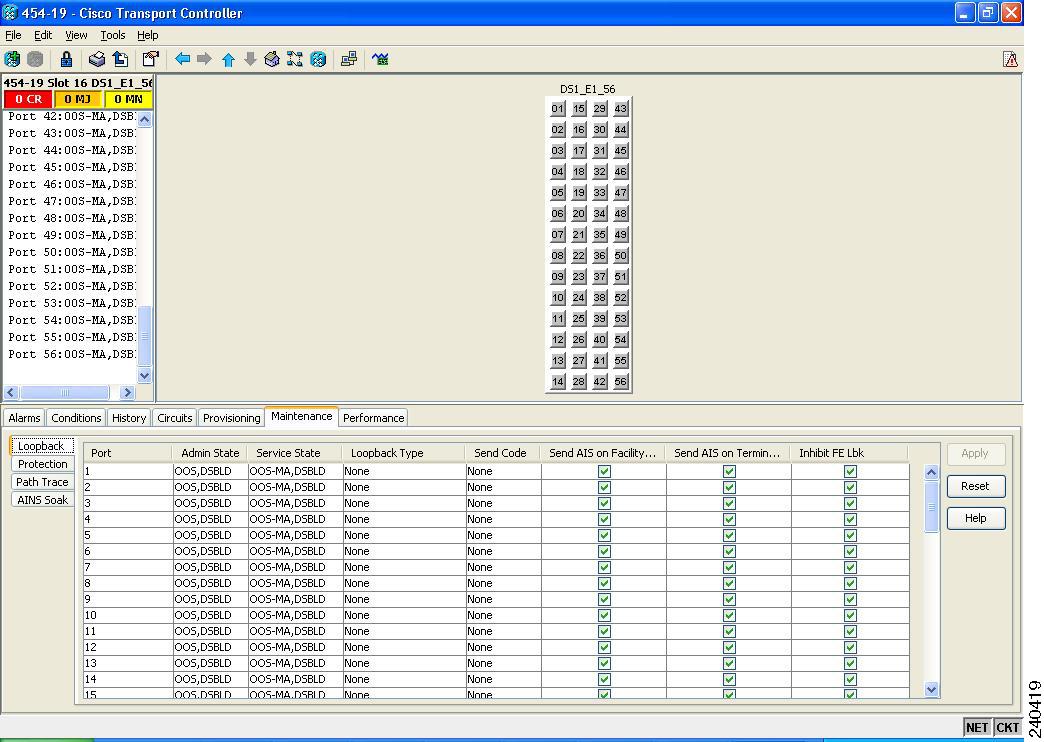
1.4.1 Far End Send Code
The Send Code column on the DS1-E1-56 card Maintenance tab only applies to OOS-MA, MT ports configured for ESF framing. The column allows the user to select No Code (the default) or line loop code. Selecting line loop code inserts a line loop activate Far End Loopcode in the ESF overhead transmitting to the connected facility. This code initiates a loopback from the facility to the ONS 15454. Selecting No Code sends a line-loop-deactivate Far End Loopcode to the connected equipment, which will remove the loopback.
1.4.2 DS1-E1-56 Inhibit Far End Loopback
DS1-E1-56 ports and transmuxed DS1 circuits initiate loopbacks when they receive Far End line loop codes. If the Inhibit FE Lbk check box is checked for a DS1 port, that port ignores any Far End line loop codes it receives and will not loop back. If you inhibit a DS1 port's far end loopback response, this DS1 port is not restricted from terminal or facility loopbacks.
1.5 Troubleshooting Optical Circuit Paths With Loopbacks
Facility (line) loopbacks, terminal (inward) loopbacks, and cross-connect loopback circuits are often used together to test the circuit path through the network or to logically isolate a fault. Performing a loopback test at each point along the circuit path systematically isolates possible points of failure.
The procedures in this section apply to OC-N cards. (For instructions on G-Series Ethernet cards, go to the "1.6 Troubleshooting Ethernet Circuit Paths With Loopbacks" section on page 1-71. For information about troubleshooting MXP and TXP cards, go to the "1.7 Troubleshooting MXP, TXP, or FC_MR-4 Circuit Paths With Loopbacks" section on page 1-90.) The example in this section tests an OC-N circuit on a three-node BLSR. Using a series of facility, cross-connect, and terminal (inward) loopbacks, the example scenario traces the circuit path, tests the possible failure points, and eliminates them. The logical progression contains seven network test procedures:
Note The test sequence for your circuits will differ according to the type of circuit and network topology.
1. A facility (line) loopback on the source-node OC-N port
2. A terminal (inward) loopback on the source-node OC-N port
3. A cross-connect loopback on the source OC-N port
4. A facility (line) loopback on the intermediate-node OC-N port
5. A terminal (inward) loopback on the intermediate-node OC-N port
6. A facility (line) loopback on the destination-node OC-N port
7. A terminal (inward) loopback on the destination-node OC-N port
Note Facility and terminal loopback tests require on-site personnel.
1.5.1 Perform a Facility (Line) Loopback on a Source-Node Optical Port
The facility (line) loopback test is performed on the node source port in the network circuit. In the testing situation used in this example, the source OC-N port in the source node. Completing a successful facility (line) loopback on this port isolates the OC-N port as a possible failure point. Figure 1-22 shows an example of a facility loopback on a circuit source OC-N port.
Figure 1-22 Facility (Line) Loopback on a Circuit Source OC-N Port

Performing a loopback on an in-service circuit is service-affecting.
Note Facility loopbacks require on-site personnel.
Complete the "Create the Facility (Line) Loopback on the Source Optical Port" procedure on page 1-50.
Create the Facility (Line) Loopback on the Source Optical Port
Step 1 Connect an optical test set to the port you are testing.
Note For specific procedures to connect, set up, and use the test set equipment, consult the manufacturer.
Use appropriate cabling to attach the Tx and Rx terminals of the optical test set to the port you are testing. The Tx and Rx terminals connect to the same port. Adjust the test set accordingly. (Refer to manufacturer instructions for test-set use.)
Step 2 In CTC node view, double-click the card to display the card view.
Step 3 Click the Maintenance > Loopback > Port tab.
Step 4 Choose OOS,MT from the Admin State column for the port being tested. If this is a multiport card, select the appropriate row for the desired port.
Step 5 Choose Facility (Line) from the Loopback Type column for the port being tested. If this is a multiport card, select the appropriate row for the desired port.
Step 6 Click Apply.
Step 7 Click Yes in the confirmation dialog box.
Note It is normal for the "LPBKFACILITY (OCN)" condition on page 2-155 or the "LPBKFACILITY (G1000)" condition on page 2-154 to appear during loopback setup. The condition clears when you remove the loopback.
Step 8 Complete the "Test and Clear the Facility (Line) Loopback Circuit" procedure on page 1-50.
Test and Clear the Facility (Line) Loopback Circuit
Step 1 If the test set is not already sending traffic, send test traffic on the loopback circuit.
Step 2 Examine the traffic received by the test set. Look for errors or any other signal information that the test set is capable of indicating.
Step 3 If the test set indicates a good circuit, no further testing is necessary with the facility loopback. Clear the facility (line) loopback:
a. Click the Maintenance > Loopback > Port tab.
b. Choose None from the Loopback Type column for the port being tested.
c. Choose the appropriate state (IS; OOS,DSBLD; OOS,MT; IS,AINS) from the Admin State column for the port being tested.
d. Click Apply.
e. Click Yes in the confirmation dialog box.
Step 4 Complete the "Test the OC-N Card" procedure on page 1-51.
Test the OC-N Card
Step 1 Complete the "Physically Replace a Traffic Card" procedure on page 2-242 for the suspected bad card and replace it with a known-good one.
Removing a card that currently carries traffic on one or more ports can cause a traffic hit. To avoid this, perform an external switch if a switch has not already occurred. Refer to the procedures in the
"2.10.2 Protection Switching, Lock Initiation, and Clearing" section on page 2-231. For more information, refer to the "Maintain the Node" chapter in the
Cisco ONS 15454 Procedure Guide.
Step 2 Resend test traffic on the loopback circuit with a known-good card installed.
Step 3 If the test set indicates a good circuit, the problem was probably the defective card. Return the defective card to Cisco through the RMA process. Contact Cisco Technical Support (1 800 553-2447).
Step 4 Complete the "Physically Replace a Traffic Card" procedure on page 2-242 for the faulty card.
Step 5 Clear the facility (line) loopback:
a. Click the Maintenance > Loopback > Port tab.
b. Choose None from the Loopback Type column for the port being tested.
c. Choose the appropriate state (IS; OOS,DSBLD; OOS,MT; IS,AINS) from the Admin State column for the port being tested.
d. Click Apply.
e. Click Yes in the confirmation dialog box.
Step 6 Complete the "1.5.2 Perform a Terminal (Inward) Loopback on a Source-Node Optical Port" procedure on page 1-51.
1.5.2 Perform a Terminal (Inward) Loopback on a Source-Node Optical Port
The terminal (inward) loopback test is performed on the source-node optical port. For the circuit in this example, it is the source OC-N port in the source node. You first create a bidirectional circuit that starts on the node destination optical port and loops back on the node source optical port. You then proceed with the terminal loopback test. Completing a successful terminal loopback to a node source port verifies that the circuit is good to the source port. Figure 1-23 shows an example of a terminal loopback on a source OC-N port.
Figure 1-23 Terminal (Inward) Loopback on a Source-Node OC-N Port

OC-N cards placed in terminal loopback state display an icon in the CTC graphical user interface (GUI), shown in Figure 1-24.
Figure 1-24 Terminal Loopback Indicator
Performing a loopback on an in-service circuit is service-affecting.
Note Terminal loopbacks require on-site personnel.
Complete the "Create the Terminal (Inward) Loopback on a Source-Node Optical Port" procedure on page 1-52.
Create the Terminal (Inward) Loopback on a Source-Node Optical Port
Step 1 Connect an optical test set to the port you are testing:
Note For specific procedures to connect, set up, and use the test set equipment, consult the manufacturer.
a. If you just completed the "1.5.1 Perform a Facility (Line) Loopback on a Source-Node Optical Port" procedure on page 1-49, leave the optical test set hooked up to the OC-N port in the source node.
b. If you are starting the current procedure without the optical test set hooked up to the source port, use appropriate cabling to attach the Tx and Rx terminals of the optical test set to the port you are testing. Both Tx and Rx connect to the same port.
c. Adjust the test set accordingly. (Refer to manufacturer instructions for test-set use.)
Step 2 Use CTC to set up the terminal (inward) loopback on the test port:
a. In node view, click the Circuits tab and click Create.
b. In the Circuit Creation dialog box, choose the type, such as STS, and number, such as 1.
c. Click Next.
d. In the next Circuit Creation dialog box, give the circuit an easily identifiable name such as OCN1toOCN2.
e. Leave the Bidirectional check box checked.
f. Click Next.
g. In the Circuit Creation source dialog box, select the same Node, card Slot, Port, and STS (or VT) where the test set is connected.
h. Click Next.
i. In the Circuit Creation destination dialog box, use the same Node, card Slot, Port, and STS (or VT) used for the source dialog box.
j. Click Next.
k. In the Circuit Creation circuit routing preferences dialog box, leave all defaults. Click Finish.
Step 3 Confirm that the newly created circuit appears on the Circuits tab list as a two-way circuit.
Note It is normal for the "LPBKTERMINAL (OCN)" condition on page 2-159 to appear during a loopback setup. The condition clears when you remove the loopback.
Step 4 Create the terminal (inward) loopback on the destination port being tested:
a. In node view, double-click the card that requires the loopback, such as the destination OC-N card in the source node.
b. Click the Maintenance > Loopback > Port tab.
c. Select OOS,MT from the Admin State column. If this is a multiport card, select the row appropriate for the desired port.
d. Select Terminal (Inward) from the Loopback Type column. If this is a multiport card, select the row appropriate for the desired port.
e. Click Apply.
f. Click Yes in the confirmation dialog box.
Step 5 Complete the "Test and Clear the Terminal Loopback Circuit" procedure on page 1-53.
Test and Clear the Terminal Loopback Circuit
Step 1 If the test set is not already sending traffic, send test traffic on the loopback circuit.
Step 2 Examine the test traffic being received by the test set. Look for errors or any other signal information that the test set is capable of indicating.
Step 3 If the test set indicates a good circuit, no further testing is necessary on the loopback circuit. Clear the terminal loopback state on the port:
a. Double-click the card in the source node with the terminal loopback.
b. Click the Maintenance > Loopback > Port tab.
c. Select None from the Loopback Type column for the port being tested.
d. Select the appropriate state (IS; OOS,DSBLD; OOS,MT; IS,AINS) in the Admin State column for the port being tested.
e. Click Apply.
f. Click Yes in the confirmation dialog box.
Step 4 Clear the terminal loopback circuit:
a. Click the Circuits tab.
b. Choose the loopback circuit being tested.
c. Click Delete.
d. Click Yes in the Delete Circuits dialog box. Do not check any check boxes.
Step 5 Complete the "Test the Optical Card" procedure on page 1-54.
Test the Optical Card
Step 1 Complete the "Physically Replace a Traffic Card" procedure on page 2-242 for the suspected bad card and replace it with a known-good one.
Step 2 Resend test traffic on the loopback circuit with a known-good card.
Step 3 If the test set indicates a good circuit, the problem was probably the defective card. Return the defective card to Cisco through the RMA process. Contact Cisco Technical Support (1 800 553-2447).
Step 4 Complete the "Physically Replace a Traffic Card" procedure on page 2-242 for the defective card.
Step 5 Clear the terminal loopback on the port before testing the next segment of the network circuit path:
a. Double-click the card in the source node with the terminal loopback.
b. Click the Maintenance > Loopback > Port tab.
c. Select None from the Loopback Type column for the port being tested.
d. Select the appropriate state (IS; OOS,DSBLD; OOS,MT; IS,AINS) in the Admin State column for the port being tested.
e. Click Apply.
f. Click Yes in the confirmation dialog box.
Step 6 Clear the terminal loopback circuit before testing the next segment of the network circuit path:
a. Click the Circuits tab.
b. Choose the loopback circuit being tested.
c. Click Delete.
d. Click Yes in the Delete Circuits dialog box. Do not check any check boxes.
Step 7 Complete the "1.5.3 Perform an XC Loopback on the Source Optical Port" procedure on page 1-54.
1.5.3 Perform an XC Loopback on the Source Optical Port
Note This procedure is only performed on OC-N cards and tests the cross-connect circuit connection.
Note You can perform an XC loopback on either the circuit source working or the protect port of a 1+1 protection group.
Note XC loopbacks do not require on-site personnel.
The XC loopback test occurs on the cross-connect card in a network circuit. Completing a successful XC loopback from an OC-N card through the cross-connect card eliminates the cross-connect card as the source of trouble for a faulty circuit. Figure 1-25 shows an example of an XC loopback path on a source OC-N port.
Figure 1-25 XC Loopback on a Source OC-N Port
Complete the "Create the XC Loopback on the Source-Node Optical Port" procedure on page 1-55.
Create the XC Loopback on the Source-Node Optical Port
Step 1 Connect an optical test set to the port you are testing:
Note For specific procedures to connect, set up, and use the test set equipment, consult the manufacturer.
a. If you just completed the "1.5.2 Perform a Terminal (Inward) Loopback on a Source-Node Optical Port" procedure on page 1-51, leave the optical test set hooked up to the source-node port.
b. If you are starting the current procedure without the optical test set hooked up to the source port, use appropriate cabling to attach the Tx and Rx terminals of the optical test set to the port you are testing. The Tx and Rx terminals connect to the same port.
Step 2 Adjust the test set accordingly. (Refer to manufacturer instructions for test-set use.)
Step 3 Use CTC to put the circuit being tested out of service:
a. In node view, click the Circuits tab.
b. Click the circuit and then click Edit.
c. In the Edit Circuit dialog box, click the State tab.
d. Choose OOS,MT from the Target Circuit Admin State drop-down list.
e. Click Apply.
f. Click Yes in the confirmation dialog box.
Step 4 Use CTC to set up the XC loopback on the circuit being tested:
a. In node view, double-click the OC-N card to display the card view.
b. Click the Maintenance > Loopback > SONET STS tab.
c. Click the check box in the XC Loopback column for the port being tested.
d. Click Apply.
e. Click Yes in the confirmation dialog box.
Step 5 Complete the "Test and Clear the XC Loopback Circuit" procedure on page 1-56.
Test and Clear the XC Loopback Circuit
Note This procedure is performed only on OC-N cards.
Step 1 If the test set is not already sending traffic, send test traffic on the loopback circuit.
Step 2 Examine the test traffic received by the test set. Look for errors or any other signal information that the test set is capable of indicating.
Step 3 If the test set indicates a good circuit, no further testing is necessary with the cross-connect. Clear the XC loopback:
a. In card view, click the Maintenance > Loopback > SONET STS tab.
b. Uncheck the check box in the XC Loopback column for the circuit being tested.
c. Click Apply.
d. Click Yes in the confirmation dialog box.
Step 4 Complete the "Test the Standby Cross-Connect Card" procedure on page 1-56.
Test the Standby Cross-Connect Card
Note This procedure is performed only on cross-connect cards.
Step 1 Perform a reset on the standby cross-connect card:
a. Determine the standby cross-connect card. On both the physical node and the CTC node view window, the standby cross-connect ACT/SBY LED is amber and the active card ACT/SBY LED is green.
b. Position the cursor over the standby cross-connect card.
c. Right-click and choose RESET CARD.
d. Click Yes in the confirmation dialog box.
Step 2 Initiate an external switching command (side switch) on the cross-connect cards before you retest the loopback circuit:
Cross-connect side switches, with the exception of side switches using XC-VXC-10G cards, are service-affecting. Any live traffic on any card in the node endures a hit of up to 50 ms. XC-VXC-10G side switches are errorless.
a. Determine the standby cross-connect card. On both the physical node and the CTC node view window, the standby cross-connect ACT/SBY LED is amber and the active card ACT/SBY LED is green.
b. In the node view, select the Maintenance > Cross-Connect > Cards tab.
c. In the Cross-Connect Cards area, click Switch.
d. Click Yes in the Confirm Switch dialog box.
Note After the active cross-connect goes into standby mode, the original standby card becomes active and its ACT/SBY LED turns green. The former active card becomes standby and its ACT/SBY LED turns amber.
Step 3 Resend test traffic on the loopback circuit.
The test traffic now travels through the alternate cross-connect card.
Step 4 If the test set indicates a faulty circuit, assume the cross-connect card is not causing the problem. Clear the XC loopback circuit:
a. Click the Circuits tab.
b. Choose the XC loopback circuit being tested.
c. Click Delete.
d. Click Yes in the Delete Circuits dialog box. Do not check any check boxes.
e. Confirm that the XC loopback circuit is deleted from the Circuits tab list. If the test set indicates a good circuit, the problem might be a defective cross-connect card.
Step 5 To confirm a defective original cross-connect card, complete the "Retest the Original Cross-Connect Card" procedure on page 1-57.
Retest the Original Cross-Connect Card
Note This procedure is performed only on OC-N and cross-connect cards.
Step 1 Initiate an external switching command (side switch) on the cross-connect cards.
a. Determine the standby cross-connect card. On both the physical node and the CTC node view window, the standby cross-connect ACT/SBY LED is amber and the active card ACT/SBY LED is green.
b. In node view, select the Maintenance > Cross-Connect > Cards tab.
c. In the Cross-Connect Cards area, click Switch.
d. Click Yes in the Confirm Switch dialog box.
Note After the active cross-connect goes into standby mode, the original standby card becomes active and its ACT/SBY LED turns green. The former active card becomes standby and its ACT/SBY LED turns amber.
Step 2 Resend test traffic on the loopback circuit.
Step 3 If the test set indicates a faulty circuit, the problem is probably the defective card. Return the defective card to Cisco through the RMA process. Contact Cisco Technical Support (1 800 553-2447) and proceed to Step 4. If the circuit is not shown to be faulty and the card is not shown to be defective, you are finished with testing.
Step 4 Complete the "Physically Replace an In-Service Cross-Connect Card" procedure on page 2-243 for the defective card.
Step 5 If the test set indicates a good circuit, the cross-connect card might have had a temporary problem that was cleared by the side switch. Clear the XC loopback circuit:
a. Click the Circuits tab.
b. Choose the XC loopback circuit being tested.
c. Click Delete.
d. Click Yes in the Delete Circuits dialog box. Do not check any check boxes.
Step 6 Complete the "1.5.4 Perform a Facility (Line) Loopback on an Intermediate-Node Optical Port" procedure on page 1-58.
1.5.4 Perform a Facility (Line) Loopback on an Intermediate-Node Optical Port
Performing the facility (line) loopback test on an intermediate port isolates whether this node is causing circuit failure. In the situation shown in Figure 1-26, the test is being performed on an intermediate OC-N port.
Figure 1-26 Facility (Line) Loopback Path to an Intermediate-Node OC-N Port

Performing a loopback on an in-service circuit is service-affecting.
Note Facility loopbacks require on-site personnel.
Complete the "Create a Facility (Line) Loopback on an Intermediate-Node Optical Port" procedure on page 1-58.
Create a Facility (Line) Loopback on an Intermediate-Node Optical Port
Step 1 Connect an optical test set to the port you are testing:
Note For specific procedures to connect, set up, and use the test set equipment, consult the manufacturer.
a. If you just completed the "1.5.3 Perform an XC Loopback on the Source Optical Port" procedure on page 1-54, leave the optical test set hooked up to the source-node port.
b. If you are starting the current procedure without the optical test set hooked up to the source port port, use appropriate cabling to attach the Tx and Rx terminals of the optical test set to the port you are testing. Both Tx and Rx connect to the same port.
Step 2 Adjust the test set accordingly. (Refer to manufacturer instructions for test-set use.)
Step 3 Use CTC to set up the facility (line) loopback on the test port:
a. In node view, click the Circuits tab and click Create.
b. In the Circuit Creation dialog box, choose the type, such as STS, and number, such as 1.
c. Click Next.
d. In the next Circuit Creation dialog box, give the circuit an easily identifiable name such as OCN1toOCN3.
e. Leave the Bidirectional check box checked.
f. Click Next.
g. In the Circuit Creation source dialog box, select the same Node, card Slot, Port, and STS (or VT) where the test set is connected.
h. Click Next.
i. In the Circuit Creation destination dialog box, use the same Node, card Slot, Port, and STS (or VT) used for the source dialog box.
j. Click Next.
k. In the Circuit Creation circuit routing preferences dialog box, leave all defaults. Click Finish.
Step 4 Confirm that the newly created circuit appears on the Circuits tab list as a two-way circuit.
Note It is normal for the "LPBKFACILITY (OCN)" condition on page 2-155 to appear during a loopback setup. The condition clears when you remove the loopback.
Step 5 Create the facility (line) loopback on the destination port being tested:
a. Go to the node view of the intermediate node:
•Choose View > Go To Other Node from the menu bar.
•Choose the node from the drop-down list in the Select Node dialog box and click OK.
b. In node view, double-click the intermediate-node card that requires the loopback.
c. Click the Maintenance > Loopback > Port tab.
d. Select OOS,MT from the Admin State column. If this is a multiport card, select the row appropriate for the desired port.
e. Select Facility (Line) from the Loopback Type column. If this is a multiport card, select the row appropriate for the desired port.
f. Click Apply.
g. Click Yes in the confirmation dialog box.
Step 6 Complete the "Test and Clear the Facility (Line) Loopback Circuit" procedure on page 1-60.
Test and Clear the Facility (Line) Loopback Circuit
Step 1 If the test set is not already sending traffic, send test traffic on the loopback circuit.
Step 2 Examine the traffic received by the test set. Look for errors or any other signal information that the test set is capable of indicating.
Step 3 If the test set indicates a good circuit, no further testing is necessary with the facility (line) loopback. Clear the facility loopback from the port:
a. Click the Maintenance > Loopback > Port tab.
b. Choose None from the Loopback Type column for the port being tested.
c. Choose the appropriate state (IS; OOS,DSBLD; OOS,MT; IS,AINS) from the Admin State column for the port being tested.
d. Click Apply.
e. Click Yes in the confirmation dialog box.
Step 4 Clear the facility (line) loopback circuit:
a. Click the Circuits tab.
b. Choose the loopback circuit being tested.
c. Click Delete.
d. Click Yes in the Delete Circuits dialog box. Do not check any check boxes.
Step 5 Complete the "Test the Optical Card" procedure on page 1-60.
Test the Optical Card
Step 1 Complete the "Physically Replace a Traffic Card" procedure on page 2-242 for the suspected bad card and replace it with a known-good one.
Removing a card that currently carries traffic on one or more ports can cause a traffic hit. To avoid this, perform an external switch if a switch has not already occurred. Refer to the procedures in the
"2.10.2 Protection Switching, Lock Initiation, and Clearing" section on page 2-231. For more information, refer to the "Maintain the Node" chapter in the
Cisco ONS 15454 Procedure Guide.
Step 2 Resend test traffic on the loopback circuit with a known-good card installed.
Step 3 If the test set indicates a good circuit, the problem was probably the defective card. Return the defective card to Cisco through the RMA process. Contact Cisco Technical Support (1 800 553-2447).
Step 4 Complete the "Physically Replace a Traffic Card" procedure on page 2-242 for the faulty card.
Step 5 Clear the facility (line) loopback from the port:
a. Click the Maintenance > Loopback > Port tab.
b. Choose None from the Loopback Type column for the port being tested.
c. Choose the appropriate state (IS; OOS,DSBLD; OOS,MT; IS,AINS) from the Admin State column for the port being tested.
d. Click Apply.
e. Click Yes in the confirmation dialog box.
Step 6 Clear the facility loopback circuit:
a. Click the Circuits tab.
b. Choose the loopback circuit being tested.
c. Click Delete.
d. Click Yes in the Delete Circuits dialog box. Do not check any check boxes.
Step 7 Complete the "1.5.5 Perform a Terminal (Inward) Loopback on Intermediate-Node Optical Ports" procedure on page 1-61.
1.5.5 Perform a Terminal (Inward) Loopback on Intermediate-Node Optical Ports
In the next troubleshooting test, you perform a terminal loopback on the intermediate-node port to isolate whether the destination port is causing circuit trouble. In the example situation in Figure 1-27, the terminal loopback is performed on an intermediate optical port in the circuit. You first create a bidirectional circuit that originates on the source-node optical port and loops back on the intermediate-node port. You then proceed with the terminal loopback test. If you successfully complete a terminal loopback on the node, this node is excluded from possible sources of circuit trouble.
Figure 1-27 Terminal Loopback Path to an Intermediate-Node OC-N Port

OC-N cards placed in facility loopback state display an icon, shown in Figure 1-28.
Figure 1-28 Facility Loopback Indicator
Performing a loopback on an in-service circuit is service-affecting.
Note Terminal loopbacks require on-site personnel.
Complete the "Create a Terminal Loopback on Intermediate-Node Optical Ports" procedure on page 1-62.
Create a Terminal Loopback on Intermediate-Node Optical Ports
Step 1 Connect an optical test set to the port you are testing:
Note For specific procedures to connect, set up, and use the test set equipment, consult the manufacturer.
a. If you just completed the "1.5.4 Perform a Facility (Line) Loopback on an Intermediate-Node Optical Port" section on page 1-58, leave the optical test set hooked up to the source-node port.
b. If you are starting the current procedure without the optical test set hooked up to the source port, use appropriate cabling to attach the Tx and Rx terminals of the optical test set to the port you are testing. Both Tx and Rx connect to the same port.
Step 2 Adjust the test set accordingly. (Refer to manufacturer instructions for test-set use.)
Step 3 Use CTC to set up the terminal (inward) loopback on the test port:
a. In node view, click the Circuits tab and click Create.
b. In the Circuit Creation dialog box, choose the type, such as STS, and number, such as 1.
c. Click Next.
d. In the next Circuit Creation dialog box, give the circuit an easily identifiable name such as OCN1toOCN4.
e. Leave the Bidirectional check box checked.
f. Click Next.
g. In the Circuit Creation source dialog box, select the same Node, card Slot, Port, and STS (or VT) where the test set is connected.
h. Click Next.
i. In the Circuit Creation destination dialog box, use the same Node, card Slot, Port, and STS (or VT) used for the source dialog box.
j. Click Next.
k. In the Circuit Creation circuit routing preferences dialog box, leave all defaults. Click Finish.
Step 4 Confirm that the newly created circuit appears on the Circuits tab list and that it is described in the Dir column as a two-way circuit.
Note It is normal for the "LPBKTERMINAL (OCN)" condition on page 2-159 to appear during a loopback setup. The condition clears when you remove the loopback.
Step 5 Create the terminal loopback on the destination port being tested:
a. Go to the node view of the intermediate node:
•Choose View > Go To Other Node from the menu bar.
•Choose the node from the drop-down list in the Select Node dialog box and click OK.
b. In node view, double-click the card that requires the loopback.
c. Click the Maintenance > Loopback > Port tab.
d. Select OOS,MT from the Admin State column. If this is a multiport card, select the row appropriate for the desired port.
e. Select Terminal (Inward) from the Loopback Type column. If this is a multiport card, select the row appropriate for the desired port.
f. Click Apply.
g. Click Yes in the confirmation dialog box.
Step 6 Complete the "Test and Clear the Optical Terminal Loopback Circuit" procedure on page 1-63.
Test and Clear the Optical Terminal Loopback Circuit
Step 1 If the test set is not already sending traffic, send test traffic on the loopback circuit.
Step 2 Examine the test traffic being received by the test set. Look for errors or any other signal information that the test set is capable of indicating.
Step 3 If the test set indicates a good circuit, no further testing is necessary on the loopback circuit. Clear the terminal loopback from the port:
a. Double-click the intermediate-node card with the terminal loopback to display the card view.
b. Click the Maintenance > Loopback > Port tab.
c. Select None from the Loopback Type column for the port being tested.
d. Select the appropriate state (IS; OOS,DSBLD; OOS,MT; IS,AINS) in the Admin State column for the port being tested.
e. Click Apply.
f. Click Yes in the confirmation dialog box.
Step 4 Clear the terminal loopback circuit:
a. Click the Circuits tab.
b. Choose the loopback circuit being tested.
c. Click Delete.
d. Click Yes in the Delete Circuits dialog box. Do not check any check boxes.
Step 5 Complete the "Test the Optical Card" procedure on page 1-64.
Test the Optical Card
Step 1 Complete the "Physically Replace a Traffic Card" procedure on page 2-242 for the suspected bad card and replace it with a known-good one.
Removing a card that currently carries traffic on one or more ports can cause a traffic hit. To avoid this, perform an external switch if a switch has not already occurred. Refer to the procedures in the
"2.10.2 Protection Switching, Lock Initiation, and Clearing" section on page 2-231. For more information, refer to the "Maintain the Node" chapter in the
Cisco ONS 15454 Procedure Guide.
Step 2 Resend test traffic on the loopback circuit with a known-good card.
Step 3 If the test set indicates a good circuit, the problem was probably the defective card. Return the defective card to Cisco through the RMA process. Contact Cisco Technical Support (1 800 553-2447).
Step 4 Complete the "Physically Replace a Traffic Card" procedure on page 2-242 for the defective card.
Step 5 Clear the terminal loopback on the port:
a. Double-click the source-node card with the terminal loopback.
b. Click the Maintenance > Loopback > Port tab.
c. Select None from the Loopback Type column for the port being tested.
d. Select the appropriate state (IS; OOS,DSBLD; OOS,MT; IS,AINS) in the Admin State column for the port being tested.
e. Click Apply.
f. Click Yes in the confirmation dialog box.
Step 6 Clear the terminal loopback circuit:
a. Click the Circuits tab.
b. Choose the loopback circuit being tested.
c. Click Delete.
d. Click Yes in the Delete Circuits dialog box. Do not check any check boxes.
Step 7 Complete the "1.5.6 Perform a Facility (Line) Loopback on a Destination-Node Optical Port" procedure on page 1-64.
1.5.6 Perform a Facility (Line) Loopback on a Destination-Node Optical Port
You perform a facility (line) loopback test at the destination port to determine whether this local port is the source of circuit trouble. The example in Figure 1-29 shows a facility loopback being performed on a destination-node OC-N port.
Figure 1-29 Facility (Line) Loopback Path to a Destination-Node OC-N Port

Performing a loopback on an in-service circuit is service-affecting.
Note Facility loopbacks require on-site personnel.
Complete the "Create the Facility (Line) Loopback on a Destination-Node Optical Port" procedure on page 1-65.
Create the Facility (Line) Loopback on a Destination-Node Optical Port
Step 1 Connect an optical test set to the port you are testing:
Note For specific procedures to connect, set up, and use the test set equipment, consult the manufacturer.
a. If you just completed the "1.5.5 Perform a Terminal (Inward) Loopback on Intermediate-Node Optical Ports" procedure on page 1-61, leave the optical test set hooked up to the source-node port.
b. If you are starting the current procedure without the optical test set hooked up to the source port, use appropriate cabling to attach the Tx and Rx terminals of the optical test set to the port you are testing. Both Tx and Rx connect to the same port.
Step 2 Adjust the test set accordingly. (Refer to manufacturer instructions for test-set use.)
Step 3 Use CTC to set up the hairpin circuit on the test port:
a. In node view, click the Circuits tab and click Create.
b. In the Circuit Creation dialog box, choose the type, such as STS, and number, such as 1.
c. Click Next.
d. In the next Circuit Creation dialog box, give the circuit an easily identifiable name such as OCN1toOCN5.
e. Leave the Bidirectional check box checked.
f. Click Next.
g. In the Circuit Creation source dialog box, select the same Node, card Slot, Port, and STS (or VT) where the test set is connected.
h. Click Next.
i. In the Circuit Creation destination dialog box, use the same Node, card Slot, Port, and STS (or VT) used for the source dialog box.
j. Click Next.
k. In the Circuit Creation circuit routing preferences dialog box, leave all defaults. Click Finish.
Step 4 Confirm that the newly created circuit appears on the Circuits tab list as a two-way circuit.
Note It is normal for the "LPBKFACILITY (OCN)" condition on page 2-155 to appear during a loopback setup. The condition clears when you remove the loopback.
Step 5 Create the facility (line) loopback on the destination port being tested:
a. Go to the node view of the destination node:
•Choose View > Go To Other Node from the menu bar.
•Choose the node from the drop-down list in the Select Node dialog box and click OK.
b. In node view, double-click the card that requires the loopback.
c. Click the Maintenance > Loopback > Port tab.
d. Select OOS,MT from the Admin State column. If this is a multiport card, select the row appropriate for the desired port.
e. Select Facility (Line) from the Loopback Type column. If this is a multiport card, select the row appropriate for the desired port.
f. Click Apply.
g. Click Yes in the confirmation dialog box.
Step 6 Complete the "Test and Clear the Optical Facility (Line) Loopback Circuit" procedure on page 1-66.
Test and Clear the Optical Facility (Line) Loopback Circuit
Step 1 If the test set is not already sending traffic, send test traffic on the loopback circuit.
Step 2 Examine the traffic received by the test set. Look for errors or any other signal information that the test set is capable of indicating.
Step 3 If the test set indicates a good circuit, no further testing is necessary with the facility loopback. Clear the facility (line) loopback from the port:
a. Click the Maintenance > Loopback > Port tab.
b. Choose None from the Loopback Type column for the port being tested.
c. Choose the appropriate state (IS; OOS,DSBLD; OOS,MT; IS,AINS) from the Admin State column for the port being tested.
d. Click Apply.
e. Click Yes in the confirmation dialog box.
Step 4 Clear the facility (line) loopback circuit:
a. Click the Circuits tab.
b. Choose the loopback circuit being tested.
c. Click Delete.
d. Click Yes in the Delete Circuits dialog box. Do not check any check boxes.
Step 5 Complete the "Test the Optical Card" procedure on page 1-67.
Test the Optical Card
Step 1 Complete the "Physically Replace a Traffic Card" procedure on page 2-242 for the suspected bad card and replace it with a known-good one.
Removing a card that currently carries traffic on one or more ports can cause a traffic hit. To avoid this, perform an external switch if a switch has not already occurred. Refer to the procedures in the
"2.10.2 Protection Switching, Lock Initiation, and Clearing" section on page 2-231. For more information, refer to the "Maintain the Node" chapter in the
Cisco ONS 15454 Procedure Guide.
Step 2 Resend test traffic on the loopback circuit with a known-good card installed.
Step 3 If the test set indicates a good circuit, the problem was probably the defective card. Return the defective card to Cisco through the RMA process. Contact Cisco Technical Support (1 800 553-2447).
Step 4 Complete the "Physically Replace a Traffic Card" procedure on page 2-242 for the faulty card.
Step 5 Clear the facility (line) loopback on the port:
a. Click the Maintenance > Loopback > Port tab.
b. Choose None from the Loopback Type column for the port being tested.
c. Choose the appropriate state (IS; OOS,DSBLD; OOS,MT; IS,AINS) from the Admin State column for the port being tested.
d. Click Apply.
e. Click Yes in the confirmation dialog box.
Step 6 Clear the facility loopback circuit:
a. Click the Circuits tab.
b. Choose the loopback circuit being tested.
c. Click Delete.
d. Click Yes in the Delete Circuits dialog box. Do not check any check boxes.
Step 7 Complete the "1.5.7 Perform a Terminal Loopback on a Destination-Node Optical Port" procedure on page 1-67.
1.5.7 Perform a Terminal Loopback on a Destination-Node Optical Port
The terminal loopback at the destination-node port is the final local hardware error elimination in the circuit troubleshooting process. If this test is completed successfully, you have verified that the circuit is good up to the destination port. The example in Figure 1-30 shows a terminal loopback on an intermediate-node destination OC-N port.
Figure 1-30 Terminal Loopback Path to a Destination-Node OC-N Port

Performing a loopback on an in-service circuit is service-affecting.
Note Terminal loopbacks require on-site personnel.
Complete the "Create the Terminal Loopback on a Destination-Node Optical Port" procedure on page 1-68.
Create the Terminal Loopback on a Destination-Node Optical Port
Step 1 Connect an optical test set to the port you are testing:
Note For specific procedures to connect, set up, and use the test set equipment, consult the manufacturer.
a. If you just completed the "1.5.6 Perform a Facility (Line) Loopback on a Destination-Node Optical Port" procedure on page 1-64, leave the optical test set hooked up to the source port.
b. If you are starting the current procedure without the optical test set hooked up to the source port, use appropriate cabling to attach the Tx and Rx terminals of the optical test set to the port you are testing. Both Tx and Rx connect to the same port.
Step 2 Adjust the test set accordingly. (Refer to manufacturer instructions for test-set use.)
Step 3 Use CTC to set up the terminal loopback on the test port:
a. In node view, click the Circuits tab and click Create.
b. In the Circuit Creation dialog box, choose the type, such as STS, and number, such as 1.
c. Click Next.
d. In the next Circuit Creation dialog box, give the circuit an easily identifiable name such as OCN1toOCN6.
e. Leave the Bidirectional check box checked.
f. Click Next.
g. In the Circuit Creation source dialog box, select the same Node, card Slot, Port, and STS (or VT) where the test set is connected.
h. Click Next.
i. In the Circuit Creation destination dialog box, use the same Node, card Slot, Port, and STS (or VT) used for the source dialog box.
j. Click Next.
k. In the Circuit Creation circuit routing preferences dialog box, leave all defaults. Click Finish.
Step 4 Confirm that the newly created circuit appears on the Circuits tab list as a two-way circuit.
Note It is normal for the "LPBKTERMINAL (OCN)" condition on page 2-159 to appear during a loopback setup. The condition clears when you remove the loopback.
Step 5 Create the terminal loopback on the destination port being tested:
a. Go to the node view of the destination node:
•Choose View > Go To Other Node from the menu bar.
•Choose the node from the drop-down list in the Select Node dialog box and click OK.
b. In node view, double-click the card that requires the loopback.
c. Click the Maintenance > Loopback > Port tab.
d. Select OOS,MT from the Admin State column. If this is a multiport card, select the row appropriate for the desired port.
e. Select Terminal (Inward) from the Loopback Type column. If this is a multiport card, select the row appropriate for the desired port.
f. Click Apply.
g. Click Yes in the confirmation dialog box.
Step 6 Complete the "Test and Clear the Optical Terminal Loopback Circuit" procedure on page 1-69.
Test and Clear the Optical Terminal Loopback Circuit
Step 1 If the test set is not already sending traffic, send test traffic on the loopback circuit.
Step 2 Examine the test traffic being received by the test set. Look for errors or any other signal information that the test set is capable of indicating.
Step 3 If the test set indicates a good circuit, no further testing is necessary on the loopback circuit. Clear the terminal loopback from the port:
a. Double-click the intermediate-node card with the terminal loopback.
b. Click the Maintenance > Loopback > Port tab.
c. Select None from the Loopback Type column for the port being tested.
d. Select the appropriate state (IS; OOS,DSBLD; OOS,MT; IS,AINS) in the Admin State column for the port being tested.
e. Click Apply.
f. Click Yes in the confirmation dialog box.
Step 4 Clear the terminal loopback circuit:
a. Click the Circuits tab.
b. Choose the loopback circuit being tested.
c. Click Delete.
d. Click Yes in the Delete Circuits dialog box. Do not check any check boxes.
The entire circuit path has now passed its comprehensive series of loopback tests. This circuit qualifies to carry live traffic.
Step 5 If the test set indicates a faulty circuit, the problem might be a faulty card.
Step 6 Complete the "Test the Optical Card" procedure on page 1-70.
Test the Optical Card
Step 1 Complete the "Physically Replace a Traffic Card" procedure on page 2-242 for the suspected bad card and replace it with a known-good card.
Removing a card that currently carries traffic on one or more ports can cause a traffic hit. To avoid this, perform an external switch if a switch has not already occurred. Refer to the procedures in the
"2.10.2 Protection Switching, Lock Initiation, and Clearing" section on page 2-231. For more information, refer to the "Maintain the Node" chapter in the
Cisco ONS 15454 Procedure Guide.
Step 2 Resend test traffic on the loopback circuit with a known-good card.
Step 3 If the test set indicates a good circuit, the problem was probably the defective card. Return the defective card to Cisco through the RMA process. Contact Cisco Technical Support (1 800 553-2447).
Step 4 Complete the "Physically Replace a Traffic Card" procedure on page 2-242 for the defective card.
Step 5 Clear the terminal loopback on the port:
a. Double-click the source-node card with the terminal loopback.
b. Click the Maintenance > Loopback > Port tab.
c. Select None from the Loopback Type column for the port being tested.
d. Select the appropriate state (IS; OOS,DSBLD; OOS,MT; IS,AINS) in the Admin State column for the port being tested.
e. Click Apply.
f. Click Yes in the confirmation dialog box.
Step 6 Clear the terminal loopback circuit:
a. Click the Circuits tab.
b. Choose the loopback circuit being tested.
c. Click Delete.
d. Click Yes in the Delete Circuits dialog box. Do not check any check boxes.
The entire circuit path has now passed its comprehensive series of loopback tests. This circuit qualifies to carry live traffic.
1.6 Troubleshooting Ethernet Circuit Paths With Loopbacks
Facility (line) loopbacks, terminal (inward) loopbacks, and cross-connect loopback circuits are often used together to test the circuit path through the network or to logically isolate a fault. Performing a loopback test at each point along the circuit path systematically isolates possible points of failure.
You can use these procedures on G-Series Ethernet cards and CE100T-8 cards but not on E-Series or ML-Series Ethernet cards. The example in this section tests a G-Series card circuit on a three-node BLSR. Using a series of facility (line) loopbacks and terminal (inward) loopbacks, the example scenario traces the circuit path, tests the possible failure points, and eliminates them. The logical progression contains six network test procedures:
Note The test sequence for your circuits will differ according to the type of circuit and network topology.
1. A facility (line) loopback on the source-node Ethernet port
2. A terminal (inward) loopback on the source-node Ethernet port
3. A facility (line) loopback on the intermediate-node Ethernet port
4. A terminal (inward) loopback on the intermediate-node Ethernet port
5. A facility (line) loopback on the destination-node Ethernet port
6. A terminal (inward) loopback on the destination-node Ethernet port
Note Facility and terminal loopback tests require on-site personnel.
1.6.1 Perform a Facility (Line) Loopback on a Source-Node Ethernet Port
The facility (line) loopback test is performed on the node source port in the network circuit. In the testing situation used in this example, the source G-Series port in the source node. Completing a successful facility (line) loopback on this port isolates the G-Series port as a possible failure point. Figure 1-22 shows an example of a facility loopback on a circuit source Ethernet port.
Note Facility (line) loopbacks are not available for Release 4.1 or earlier G-Series cards.
Note Facility loopbacks require on-site personnel.
Figure 1-31 Facility (Line) Loopback on a Circuit Source Ethernet Port

Performing a loopback on an in-service circuit is service-affecting.
Complete the "Create the Facility (Line) Loopback on the Source-Node Ethernet Port" procedure on page 1-72.
Create the Facility (Line) Loopback on the Source-Node Ethernet Port
Step 1 Connect an optical test set to the port you are testing.
Note For specific procedures to connect, set up, and use the test set equipment, consult the manufacturer.
Use appropriate cabling to attach the Tx and Rx terminals of the optical test set to the port you are testing. The Tx and Rx terminals connect to the same port.
Step 2 Adjust the test set accordingly. (Refer to manufacturer instructions for test-set use.)
Step 3 In CTC node view, double-click the card to display the card view.
Step 4 Click the Maintenance > Loopback tab.
Step 5 Choose OOS,MT from the Admin State column for the port being tested. If this is a multiport card, select the appropriate row for the desired port.
Step 6 Choose Facility (Line) from the Loopback Type column for the port being tested. If this is a multiport card, select the appropriate row for the desired port.
Step 7 Click Apply.
Step 8 Click Yes in the confirmation dialog box.
Note It is normal for the "LPBKFACILITY (G1000)" condition on page 2-154 to appear during loopback setup. The condition clears when you remove the loopback.
Step 9 Complete the "Test and Clear the Facility (Line) Loopback Circuit" procedure on page 1-73.
Test and Clear the Facility (Line) Loopback Circuit
Step 1 If the test set is not already sending traffic, send test traffic on the loopback circuit.
Step 2 Examine the traffic received by the test set. Look for errors or any other signal information that the test set is capable of indicating.
Step 3 If the test set indicates a good circuit, no further testing is necessary with the facility loopback. Clear the facility (line) loopback:
a. Click the Maintenance > Loopback tab.
b. Choose None from the Loopback Type column for the port being tested.
c. Choose the appropriate state (IS; OOS,DSBLD; OOS,MT) from the Admin State column for the port being tested.
d. Click Apply.
e. Click Yes in the confirmation dialog box.
Step 4 Complete the "Test the Ethernet Card" procedure on page 1-73.
Test the Ethernet Card
Step 1 Complete the "Physically Replace a Traffic Card" procedure on page 2-242 for the suspected bad card and replace it with a known-good one.
Removing a card that currently carries traffic on one or more ports can cause a traffic hit. To avoid this, perform an external switch if a switch has not already occurred. Refer to the procedures in the
"2.10.2 Protection Switching, Lock Initiation, and Clearing" section on page 2-231. For more information, refer to the "Maintain the Node" chapter in the
Cisco ONS 15454 Procedure Guide.
Step 2 Resend test traffic on the loopback circuit with a known-good card installed.
Step 3 If the test set indicates a good circuit, the problem was probably the defective card. Return the defective card to Cisco through the RMA process. Contact Cisco Technical Support (1 800 553-2447).
Step 4 Complete the "Physically Replace a Traffic Card" procedure on page 2-242 for the faulty card.
Step 5 Clear the facility (line) loopback:
a. Click the Maintenance > Loopback tab.
b. Choose None from the Loopback Type column for the port being tested.
c. Choose the appropriate state (IS; OOS,DSBLD; OOS,MT) from the Admin State column for the port being tested.
d. Click Apply.
e. Click Yes in the confirmation dialog box.
Step 6 Complete the "1.6.2 Perform a Terminal (Inward) Loopback on a Source-Node Ethernet Port" procedure on page 1-74.
1.6.2 Perform a Terminal (Inward) Loopback on a Source-Node Ethernet Port
The terminal (inward) loopback test is performed on the node source Ethernet port. For the circuit in this example, it is the source G-Series port in the source node. You first create a bidirectional circuit that starts on the node destination G-Series port and loops back on the node source G-Series port. You then proceed with the terminal loopback test. Completing a successful terminal loopback to a node source port verifies that the circuit is good to the source port. Figure 1-32 shows terminal loopback on a G-Series port.
Note Terminal (inward) loopbacks are not available for R4.0 and earlier G-Series cards.
Note Terminal loopbacks require on-site personnel.
Figure 1-32 Terminal (Inward) Loopback on a G-Series Port

Performing a loopback on an in-service circuit is service-affecting.
Complete the "Create the Terminal (Inward) Loopback on a Source-Node Ethernet Port" procedure on page 1-74.
Create the Terminal (Inward) Loopback on a Source-Node Ethernet Port
Step 1 Connect an optical test set to the port you are testing:
Note For specific procedures to connect, set up, and use the test set equipment, consult the manufacturer.
a. If you just completed the "1.6.1 Perform a Facility (Line) Loopback on a Source-Node Ethernet Port" procedure on page 1-71, leave the optical test set hooked up to the Ethernet port in the source node.
b. If you are starting the current procedure without the optical test set hooked up to the source port, use appropriate cabling to attach the Tx and Rx terminals of the optical test set to the port you are testing. Both Tx and Rx connect to the same port.
Step 2 Adjust the test set accordingly. (Refer to manufacturer instructions for test-set use.)
Step 3 Use CTC to set up the terminal (inward) loopback on the test port:
a. In node view, click the Circuits tab and click Create.
b. In the Circuit Creation dialog box, choose the type, such as STS, and number, such as 1.
c. Click Next.
d. In the next Circuit Creation dialog box, give the circuit an easily identifiable name such as G1K1toG1K2.
e. Leave the Bidirectional check box checked.
f. Click Next.
g. In the Circuit Creation source dialog box, select the same Node, card Slot, Port, and STS (or VT) where the test set is connected.
h. Click Next.
i. In the Circuit Creation destination dialog box, use the same Node, card Slot, Port, and STS (or VT) used for the source dialog box.
j. Click Next.
k. In the Circuit Creation circuit routing preferences dialog box, leave all defaults. Click Finish.
Step 4 Confirm that the newly created circuit appears on the Circuits tab list as a two-way circuit.
Note It is normal for the "LPBKTERMINAL (G1000)" condition on page 2-158 to appear during a loopback setup. The condition clears when you remove the loopback.
Step 5 Create the terminal (inward) loopback on the destination port being tested:
a. In node view, double-click the card that requires the loopback, such as the destination G-Series card in the source node.
b. Click the Maintenance > Loopback tab.
c. Select OOS,MT from the Admin State column. If this is a multiport card, select the row appropriate for the desired port.
d. Select Terminal (Inward) from the Loopback Type column. If this is a multiport card, select the row appropriate for the desired port.
e. Click Apply.
f. Click Yes in the confirmation dialog box.
Step 6 Complete the "Test and Clear the Ethernet Terminal Loopback Circuit" procedure on page 1-76.
Test and Clear the Ethernet Terminal Loopback Circuit
Step 1 If the test set is not already sending traffic, send test traffic on the loopback circuit.
Step 2 Examine the test traffic being received by the test set. Look for errors or any other signal information that the test set is capable of indicating.
Step 3 If the test set indicates a good circuit, no further testing is necessary on the loopback circuit. Clear the terminal loopback state on the port:
a. Double-click the card in the source node with the terminal loopback.
b. Click the Maintenance > Loopback tab.
c. Select None from the Loopback Type column for the port being tested.
d. Select the appropriate state (IS; OOS,DSBLD; OOS,MT) in the Admin State column for the port being tested.
e. Click Apply.
f. Click Yes in the confirmation dialog box.
Step 4 Clear the terminal loopback circuit:
a. Click the Circuits tab.
b. Choose the loopback circuit being tested.
c. Click Delete.
d. Click Yes in the Delete Circuits dialog box. Do not check any check boxes.
Step 5 Complete the "Test the Ethernet Card" procedure on page 1-76.
Test the Ethernet Card
Step 1 Complete the "Physically Replace a Traffic Card" procedure on page 2-242 for the suspected bad card and replace it with a known-good one.
Removing a card that currently carries traffic on one or more ports can cause a traffic hit. To avoid this, perform an external switch if a switch has not already occurred. Refer to the procedures in the
"2.10.2 Protection Switching, Lock Initiation, and Clearing" section on page 2-231. For more information, refer to the "Maintain the Node" chapter in the
Cisco ONS 15454 Procedure Guide.
Step 2 Resend test traffic on the loopback circuit with a known-good card.
Step 3 If the test set indicates a good circuit, the problem was probably the defective card. Return the defective card to Cisco through the RMA process. Contact Cisco Technical Support (1 800 553-2447).
Step 4 Complete the "Physically Replace a Traffic Card" procedure on page 2-242 for the defective card.
Step 5 Clear the terminal loopback on the port before testing the next segment of the network circuit path:
a. Double-click the card in the source node with the terminal loopback.
b. Click the Maintenance > Loopback tab.
c. Select None from the Loopback Type column for the port being tested.
d. Select the appropriate state (IS; OOS,DSBLD; OOS,MT) in the Admin State column for the port being tested.
e. Click Apply.
f. Click Yes in the confirmation dialog box.
Step 6 Clear the terminal loopback circuit before testing the next segment of the network circuit path:
a. Click the Circuits tab.
b. Choose the loopback circuit being tested.
c. Click Delete.
d. Click Yes in the Delete Circuits dialog box. Do not check any check boxes.
Step 7 Complete the "1.6.3 Create a Facility (Line) Loopback on an Intermediate-Node Ethernet Port" procedure on page 1-77.
1.6.3 Create a Facility (Line) Loopback on an Intermediate-Node Ethernet Port
Performing the facility (line) loopback test on an intermediate port isolates whether this node is causing circuit failure. It is shown in Figure 1-33.
Figure 1-33 Facility (Line) Loopback on an Intermediate-Node Ethernet Port

Performing a loopback on an in-service circuit is service-affecting.
Note Facility loopbacks require on-site personnel.
Complete the "Create a Facility (Line) Loopback on an Intermediate-Node Ethernet Port" procedure on page 1-78.
Create a Facility (Line) Loopback on an Intermediate-Node Ethernet Port
Step 1 Connect an optical test set to the port you are testing:
Note For specific procedures to connect, set up, and use the test set equipment, consult the manufacturer.
a. If you just completed the "1.6.2 Perform a Terminal (Inward) Loopback on a Source-Node Ethernet Port" procedure on page 1-74, leave the optical test set hooked up to the source-node port.
b. If you are starting the current procedure without the optical test set hooked up to the source port port, use appropriate cabling to attach the Tx and Rx terminals of the optical test set to the port you are testing. Both Tx and Rx connect to the same port.
Step 2 Adjust the test set accordingly. (Refer to manufacturer instructions for test-set use.)
Step 3 Use CTC to set up the facility (line) loopback on the test port:
a. In node view, click the Circuits tab and click Create.
b. In the Circuit Creation dialog box, choose the type, such as STS, and number, such as 1.
c. Click Next.
d. In the next Circuit Creation dialog box, give the circuit an easily identifiable name such as G1KtoG1K3.
e. Leave the Bidirectional check box checked.
f. Click Next.
g. In the Circuit Creation source dialog box, select the same Node, card Slot, Port, and STS (or VT) where the test set is connected.
h. Click Next.
i. In the Circuit Creation destination dialog box, use the same Node, card Slot, Port, and STS (or VT) used for the source dialog box.
j. Click Next.
k. In the Circuit Creation circuit routing preferences dialog box, leave all defaults. Click Finish.
Step 4 Confirm that the newly created circuit appears on the Circuits tab list as a two-way circuit.
Note It is normal for the "LPBKFACILITY (G1000)" condition on page 2-154 or the "LPBKFACILITY (OCN)" condition on page 2-155 to appear during a loopback setup. The condition clears when you remove the loopback.
Step 5 Create the facility (line) loopback on the destination port being tested:
a. Go to the node view of the intermediate node:
•Choose View > Go To Other Node from the menu bar.
•Choose the node from the drop-down list in the Select Node dialog box and click OK.
b. In node view, double-click the intermediate-node card that requires the loopback.
c. Click the Maintenance > Loopback tab.
d. Select OOS,MT from the Admin State column. If this is a multiport card, select the row appropriate for the desired port.
e. Select Facility (Line) from the Loopback Type column. If this is a multiport card, select the row appropriate for the desired port.
f. Click Apply.
g. Click Yes in the confirmation dialog box.
Step 6 Complete the "Test and Clear the Ethernet Facility (Line) Loopback Circuit" procedure on page 1-79.
Test and Clear the Ethernet Facility (Line) Loopback Circuit
Step 1 If the test set is not already sending traffic, send test traffic on the loopback circuit.
Step 2 Examine the traffic received by the test set. Look for errors or any other signal information that the test set is capable of indicating.
Step 3 If the test set indicates a good circuit, no further testing is necessary with the facility (line) loopback. Clear the facility loopback from the port:
a. Click the Maintenance > Loopback tab.
b. Choose None from the Loopback Type column for the port being tested.
c. Choose the appropriate state (IS; OOS,DSBLD; OOS,MT) from the Admin State column for the port being tested.
d. Click Apply.
e. Click Yes in the confirmation dialog box.
Step 4 Clear the facility (line) loopback circuit:
a. Click the Circuits tab.
b. Choose the loopback circuit being tested.
c. Click Delete.
d. Click Yes in the Delete Circuits dialog box. Do not check any check boxes.
Step 5 Complete the "Test the Ethernet Card" procedure on page 1-79.
Test the Ethernet Card
Step 1 Complete the "Physically Replace a Traffic Card" procedure on page 2-242 for the suspected bad card and replace it with a known-good one.
Removing a card that currently carries traffic on one or more ports can cause a traffic hit. To avoid this, perform an external switch if a switch has not already occurred. Refer to the procedures in the
"2.10.2 Protection Switching, Lock Initiation, and Clearing" section on page 2-231. For more information, refer to the "Maintain the Node" chapter in the
Cisco ONS 15454 Procedure Guide.
Step 2 Resend test traffic on the loopback circuit with a known-good card installed.
Step 3 If the test set indicates a good circuit, the problem was probably the defective card. Return the defective card to Cisco through the RMA process. Contact Cisco Technical Support (1 800 553-2447).
Step 4 Complete the "Physically Replace a Traffic Card" procedure on page 2-242 for the faulty card.
Step 5 Clear the facility (line) loopback from the port:
a. Click the Maintenance > Loopback tab.
b. Choose None from the Loopback Type column for the port being tested.
c. Choose the appropriate state (IS; OOS,DSBLD; OOS,MT) from the Admin State column for the port being tested.
d. Click Apply.
e. Click Yes in the confirmation dialog box.
Step 6 Clear the facility loopback circuit:
a. Click the Circuits tab.
b. Choose the loopback circuit being tested.
c. Click Delete.
d. Click Yes in the Delete Circuits dialog box. Do not check any check boxes.
Step 7 Complete the "1.6.4 Create a Terminal (Inward) Loopback on Intermediate-Node Ethernet Ports" procedure on page 1-80.
1.6.4 Create a Terminal (Inward) Loopback on Intermediate-Node Ethernet Ports
In the next troubleshooting test, you perform a terminal loopback on the intermediate-node port to isolate whether the destination port is causing circuit trouble. In the example situation in Figure 1-34, the terminal loopback is performed on an intermediate Ethernet port in the circuit. You first create a bidirectional circuit that originates on the source-node Ethernet port and loops back on the intermediate-node port. You then proceed with the terminal loopback test. If you successfully complete a terminal loopback on the node, this node is excluded from possible sources of circuit trouble.
Figure 1-34 Terminal Loopback on an Intermediate-Node Ethernet Port

Performing a loopback on an in-service circuit is service-affecting.
Note Terminal loopbacks require on-site personnel.
Complete the "Create a Terminal Loopback on Intermediate-Node Ethernet Ports" procedure on page 1-81.
Create a Terminal Loopback on Intermediate-Node Ethernet Ports
Step 1 Connect an optical test set to the port you are testing:
Note For specific procedures to connect, set up, and use the test set equipment, consult the manufacturer.
a. If you just completed the "1.6.3 Create a Facility (Line) Loopback on an Intermediate-Node Ethernet Port" procedure on page 1-77 for the Ethernet circuit, leave the optical test set hooked up to the intermediate-node port.
b. If you are starting the current procedure without the optical test set hooked up to the source port, use appropriate cabling to attach the Tx and Rx terminals of the optical test set to the port you are testing. Both Tx and Rx connect to the same port.
Step 2 Adjust the test set accordingly. (Refer to manufacturer instructions for test-set use.)
Step 3 Use CTC to set up the terminal (inward) loopback on the test port:
a. In node view, click the Circuits tab and click Create.
b. In the Circuit Creation dialog box, choose the type, such as STS, and number, such as 1.
c. Click Next.
d. In the next Circuit Creation dialog box, give the circuit an easily identifiable name such as G1K1toG1K4.
e. Leave the Bidirectional check box checked.
f. Click Next.
g. In the Circuit Creation source dialog box, select the same Node, card Slot, Port, and STS (or VT) where the test set is connected.
h. Click Next.
i. In the Circuit Creation destination dialog box, use the same Node, card Slot, Port, and STS (or VT) used for the source dialog box.
j. Click Next.
k. In the Circuit Creation circuit routing preferences dialog box, leave all defaults. Click Finish.
Step 4 Confirm that the newly created circuit appears on the Circuits tab list and that it is described in the Dir column as a two-way circuit.
Note It is normal for the "LPBKTERMINAL (G1000)" condition on page 2-158 to appear during a loopback setup. The condition clears when you remove the loopback.
Step 5 Create the terminal loopback on the destination port being tested:
a. Go to the node view of the intermediate node:
•Choose View > Go To Other Node from the menu bar.
•Choose the node from the drop-down list in the Select Node dialog box and click OK.
b. In node view, double-click the card that requires the loopback.
c. Click the Maintenance > Loopback tab.
d. Select OOS,MT from the Admin State column. If this is a multiport card, select the row appropriate for the desired port.
e. Select Terminal (Inward) from the Loopback Type column. If this is a multiport card, select the row appropriate for the desired port.
f. Click Apply.
g. Click Yes in the confirmation dialog box.
Step 6 Complete the "Test and Clear the Ethernet Terminal Loopback Circuit" procedure on page 1-82.
Test and Clear the Ethernet Terminal Loopback Circuit
Step 1 If the test set is not already sending traffic, send test traffic on the loopback circuit.
Step 2 Examine the test traffic being received by the test set. Look for errors or any other signal information that the test set is capable of indicating.
Step 3 If the test set indicates a good circuit, no further testing is necessary on the loopback circuit. Clear the terminal loopback from the port:
a. Double-click the intermediate-node card with the terminal loopback to display the card view.
b. Click the Maintenance > Loopback tab.
c. Select None from the Loopback Type column for the port being tested.
d. Select the appropriate state (IS; OOS,DSBLD; OOS,MT) in the Admin State column for the port being tested.
e. Click Apply.
f. Click Yes in the confirmation dialog box.
Step 4 Clear the terminal loopback circuit:
a. Click the Circuits tab.
b. Choose the loopback circuit being tested.
c. Click Delete.
d. Click Yes in the Delete Circuits dialog box. Do not check any check boxes.
Step 5 Complete the "Test the Ethernet Card" procedure on page 1-83.
Test the Ethernet Card
Step 1 Complete the "Physically Replace a Traffic Card" procedure on page 2-242 for the suspected bad card and replace it with a known-good one.
Removing a card that currently carries traffic on one or more ports can cause a traffic hit. To avoid this, perform an external switch if a switch has not already occurred. Refer to the procedures in the
"2.10.2 Protection Switching, Lock Initiation, and Clearing" section on page 2-231. For more information, refer to the "Maintain the Node" chapter in the
Cisco ONS 15454 Procedure Guide.
Step 2 Resend test traffic on the loopback circuit with a known-good card.
Step 3 If the test set indicates a good circuit, the problem was probably the defective card. Return the defective card to Cisco through the RMA process. Contact Cisco Technical Support (1 800 553-2447).
Step 4 Complete the "Physically Replace a Traffic Card" procedure on page 2-242 for the defective card.
Step 5 Clear the terminal loopback on the port:
a. Double-click the source-node card with the terminal loopback.
b. Click the Maintenance > Loopback tab.
c. Select None from the Loopback Type column for the port being tested.
d. Select the appropriate state (IS; OOS,DSBLD; OOS,MT) in the Admin State column for the port being tested.
e. Click Apply.
f. Click Yes in the confirmation dialog box.
Step 6 Clear the terminal loopback circuit:
a. Click the Circuits tab.
b. Choose the loopback circuit being tested.
c. Click Delete.
d. Click Yes in the Delete Circuits dialog box. Do not check any check boxes.
Step 7 Complete the "1.6.5 Perform a Facility (Line) Loopback on a Destination-Node Ethernet Port" procedure on page 1-83.
1.6.5 Perform a Facility (Line) Loopback on a Destination-Node Ethernet Port
You perform a facility (line) loopback test at the destination port to determine whether this local port is the source of circuit trouble. The example in Figure 1-35 shows a facility loopback being performed on an Ethernet port.
Figure 1-35 Facility (Line) Loopback on a Destination-Node Ethernet Port

Performing a loopback on an in-service circuit is service-affecting.
Note Facility loopbacks require on-site personnel.
Complete the "Create the Facility (Line) Loopback on a Destination-Node Ethernet Port" procedure on page 1-84.
Create the Facility (Line) Loopback on a Destination-Node Ethernet Port
Step 1 Connect an optical test set to the port you are testing:
Note For specific procedures to connect, set up, and use the test set equipment, consult the manufacturer.
a. If you just completed the "1.6.4 Create a Terminal (Inward) Loopback on Intermediate-Node Ethernet Ports" section on page 1-80, leave the optical test set hooked up to the source-node port.
b. If you are starting the current procedure without the optical test set hooked up to the source port, use appropriate cabling to attach the Tx and Rx terminals of the optical test set to the port you are testing. Both Tx and Rx connect to the same port.
Step 2 Adjust the test set accordingly. (Refer to manufacturer instructions for test-set use.)
Step 3 Use CTC to set up the hairpin circuit on the test port:
a. In node view, click the Circuits tab and click Create.
b. In the Circuit Creation dialog box, choose the type, such as STS, and number, such as 1.
c. Click Next.
d. In the next Circuit Creation dialog box, give the circuit an easily identifiable name such as G1K1toG1K5.
e. Leave the Bidirectional check box checked.
f. Click Next.
g. In the Circuit Creation source dialog box, select the same Node, card Slot, Port, and STS (or VT) where the test set is connected.
h. Click Next.
i. In the Circuit Creation destination dialog box, use the same Node, card Slot, Port, and STS (or VT) used for the source dialog box.
j. Click Next.
k. In the Circuit Creation circuit routing preferences dialog box, leave all defaults. Click Finish.
Step 4 Confirm that the newly created circuit appears on the Circuits tab list as a two-way circuit.
Note It is normal for the "LPBKFACILITY (G1000)" condition on page 2-154 to appear during a loopback setup. The condition clears when you remove the loopback.
Step 5 Create the facility (line) loopback on the destination port being tested:
a. Go to the node view of the destination node:
•Choose View > Go To Other Node from the menu bar.
•Choose the node from the drop-down list in the Select Node dialog box and click OK.
b. In node view, double-click the card that requires the loopback.
c. Click the Maintenance > Loopback tab.
d. Select OOS,MT from the Admin State column. If this is a multiport card, select the row appropriate for the desired port.
e. Select Facility (Line) from the Loopback Type column. If this is a multiport card, select the row appropriate for the desired port.
f. Click Apply.
g. Click Yes in the confirmation dialog box.
Step 6 Complete the "Test and Clear the Ethernet Facility (Line) Loopback Circuit" procedure on page 1-85.
Test and Clear the Ethernet Facility (Line) Loopback Circuit
Step 1 If the test set is not already sending traffic, send test traffic on the loopback circuit.
Step 2 Examine the traffic received by the test set. Look for errors or any other signal information that the test set is capable of indicating.
Step 3 If the test set indicates a good circuit, no further testing is necessary with the facility loopback. Clear the facility (line) loopback from the port:
a. Click the Maintenance > Loopback tab.
b. Choose None from the Loopback Type column for the port being tested.
c. Choose the appropriate state (IS; OOS,DSBLD; OOS,MT) from the Admin State column for the port being tested.
d. Click Apply.
e. Click Yes in the confirmation dialog box.
Step 4 Clear the facility (line) loopback circuit:
a. Click the Circuits tab.
b. Choose the loopback circuit being tested.
c. Click Delete.
d. Click Yes in the Delete Circuits dialog box. Do not check any check boxes.
Step 5 Complete the "Test the Ethernet Card" procedure on page 1-86.
Test the Ethernet Card
Step 1 Complete the "Physically Replace a Traffic Card" procedure on page 2-242 for the suspected bad card and replace it with a known-good one.
Removing a card that currently carries traffic on one or more ports can cause a traffic hit. To avoid this, perform an external switch if a switch has not already occurred. Refer to the procedures in the
"2.10.2 Protection Switching, Lock Initiation, and Clearing" section on page 2-231. For more information, refer to the "Maintain the Node" chapter in the
Cisco ONS 15454 Procedure Guide.
Step 2 Resend test traffic on the loopback circuit with a known-good card installed.
Step 3 If the test set indicates a good circuit, the problem was probably the defective card. Return the defective card to Cisco through the RMA process. Contact Cisco Technical Support (1 800 553-2447).
Step 4 Complete the "Physically Replace a Traffic Card" procedure on page 2-242 for the faulty card.
Step 5 Clear the facility (line) loopback on the port:
a. Click the Maintenance > Loopback tab.
b. Choose None from the Loopback Type column for the port being tested.
c. Choose the appropriate state (IS; OOS,DSBLD; OOS,MT) from the Admin State column for the port being tested.
d. Click Apply.
e. Click Yes in the confirmation dialog box.
Step 6 Clear the facility loopback circuit:
a. Click the Circuits tab.
b. Choose the loopback circuit being tested.
c. Click Delete.
d. Click Yes in the Delete Circuits dialog box. Do not check any check boxes.
Step 7 Complete the "1.6.6 Perform a Terminal Loopback on a Destination-Node Ethernet Port" procedure on page 1-86.
1.6.6 Perform a Terminal Loopback on a Destination-Node Ethernet Port
The terminal loopback at the destination-node port is the final local hardware error elimination in the circuit troubleshooting process. If this test is completed successfully, you have verified that the circuit is good up to the destination port. The example in Figure 1-30 shows a terminal loopback on an intermediate-node destination Ethernet port.
Figure 1-36 Terminal Loopback on a Destination-Node Ethernet Port

Performing a loopback on an in-service circuit is service-affecting.
Note Terminal loopbacks require on-site personnel.
Complete the "Create the Terminal Loopback on a Destination-Node Ethernet Port" procedure on page 1-87.
Create the Terminal Loopback on a Destination-Node Ethernet Port
Step 1 Connect an optical test set to the port you are testing:
Note For specific procedures to connect, set up, and use the test set equipment, consult the manufacturer.
a. If you just completed the "1.6.5 Perform a Facility (Line) Loopback on a Destination-Node Ethernet Port" procedure on page 1-83, leave the optical test set hooked up to the source port.
b. If you are starting the current procedure without the optical test set hooked up to the source port, use appropriate cabling to attach the Tx and Rx terminals of the optical test set to the port you are testing. Both Tx and Rx connect to the same port.
Step 2 Adjust the test set accordingly. (Refer to manufacturer instructions for test-set use.)
Step 3 Use CTC to set up the terminal loopback on the test port:
a. In node view, click the Circuits tab and click Create.
b. In the Circuit Creation dialog box, choose the type, such as STS, and number, such as 1.
c. Click Next.
d. In the next Circuit Creation dialog box, give the circuit an easily identifiable name such as G1K1toG1K6.
e. Leave the Bidirectional check box checked.
f. Click Next.
g. In the Circuit Creation source dialog box, select the same Node, card Slot, Port, and STS (or VT) where the test set is connected.
h. Click Next.
i. In the Circuit Creation destination dialog box, use the same Node, card Slot, Port, and STS (or VT) used for the source dialog box.
j. Click Next.
k. In the Circuit Creation circuit routing preferences dialog box, leave all defaults. Click Finish.
Step 4 Confirm that the newly created circuit appears on the Circuits tab list as a two-way circuit.
Note It is normal for the "LPBKTERMINAL (G1000)" condition on page 2-158 to appear during a loopback setup. The condition clears when you remove the loopback.
Step 5 Create the terminal loopback on the destination port being tested:
a. Go to the node view of the destination node:
•Choose View > Go To Other Node from the menu bar.
•Choose the node from the drop-down list in the Select Node dialog box and click OK.
b. In node view, double-click the card that requires the loopback.
c. Click the Maintenance > Loopback tab.
d. Select OOS,MT from the Admin State column. If this is a multiport card, select the row appropriate for the desired port.
e. Select Terminal (Inward) from the Loopback Type column. If this is a multiport card, select the row appropriate for the desired port.
f. Click Apply.
g. Click Yes in the confirmation dialog box.
Step 6 Complete the "Test and Clear the Ethernet Terminal Loopback Circuit" procedure on page 1-88.
Test and Clear the Ethernet Terminal Loopback Circuit
Step 1 If the test set is not already sending traffic, send test traffic on the loopback circuit.
Step 2 Examine the test traffic being received by the test set. Look for errors or any other signal information that the test set is capable of indicating.
Step 3 If the test set indicates a good circuit, no further testing is necessary on the loopback circuit. Clear the terminal loopback from the port:
a. Double-click the intermediate-node card with the terminal loopback.
b. Click the Maintenance > Loopback tab.
c. Select None from the Loopback Type column for the port being tested.
d. Select the appropriate state (IS; OOS,DSBLD; OOS,MT) in the Admin State column for the port being tested.
e. Click Apply.
f. Click Yes in the confirmation dialog box.
Step 4 Clear the terminal loopback circuit:
a. Click the Circuits tab.
b. Choose the loopback circuit being tested.
c. Click Delete.
d. Click Yes in the Delete Circuits dialog box. Do not check any check boxes.
The entire circuit path has now passed its comprehensive series of loopback tests. This circuit qualifies to carry live traffic.
Step 5 If the test set indicates a faulty circuit, the problem might be a faulty card.
Step 6 Complete the "Test the Ethernet Card" procedure on page 1-89.
Test the Ethernet Card
Step 1 Complete the "Physically Replace a Traffic Card" procedure on page 2-242 for the suspected bad card and replace it with a known-good card.
Removing a card that currently carries traffic on one or more ports can cause a traffic hit. To avoid this, perform an external switch if a switch has not already occurred. Refer to the procedures in the
"2.10.2 Protection Switching, Lock Initiation, and Clearing" section on page 2-231. For more information, refer to the "Maintain the Node" chapter in the
Cisco ONS 15454 Procedure Guide.
Step 2 Resend test traffic on the loopback circuit with a known-good card.
Step 3 If the test set indicates a good circuit, the problem was probably the defective card. Return the defective card to Cisco through the RMA process. Contact Cisco Technical Support (1 800 553-2447).
Step 4 Complete the "Physically Replace a Traffic Card" procedure on page 2-242 for the defective card.
Step 5 Clear the terminal loopback on the port:
a. Double-click the source-node card with the terminal loopback.
b. Click the Maintenance > Loopback tab.
c. Select None from the Loopback Type column for the port being tested.
d. Select the appropriate state (IS; OOS,DSBLD; OOS,MT) in the Admin State column for the port being tested.
e. Click Apply.
f. Click Yes in the confirmation dialog box.
Step 6 Clear the terminal loopback circuit:
a. Click the Circuits tab.
b. Choose the loopback circuit being tested.
c. Click Delete.
d. Click Yes in the Delete Circuits dialog box. Do not check any check boxes.
The entire circuit path has now passed its comprehensive series of loopback tests. This circuit qualifies to carry live traffic.
1.7 Troubleshooting MXP, TXP, or FC_MR-4 Circuit Paths With Loopbacks
Facility (line) loopbacks, terminal (inward) loopbacks, and cross-connect loopback circuits are often used together to test the circuit path through the network or to logically isolate a fault. Performing a loopback test at each point along the circuit path systematically isolates possible points of failure. MXP/TXP/FC_MR-4 loopback tests differ from electrical, optical, and Ethernet testing in that loopback testing does not require circuit creation. MXP, TXP, and FC_MR-4 client ports are statically mapped to the trunk ports so no signal needs to traverse the cross-connect card (in a circuit) to test the loopback.
You can use these procedures on transponder cards (TXP, TXPP), muxponder cards (MXP, MXPP), and fibre channel data storage (FC_MR-4) cards. The example in this section tests an MXP/TXP/FC_MR-4 circuit on a three-node BLSR. Using a series of facility (line) loopbacks and terminal (inward) loopbacks, the example scenario traces the circuit path, tests the possible failure points, and eliminates them. The logical progression contains seven network test procedures:
Note MXP/TXP/FC_MR-4 card client ports do not appear in the Maintenance > Loopback tab unless they have been provisioned. Do this in the card view Provisioning > Pluggable Port Modules tab. For information about provisioning client ports, refer to the Cisco ONS 15454 Procedure Guide.
Note The test sequence for your circuits will differ according to the type of circuit and network topology.
1. A facility (line) loopback on the source-node MXP/TXP/FC_MR-4 port
2. A terminal (inward) loopback on the source-node MXP/TXP/FC_MR-4 port
3. A facility (line) loopback on the intermediate-node MXP/TXP/FC_MR-4 port
4. A terminal (inward) loopback on the intermediate-node MXP/TXP/FC_MR-4 port
5. A facility (line) loopback on the destination-node MXP/TXP/FC_MR-4 port
6. A terminal (inward) loopback on the destination-node MXP/TXP/FC_MR-4 port
Note Facility, hairpin, and terminal loopback tests require on-site personnel.
1.7.1 Perform a Facility (Line) Loopback on a Source-Node MXP/TXP/FC_MR-4 Port
The facility (line) loopback test is performed on the node source port in the network circuit. In the testing situation used in this example, the source muxponder or transponder port in the source node. Completing a successful facility (line) loopback on this port isolates the MXP/TXP/FC_MR-4 port as a possible failure point. Figure 1-37 shows an example of a facility loopback on a circuit source MXP/TXP/FC_MR-4 port.
Figure 1-37 Facility (Line) Loopback on a Circuit Source MXP/TXP/FC_MR-4 Port

Performing a loopback on an in-service circuit is service-affecting.
Note Facility loopbacks require on-site personnel.
Complete the "Create the Facility (Line) Loopback on the Source-Node MXP/TXP/FC_MR-4 Port" procedure on page 1-91.
Create the Facility (Line) Loopback on the Source-Node MXP/TXP/FC_MR-4 Port
Step 1 Connect an optical test set to the port you are testing.
Note For specific procedures to connect, set up, and use the test set equipment, consult the manufacturer.
Use appropriate cabling to attach the Tx and Rx terminals of the optical test set to the port you are testing. The Tx and Rx terminals connect to the same port.
Step 2 Adjust the test set accordingly. (Refer to manufacturer instructions for test-set use.)
Step 3 In CTC node view, double-click the card to display the card view.
Step 4 Click the Maintenance > Loopback tab.
Step 5 Choose OOS,MT from the Admin State column for the port being tested. If this is a multiport card, select the appropriate row for the desired port.
Step 6 Choose Facility (Line) from the Loopback Type column for the port being tested. If this is a multiport card, select the appropriate row for the desired port.
Step 7 Click Apply.
Step 8 Click Yes in the confirmation dialog box.
Note It is normal for the "LPBKFACILITY (OCN)" condition on page 2-155 or the "LPBKFACILITY (G1000)" condition on page 2-154 to appear during loopback setup. The condition clears when you remove the loopback.
Step 9 Complete the "Test and Clear the MXP/TXP/FC_MR-4 Facility (Line) Loopback Circuit" procedure on page 1-92.
Test and Clear the MXP/TXP/FC_MR-4 Facility (Line) Loopback Circuit
Step 1 If the test set is not already sending traffic, send test traffic on the loopback circuit.
Step 2 Examine the traffic received by the test set. Look for errors or any other signal information that the test set is capable of indicating.
Step 3 If the test set indicates a good circuit, no further testing is necessary with the facility loopback. Clear the facility (line) loopback:
a. Click the Maintenance > Loopback tab.
b. Choose None from the Loopback Type column for the port being tested.
c. Choose the appropriate state (IS; OOS,DSBLD; OOS,MT; IS,AINS) from the Admin State column for the port being tested.
d. Click Apply.
e. Click Yes in the confirmation dialog box.
Step 4 Complete the "Test the MXP/TXP/FC_MR-4 Card" procedure on page 1-92.
Test the MXP/TXP/FC_MR-4 Card
Step 1 Complete the "Physically Replace a Traffic Card" procedure on page 2-242 for the suspected bad card and replace it with a known-good one.
Removing a card that currently carries traffic on one or more ports can cause a traffic hit. To avoid this, perform an external switch if a switch has not already occurred. Refer to the procedures in the
"2.10.2 Protection Switching, Lock Initiation, and Clearing" section on page 2-231. For more information, refer to the "Maintain the Node" chapter in the
Cisco ONS 15454 Procedure Guide.
Step 2 Resend test traffic on the loopback circuit with a known-good card installed.
Step 3 If the test set indicates a good circuit, the problem was probably the defective card. Return the defective card to Cisco through the RMA process. Contact Cisco Technical Support (1 800 553-2447).
Step 4 Complete the "Physically Replace a Traffic Card" procedure on page 2-242 for the faulty card.
Step 5 Clear the facility (line) loopback:
a. Click the Maintenance > Loopback tab.
b. Choose None from the Loopback Type column for the port being tested.
c. Choose the appropriate state (IS; OOS,DSBLD; OOS,MT; IS,AINS) from the Admin State column for the port being tested.
d. Click Apply.
e. Click Yes in the confirmation dialog box.
Step 6 Complete the "1.7.2 Perform a Terminal (Inward) Loopback on a Source-Node MXP/TXP/FC_MR-4 Port" procedure on page 1-93.
1.7.2 Perform a Terminal (Inward) Loopback on a Source-Node MXP/TXP/FC_MR-4 Port
The terminal (inward) loopback test is performed on the node source MXP/TXP/FC_MR-4 muxponder or transponder port. For the circuit in this example, it is the source MXP port in the source node. Completing a successful terminal loopback to a node source port verifies that the circuit is good to the source port. Figure 1-38 shows an example of a terminal loopback on a source MXP/TXP/FC_MR-4 port.
Figure 1-38 Terminal (Inward) Loopback on a Source-Node MXP/TXP/FC_MR-4 Port

Performing a loopback on an in-service circuit is service-affecting.
Note Terminal loopbacks require on-site personnel.
Complete the "Create the Terminal (Inward) Loopback on a Source-Node MXP/TXP/FC_MR-4 Port" procedure on page 1-93.
Create the Terminal (Inward) Loopback on a Source-Node MXP/TXP/FC_MR-4 Port
Step 1 Connect an optical test set to the port you are testing:
Note For specific procedures to connect, set up, and use the test set equipment, consult the manufacturer.
a. If you just completed the "1.7.1 Perform a Facility (Line) Loopback on a Source-Node MXP/TXP/FC_MR-4 Port" procedure on page 1-90, leave the optical test set hooked up to the MXP or TXP port in the source node.
b. If you are starting the current procedure without the optical test set hooked up to the source port, use appropriate cabling to attach the Tx and Rx terminals of the optical test set to the port you are testing. Both Tx and Rx connect to the same port.
Step 2 Adjust the test set accordingly. (Refer to manufacturer instructions for test-set use.)
Step 3 In node view, double-click the card that requires the loopback, such as the destination OC-N card in the source node.
Step 4 Click the Maintenance > Loopback tab.
Step 5 Select OOS,MT from the Admin State column. If this is a multiport card, select the row appropriate for the desired port.
Step 6 Select Terminal (Inward) from the Loopback Type column. If this is a multiport card, select the row appropriate for the desired port.
Step 7 Click Apply.
Step 8 Click Yes in the confirmation dialog box.
Step 9 Complete the "Test and Clear the MXP/TXP/FC_MR-4 Port Terminal Loopback Circuit" procedure on page 1-94.
Test and Clear the MXP/TXP/FC_MR-4 Port Terminal Loopback Circuit
Step 1 If the test set is not already sending traffic, send test traffic on the loopback circuit.
Step 2 Examine the test traffic being received by the test set. Look for errors or any other signal information that the test set is capable of indicating.
Step 3 If the test set indicates a good circuit, no further testing is necessary on the loopback circuit. Clear the terminal loopback state on the port:
a. Double-click the card in the source node with the terminal loopback.
b. Click the Maintenance > Loopback tab.
c. Select None from the Loopback Type column for the port being tested.
d. Select the appropriate state (IS; OOS,DSBLD; OOS,MT; IS,AINS) in the Admin State column for the port being tested.
e. Click Apply.
f. Click Yes in the confirmation dialog box.
Step 4 Complete the "Test the MXP/TXP/FC_MR-4 Card" procedure on page 1-94.
Test the MXP/TXP/FC_MR-4 Card
Step 1 Complete the "Physically Replace a Traffic Card" procedure on page 2-242 for the suspected bad card and replace it with a known-good one.
Removing a card that currently carries traffic on one or more ports can cause a traffic hit. To avoid this, perform an external switch if a switch has not already occurred. Refer to the procedures in the
"2.10.2 Protection Switching, Lock Initiation, and Clearing" section on page 2-231. For more information, refer to the "Maintain the Node" chapter in the
Cisco ONS 15454 Procedure Guide.
Step 2 Resend test traffic on the loopback circuit with a known-good card.
Step 3 If the test set indicates a good circuit, the problem was probably the defective card. Return the defective card to Cisco through the RMA process. Contact Cisco Technical Support (1 800 553-2447).
Step 4 Complete the "Physically Replace a Traffic Card" procedure on page 2-242 for the defective card.
Step 5 Clear the terminal loopback on the port before testing the next segment of the network circuit path:
a. Double-click the card in the source node with the terminal loopback.
b. Click the Maintenance > Loopback tab.
c. Select None from the Loopback Type column for the port being tested.
d. Select the appropriate state (IS; OOS,DSBLD; OOS,MT; IS,AINS) in the Admin State column for the port being tested.
e. Click Apply.
f. Click Yes in the confirmation dialog box.
Step 6 Complete the "1.7.3 Create a Facility (Line) Loopback on an Intermediate-Node MXP/TXP/FC_MR-4 Port" procedure on page 1-95.
1.7.3 Create a Facility (Line) Loopback on an Intermediate-Node MXP/TXP/FC_MR-4 Port
Performing the facility (line) loopback test on an intermediate port isolates whether this node is causing circuit failure. In the situation shown in Figure 1-39, the test is being performed on an intermediate MXP/TXP/FC_MR-4 port.
Figure 1-39 Facility (Line) Loopback on an Intermediate-Node MXP/TXP/FC_MR-4 Port

Performing a loopback on an in-service circuit is service-affecting.
Note Facility loopbacks require on-site personnel.
Complete the "Create a Facility (Line) Loopback on an Intermediate-Node MXP/TXP/FC_MR-4 Port" procedure on page 1-96.
Create a Facility (Line) Loopback on an Intermediate-Node MXP/TXP/FC_MR-4 Port
Step 1 Connect an optical test set to the port you are testing:
Note For specific procedures to connect, set up, and use the test set equipment, consult the manufacturer.
a. If you just completed the "1.7.2 Perform a Terminal (Inward) Loopback on a Source-Node MXP/TXP/FC_MR-4 Port" procedure on page 1-93, leave the optical test set hooked up to the source-node port.
b. If you are starting the current procedure without the optical test set hooked up to the source port port, use appropriate cabling to attach the Tx and Rx terminals of the optical test set to the port you are testing. Both Tx and Rx connect to the same port.
Step 2 Adjust the test set accordingly. (Refer to manufacturer instructions for test-set use.)
Step 3 In node view, double-click the intermediate-node card that requires the loopback.
Step 4 Click the Maintenance > Loopback tab.
Step 5 Select OOS,MT from the Admin State column. If this is a multiport card, select the row appropriate for the desired port.
Step 6 Select Facility (Line) from the Loopback Type column. If this is a multiport card, select the row appropriate for the desired port.
Step 7 Click Apply.
Step 8 Click Yes in the confirmation dialog box.
Step 9 Complete the "Test and Clear the MXP/TXP/FC_MR-4 Port Facility (Line) Loopback Circuit" procedure on page 1-96.
Test and Clear the MXP/TXP/FC_MR-4 Port Facility (Line) Loopback Circuit
Step 1 If the test set is not already sending traffic, send test traffic on the loopback circuit.
Step 2 Examine the traffic received by the test set. Look for errors or any other signal information that the test set is capable of indicating.
Step 3 If the test set indicates a good circuit, no further testing is necessary with the facility (line) loopback. Clear the facility loopback from the port:
a. Click the Maintenance > Loopback tab.
b. Choose None from the Loopback Type column for the port being tested.
c. Choose the appropriate state (IS; OOS,DSBLD; OOS,MT; IS,AINS) from the Admin State column for the port being tested.
d. Click Apply.
e. Click Yes in the confirmation dialog box.
Step 4 Complete the "Test the MXP/TXP/FC_MR-4 Card" procedure on page 1-97.
Test the MXP/TXP/FC_MR-4 Card
Step 1 Complete the "Physically Replace a Traffic Card" procedure on page 2-242 for the suspected bad card and replace it with a known-good one.
Removing a card that currently carries traffic on one or more ports can cause a traffic hit. To avoid this, perform an external switch if a switch has not already occurred. Refer to the procedures in the
"2.10.2 Protection Switching, Lock Initiation, and Clearing" section on page 2-231. For more information, refer to the "Maintain the Node" chapter in the
Cisco ONS 15454 Procedure Guide.
Step 2 Resend test traffic on the loopback circuit with a known-good card installed.
Step 3 If the test set indicates a good circuit, the problem was probably the defective card. Return the defective card to Cisco through the RMA process. Contact Cisco Technical Support (1 800 553-2447).
Step 4 Complete the "Physically Replace a Traffic Card" procedure on page 2-242 for the faulty card.
Step 5 Clear the facility (line) loopback from the port:
a. Click the Maintenance > Loopback tab.
b. Choose None from the Loopback Type column for the port being tested.
c. Choose the appropriate state (IS; OOS,DSBLD; OOS,MT; IS,AINS) from the Admin State column for the port being tested.
d. Click Apply.
e. Click Yes in the confirmation dialog box.
Step 6 Complete the "1.7.4 Create a Terminal (Inward) Loopback on Intermediate-Node MXP/TXP/FC_MR-4 Ports" procedure on page 1-97.
1.7.4 Create a Terminal (Inward) Loopback on Intermediate-Node MXP/TXP/FC_MR-4 Ports
In the next troubleshooting test, you perform a terminal loopback on the intermediate-node port to isolate whether the destination port is causing circuit trouble. In the example situation in Figure 1-40, the terminal loopback is performed on an intermediate MXP/TXP/FC_MR-4 port in the circuit. If you successfully complete a terminal loopback on the node, this node is excluded from possible sources of circuit trouble.
Figure 1-40 Terminal Loopback on an Intermediate-Node MXP/TXP/FC_MR-4 Port
Performing a loopback on an in-service circuit is service-affecting.
Note Terminal loopbacks require on-site personnel.
Complete the "Create a Terminal Loopback on Intermediate-Node MXP/TXP/FC_MR-4 Ports" procedure on page 1-98.
Create a Terminal Loopback on Intermediate-Node MXP/TXP/FC_MR-4 Ports
Step 1 Connect an optical test set to the port you are testing:
Note For specific procedures to connect, set up, and use the test set equipment, consult the manufacturer.
a. If you just completed the "1.7.3 Create a Facility (Line) Loopback on an Intermediate-Node MXP/TXP/FC_MR-4 Port" section on page 1-95, leave the optical test set hooked up to the source-node port.
b. If you are starting the current procedure without the optical test set hooked up to the source port, use appropriate cabling to attach the Tx and Rx terminals of the optical test set to the port you are testing. Both Tx and Rx connect to the same port.
Step 2 Adjust the test set accordingly. (Refer to manufacturer instructions for test-set use.)
Step 3 Create the terminal loopback on the destination port being tested:
a. Go to the node view of the intermediate node:
•Choose View > Go To Other Node from the menu bar.
•Choose the node from the drop-down list in the Select Node dialog box and click OK.
b. In node view, double-click the card that requires the loopback.
c. Click the Maintenance > Loopback tab.
d. Select OOS,MT from the Admin State column. If this is a multiport card, select the row appropriate for the desired port.
e. Select Terminal (Inward) from the Loopback Type column. If this is a multiport card, select the row appropriate for the desired port.
f. Click Apply.
g. Click Yes in the confirmation dialog box.
Step 4 Complete the "Test and Clear the MXP/TXP/FC_MR-4 Terminal Loopback Circuit" procedure on page 1-99.
Test and Clear the MXP/TXP/FC_MR-4 Terminal Loopback Circuit
Step 1 If the test set is not already sending traffic, send test traffic on the loopback circuit.
Step 2 Examine the test traffic being received by the test set. Look for errors or any other signal information that the test set is capable of indicating.
Step 3 If the test set indicates a good circuit, no further testing is necessary on the loopback circuit. Clear the terminal loopback from the port:
a. Double-click the intermediate-node card with the terminal loopback to display the card view.
b. Click the Maintenance > Loopback tab.
c. Select None from the Loopback Type column for the port being tested.
d. Select the appropriate state (IS; OOS,DSBLD; OOS,MT; IS,AINS) in the Admin State column for the port being tested.
e. Click Apply.
f. Click Yes in the confirmation dialog box.
Step 4 Complete the "Test the MXP/TXP/FC_MR-4 Card" procedure on page 1-99.
Test the MXP/TXP/FC_MR-4 Card
Step 1 Complete the "Physically Replace a Traffic Card" procedure on page 2-242 for the suspected bad card and replace it with a known-good one.
Removing a card that currently carries traffic on one or more ports can cause a traffic hit. To avoid this, perform an external switch if a switch has not already occurred. Refer to the procedures in the
"2.10.2 Protection Switching, Lock Initiation, and Clearing" section on page 2-231. For more information, refer to the "Maintain the Node" chapter in the
Cisco ONS 15454 Procedure Guide.
Step 2 Resend test traffic on the loopback circuit with a known-good card.
Step 3 If the test set indicates a good circuit, the problem was probably the defective card. Return the defective card to Cisco through the RMA process. Contact Cisco Technical Support (1 800 553-2447).
Step 4 Complete the "Physically Replace a Traffic Card" procedure on page 2-242 for the defective card.
Step 5 Clear the terminal loopback on the port:
a. Double-click the source-node card with the terminal loopback.
b. Click the Maintenance > Loopback tab.
c. Select None from the Loopback Type column for the port being tested.
d. Select the appropriate state (IS; OOS,DSBLD; OOS,MT; IS,AINS) in the Admin State column for the port being tested.
e. Click Apply.
f. Click Yes in the confirmation dialog box.
Step 6 Complete the "1.7.5 Perform a Facility (Line) Loopback on a Destination-Node MXP/TXP/FC_MR-4 Port" procedure on page 1-100.
1.7.5 Perform a Facility (Line) Loopback on a Destination-Node MXP/TXP/FC_MR-4 Port
You perform a facility (line) loopback test at the destination port to determine whether this local port is the source of circuit trouble. The example in Figure 1-41 shows a facility loopback being performed on an MXP/TXP/FC_MR-4 port.
Figure 1-41 Facility (Line) Loopback on a Destination-Node MXP/TXP/FC_MR-4 Port

Performing a loopback on an in-service circuit is service-affecting.
Note Facility loopbacks require on-site personnel.
Complete the "Create the Facility (Line) Loopback on a Destination-Node MXP/TXP/FC_MR-4 Port" procedure on page 1-100.
Create the Facility (Line) Loopback on a Destination-Node MXP/TXP/FC_MR-4 Port
Step 1 Connect an optical test set to the port you are testing:
Note For specific procedures to connect, set up, and use the test set equipment, consult the manufacturer.
a. If you just completed the "1.7.4 Create a Terminal (Inward) Loopback on Intermediate-Node MXP/TXP/FC_MR-4 Ports" procedure on page 1-97, leave the optical test set hooked up to the source-node port.
b. If you are starting the current procedure without the optical test set hooked up to the source port, use appropriate cabling to attach the Tx and Rx terminals of the optical test set to the port you are testing. Both Tx and Rx connect to the same port.
Step 2 Adjust the test set accordingly. (Refer to manufacturer instructions for test-set use.)
Step 3 Create the facility (line) loopback on the destination port being tested:
a. Go to the node view of the destination node:
•Choose View > Go To Other Node from the menu bar.
•Choose the node from the drop-down list in the Select Node dialog box and click OK.
b. In node view, double-click the card that requires the loopback.
c. Click the Maintenance > Loopback tab.
d. Select OOS,MT from the Admin State column. If this is a multiport card, select the row appropriate for the desired port.
e. Select Facility (Line) from the Loopback Type column. If this is a multiport card, select the row appropriate for the desired port.
f. Click Apply.
g. Click Yes in the confirmation dialog box.
Step 4 Complete the "Test and Clear the MXP/TXP/FC_MR-4 Facility (Line) Loopback Circuit" procedure on page 1-101.
Test and Clear the MXP/TXP/FC_MR-4 Facility (Line) Loopback Circuit
Step 1 If the test set is not already sending traffic, send test traffic on the loopback circuit.
Step 2 Examine the traffic received by the test set. Look for errors or any other signal information that the test set is capable of indicating.
Step 3 If the test set indicates a good circuit, no further testing is necessary with the facility loopback. Clear the facility (line) loopback from the port:
a. Click the Maintenance > Loopback tab.
b. Choose None from the Loopback Type column for the port being tested.
c. Choose the appropriate state (IS; OOS,DSBLD; OOS,MT; IS,AINS) from the Admin State column for the port being tested.
d. Click Apply.
e. Click Yes in the confirmation dialog box.
Step 4 Complete the "Test the MXP/TXP/FC_MR-4 Card" procedure on page 1-101.
Test the MXP/TXP/FC_MR-4 Card
Step 1 Complete the "Physically Replace a Traffic Card" procedure on page 2-242 for the suspected bad card and replace it with a known-good one.
Removing a card that currently carries traffic on one or more ports can cause a traffic hit. To avoid this, perform an external switch if a switch has not already occurred. Refer to the procedures in the
"2.10.2 Protection Switching, Lock Initiation, and Clearing" section on page 2-231. For more information, refer to the "Maintain the Node" chapter in the
Cisco ONS 15454 Procedure Guide.
Step 2 Resend test traffic on the loopback circuit with a known-good card installed.
Step 3 If the test set indicates a good circuit, the problem was probably the defective card. Return the defective card to Cisco through the RMA process. Contact Cisco Technical Support (1 800 553-2447).
Step 4 Complete the "Physically Replace a Traffic Card" procedure on page 2-242 for the faulty card.
Step 5 Clear the facility (line) loopback on the port:
a. Click the Maintenance > Loopback tab.
b. Choose None from the Loopback Type column for the port being tested.
c. Choose the appropriate state (IS; OOS,DSBLD; OOS,MT; IS,AINS) from the Admin State column for the port being tested.
d. Click Apply.
e. Click Yes in the confirmation dialog box.
Step 6 Complete the "1.7.6 Perform a Terminal Loopback on a Destination-Node MXP/TXP/FC_MR-4 Port" procedure on page 1-102.
1.7.6 Perform a Terminal Loopback on a Destination-Node MXP/TXP/FC_MR-4 Port
The terminal loopback at the destination-node port is the final local hardware error elimination in the circuit troubleshooting process. If this test is completed successfully, you have verified that the circuit is good up to the destination port. The example in Figure 1-42 shows a terminal loopback on an intermediate-node destination MXP/TXP/FC_MR-4 port.
Figure 1-42 Terminal Loopback on a Destination-Node MXP/TXP/FC_MR-4 Port

Performing a loopback on an in-service circuit is service-affecting.
Note Terminal loopbacks require on-site personnel.
Complete the "Create the Terminal Loopback on a Destination-Node MXP/TXP/FC_MR-4 Port" procedure on page 1-103.
Create the Terminal Loopback on a Destination-Node MXP/TXP/FC_MR-4 Port
Step 1 Connect an optical test set to the port you are testing:
Note For specific procedures to connect, set up, and use the test set equipment, consult the manufacturer.
a. If you just completed the "1.7.5 Perform a Facility (Line) Loopback on a Destination-Node MXP/TXP/FC_MR-4 Port" procedure on page 1-100, leave the optical test set hooked up to the source port.
b. If you are starting the current procedure without the optical test set hooked up to the source port, use appropriate cabling to attach the Tx and Rx terminals of the optical test set to the port you are testing. Both Tx and Rx connect to the same port.
Step 2 Adjust the test set accordingly. (Refer to manufacturer instructions for test-set use.)
Step 3 Confirm that the newly created circuit appears on the Circuits tab list as a two-way circuit.
Note It is normal for the "LPBKTERMINAL (OCN)" condition on page 2-159 to appear during a loopback setup. The condition clears when you remove the loopback.
Step 4 Create the terminal loopback on the destination port being tested:
a. Go to the node view of the destination node:
•Choose View > Go To Other Node from the menu bar.
•Choose the node from the drop-down list in the Select Node dialog box and click OK.
b. In node view, double-click the card that requires the loopback.
c. Click the Maintenance > Loopback tab.
d. Select OOS,MT from the Admin State column. If this is a multiport card, select the row appropriate for the desired port.
e. Select Terminal (Inward) from the Loopback Type column. If this is a multiport card, select the row appropriate for the desired port.
f. Click Apply.
g. Click Yes in the confirmation dialog box.
Step 5 Complete the "Test and Clear the MXP/TXP/FC_MR-4 Terminal Loopback Circuit" procedure on page 1-104.
Test and Clear the MXP/TXP/FC_MR-4 Terminal Loopback Circuit
Step 1 If the test set is not already sending traffic, send test traffic on the loopback circuit.
Step 2 Examine the test traffic being received by the test set. Look for errors or any other signal information that the test set is capable of indicating.
Step 3 If the test set indicates a good circuit, no further testing is necessary on the loopback circuit. Clear the terminal loopback from the port:
a. Double-click the intermediate-node card with the terminal loopback.
b. Click the Maintenance > Loopback tab.
c. Select None from the Loopback Type column for the port being tested.
d. Select the appropriate state (IS; OOS,DSBLD; OOS,MT; IS,AINS) in the Admin State column for the port being tested.
e. Click Apply.
f. Click Yes in the confirmation dialog box.
Step 4 If the test set indicates a faulty circuit, the problem might be a faulty card.
Step 5 Complete the "Test the MXP/TXP/FC_MR-4 Card" procedure on page 1-104.
Test the MXP/TXP/FC_MR-4 Card
Step 1 Complete the "Physically Replace a Traffic Card" procedure on page 2-242 for the suspected bad card and replace it with a known-good card.
Removing a card that currently carries traffic on one or more ports can cause a traffic hit. To avoid this, perform an external switch if a switch has not already occurred. See the procedures in the
"2.10.2 Protection Switching, Lock Initiation, and Clearing" section on page 2-231. For more information, refer to the "Maintain the Node" chapter in the
Cisco ONS 15454 Procedure Guide.
Step 2 Resend test traffic on the loopback circuit with a known-good card.
Step 3 If the test set indicates a good circuit, the problem was probably the defective card. Return the defective card to Cisco through the RMA process. Contact Cisco Technical Support (1 800 553-2447).
Step 4 Complete the "Physically Replace a Traffic Card" procedure on page 2-242 for the defective card.
Step 5 Clear the terminal loopback on the port:
a. Double-click the source-node card with the terminal loopback.
b. Click the Maintenance > Loopback tab.
c. Select None from the Loopback Type column for the port being tested.
d. Select the appropriate state (IS; OOS,DSBLD; OOS,MT; IS,AINS) in the Admin State column for the port being tested.
e. Click Apply.
f. Click Yes in the confirmation dialog box.
The entire circuit path has now passed its comprehensive series of loopback tests. This circuit qualifies to carry live traffic.
1.8 Troubleshooting DWDM Circuit Paths With ITU-T G.709 Monitoring
This section provides an overview of the optical transport network (OTN) specified in ITU-T G.709 Network Node Interface for the Optical Transport Network, and provides troubleshooting procedures for DWDM circuit paths in the ITU-T G.709 OTN using performance monitoring and threshold crossing alerts (TCAs).
1.8.1 G.709 Monitoring in Optical Transport Networks
Recommendation ITU-T G.709 is part of a suite of recommendations covering the full functionality of an OTN. ITU-T G.709 takes single-wavelength SONET technology a step further by enabling transparent optical wavelength-based networks. It adds extra overhead to existing SONET, Ethernet, or asynchronous transfer mode (ATM) bit streams for performance management and improvement.
ITU-T G.709 adds the operations, administration, maintenance and provisioning (OAM&P) functionality of SONET/SDH to DWDM optical networks.
Like traditional SONET networks, ITU-T G.709 optical networks have a layered design (Figure 1-43). This structure enables localized monitoring that helps you isolate and troubleshoot network problems.
Figure 1-43 Optical Transport Network Layers

1.8.2 Optical Channel Layer
The optical channel (OCh) layer is the outermost part of the OTN and spans from client to client. The optical channel is built as follows:
1. A client signal such as SONET, Gigabit Ethernet, IP, ATM, fiber channel, or enterprise system connection (ESCON) is mapped to a client payload area and combined with an overhead to create the optical channel payload unit (OPUk).
2. A second overhead is added to the OPUk unit to create the optical channel data unit (ODUk).
3. A third overhead including forward error correction (FEC) is added to the ODUk to create the optical channel transport unit (OTUk).
4. A fourth overhead is added to the OTUk to create the entire OCh layer
1.8.3 Optical Multiplex Section Layer
The optical multiplex section (OMS) of the OTN allows carriers to identify errors occurring within DWDM network sections. The OMS layer consists of a payload and an overhead (OMS-OH). It supports the ability to monitor multiplexed sections of the network, for example the span between an optical multiplexer such as the 3 2MUX-O and a demultiplexer such as the 32 DMX-O.
1.8.4 Optical Transmission Section Layer
The optical transmission section (OTS) layer supports monitoring partial spans of a network's multiplexed sections. This layer consists of a payload and an overhead (OTS-OH). It is a transmission span between two elements in an optical network, such as between:
•A multiplexer such as the 32 MUX-O and an amplifier such as the OPT-PRE
•An amplifier and another amplifier, such as the OPT-BST and the OPT-PRE
•An amplifier such as the OPT-BST and a demultiplexer such as the 32-DMX
1.8.5 Performance Monitoring Counters and Threshold Crossing Alerts
Performance monitoring (PM) counters and TCAs can be used for identifying trouble and troubleshooting problems in ITU-T G.709 optical transport networks. ITU-T Recommendation M.2401 recommends that the following PM parameters be monitored at the ODUk Layer:
•SES (severely errored seconds)—A one-second period which contains greater than or equal to 30% errored blocks or at least one defect. SES is a subset of the errored second (ES) parameter, which is a on- second period with one or more errored blocks or at least one defect.
•BBE (background block error counter)—An errored block not occurring as part of an SES. BBE is a subset of the errored block (EB) parameter, which is a block in which one or more bits are in error.
Different performance monitoring count parameters are associated with different read points in a network. Figure 1-44 illustrates the performance monitoring read points that are useful in identifying DWDM circuit points of failure. Chapter 5, "Performance Monitoring," lists all PM parameters and provides block diagrams of signal entry points, exit points and interconnections between the individual circuit cards. Consult these specifications to determine which performance monitoring parameters are associated with the system points you want to monitor or provision with CTC or TL1. The monitoring points can vary according to your configuration.
Figure 1-44 Performance Monitoring Points on ONS DWDM
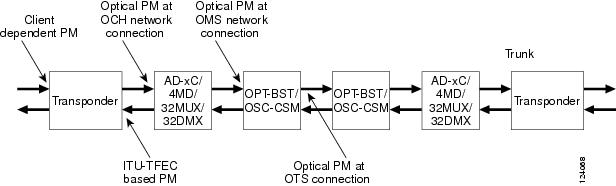
TCAs are used to monitor performance through the management interface by indicating whether preset thresholds have been crossed, or whether a transmission (such as a laser transmission) is degraded. TCAs are not associated with severity levels. They are usually associated with rate, counter, and percentage parameters that are available at transponder monitoring points. Chapter 5, "Performance Monitoring," contains more information about these alerts.
Select and complete the provisioning procedure below according to your network parameters.
Complete the following procedure to provision default node ODUk BBE and SES PM thresholds for TXP cards.
Set Node Default BBE or SES Card Thresholds
Step 1 In node view, click the Provisioning > Defaults tabs (Figure 1-45).
Figure 1-45 Set Default BBE/SES Card Thresholds

Step 2 In the Defaults Selector field, click the transponder or muxponder card you wish to provision, then click opticalthresholds > trunk > warning > 15min.
Complete the following procedure to provision BBE or SES PM thresholds in CTC for an individual TXP card.
Provision Individual Card BBE or SES Thresholds in CTC
Step 1 In node view, double-click the TXP_MR_2.5G card.
(In this example, other transponder and muxponder cards are also applicable, such as TXP_MR_10G, TXPP_MR_2.5G, and MXP_2.5G_10G.)
Step 2 Click the Provisioning > OTN > G.709 Thresholds tabs (Figure 1-46).
Figure 1-46 Provision Card BBE/SES Thresholds
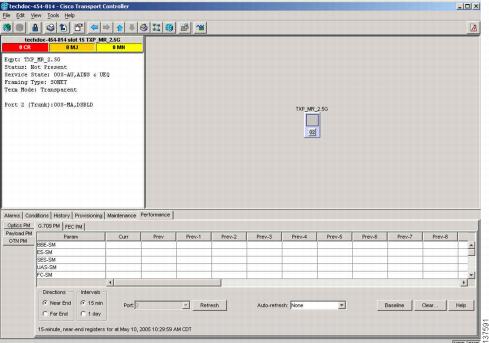
Step 3 In the Directions area, click Near End.
Step 4 In the Intervals area, click 15 Min.
Step 5 In the Types area, click PM (ODUk).
Step 6 In the SES and BBE fields, enter threshold numbers, for example 500 and 10000.
Complete the following procedure if you wish to provision PM thresholds in TL1 rather than in CTC.
Provision Card PM Thresholds Using TL1
Step 1 Open a TL1 command line.
Step 2 On the TL1 command line, use the following syntax:
set-th-{och,clnt}::aid:ctag::montype,thlev,,,[tmper];
Where:
•The modifier is och, as applicable to the trunk port.
•Montype can be:
–BBE-PM
–SES-PM
–LBCL-MAX
•The parameter thlev is optional and indicates a threshold count value (the number of errors which must be exceeded before the threshold is crossed).
•The parameter tmper is optional and is an accumulation time period for performance counters, with possible values of 1-DAY, 1-HR, 1-MIN, 15-MIN, and RAW-DATA.
Note For a list of TL1 commands, refer to the Cisco SONET TL1 Command Guide .
Complete the following procedure to provision TCA thresholds in CTC.
Provision Optical TCA Thresholds
Step 1 In node view, click the Provisioning > Optics Thresholds tabs (Figure 1-47).
Figure 1-47 Provision Optical TCA Thresholds

Step 2 In the Types area, click TCA.
Step 3 In the Intervals area, click 15 Min.
Step 4 In the Laser Bias High (%) field, enter the threshold value, for example, 81.0 percent.
1.8.6 Forward Error Correction
In DWDM spans, FEC reduces the quantities of retiming, reshaping, and regenerating (3R regeneration) needed to maintain signal quality. The following two PM parameters are associated with FEC:
•BIT-EC—Bit errors corrected (BIT-EC) indicates the number of bit errors corrected in the DWDM trunk line during the PM time interval.
•UNC-WORDS—The number of uncorrectable words detected in the DWDM trunk line during the PM time interval.
Complete the following procedure to provision BIT-EC and UNC-WORDS PM parameters for FEC.
Provision Card FEC Thresholds
Step 1 In node view, double-click the TXP_MR_2.5G card to open the card view.
(In this example, other transponder and muxponder cards are also applicable, such as TXP_MR_10G, TXPP_MR_2.5G, and MXP_2.5G_10G.)
Step 2 Click the Provisioning > OTN > FEC Thresholds tabs (Figure 1-48).
Figure 1-48 Provision Card FEC Thresholds
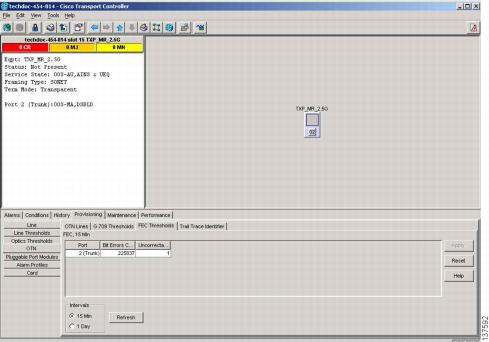
Step 3 In the Bit Errors Corrected field, enter a threshold number, for example 225837.
Step 4 In the Intervals area, click 15 Min.
1.8.7 Sample Trouble Resolutions
Some sample trouble resolutions using performance monitoring and TCAs for isolating points of degrade are provided below.
Symptom There is a BBE TCA on a single transponder pair.
Possible Cause The transponder input power is out of range.
Recommended Action Check the input power on the transponder. It should be within the specified/supported range.
Possible Cause There are dirty trunk connectors on the transponder.
Recommended Action Check the connector on the trunk port.
Possible Cause There is a degraded trunk patch-cord between the transponder and the DWDM port.
Recommended Action Check the patch-cord on the transponder DWDM port.
Possible Cause There are dirty client connectors on the channel add-drop (ADxC) transmit port or the demultiplexer (DMX) has crossed the near-end TCA.
Recommended Action Check the connector on the OCH port of the ADxC.
Possible Cause There are dirty client connectors on the ADxC receive port or the multiplexer (MUX) has crossed the far-end TCA point.
Recommended Action If an optical channel bypass exists along the line, check the connectors.
Symptom There is a BBE TCA on all transponders connected to a band add-drop card (ADxB).
Possible Cause The transponder input power is out of range.
Recommended Action Check the input power on the transponder. It should be within the specified/supported range.
Possible Cause There is a dirty connector on the 4MD port.
Recommended Action Check the connector on the drop port of the ADxB.
Possible Cause There is a dirty connector on the ADxB drop port, and it has crossed the near-end TCA point.
Recommended Action Check the connector on the drop port of the 4MD.
Possible Cause There is a dirty connector on the ADxB add port and it has crossed the far-end TCA.
Recommended Action Check the patch-cord on the 4MD or AD1Bx.
Possible Cause There is a degraded patch-cord between the ADxB and the 4MD.
Recommended Action If an optical band bypass exists along the line, check the band connectors.
Symptom There is a BBE TCA on all transponders which the OCH passes through a single OTS section.
Possible Cause This is not a transponder or channel-related issue.
Recommended Action The problem is in the intercabinet signal path preceding the transponder. Refer to the Cisco ONS 15454 DWDM Installation and Operations Guide for more information about configurations and acceptance tests for this area
Symptom You have an LBC TCA on a single transponder.
Possible Cause The laser of the transponder is degrading.
Recommended Action The problem is within the laser circuitry. Check the OPT-PRE or OPT-BST optical amplifier cards. Refer to the Cisco ONS 15454 DWDM Installation and Operations Guide for more information about setting up these cards.
1.9 Using CTC Diagnostics
In Release 6.0, CTC provides diagnostics for the following functions:
•Verifying proper card ASICS function
•Verifying standby card operation
•Verifying proper card LED operation
•Diagnostic circuit creation
•Customer problem notifications detected via alarms
•Provision of a downloadable, machine-readable diagnostic information file to be used by Cisco Technical Support.
Some of these functions, such as ASIC verification and standby card operation, are invisibly monitored in background functions. Change or problem notifications are provided in the Alarms and Conditions window. Other diagnostic functions—verifying card LED function, creating bidirectional diagnostic circuits, and also downloading diagnostic files for technical support—are available to the user in the node view Maintenance > Diagnostic tab. The user-operated diagnostic features are described in the following paragraphs.
1.9.1 Card LED Lamp Tests
A card LED lamp test determines whether card-level indication LEDs are operational. This diagnostic test is run as part of the initial ONS 15454 turn-up, during maintenance routines, or any time you question whether an LED is in working order. Maintenance or higher-level users can complete the following tasks to verify LED operation.
Verify General Card LED Operation
Step 1 In node view, click the Maintenance > Diagnostic tab (Figure 1-49).
Figure 1-49 CTC Node View Diagnostic Window

Step 2 Click Lamp Test.
Step 3 Watch to make sure all the port LEDs illuminate simultaneously for several seconds, with the following durations:
•For tri-color LEDs: three 5-second cycles
•For dual-color LEDs: one 5-second cycle and one 10-second cycle
•For the AIC or AIC-I: one 15-second cycle
Step 4 Click OK in the Lamp Test Run dialog box.
With the exceptions previously described, if an OC-N or DS-N LED does not light up, the LED is faulty. Return the defective card to Cisco through the RMA process. Contact Cisco Technical Support (1 800 553-2447).
Verify G-Series Ethernet or FC_MR-4 Card Port-Level LED Operation
Note G-Series and FC_MR-4 card-level LEDs illuminate during a lamp test, but the port-level LEDs do not.
Step 1 Complete the "Verify General Card LED Operation" procedure on page 1-113 to verify that card-level LEDs are operational.
Step 2 Use the following list of guidelines to physically test whether the G-Series Ethernet port LEDs are operating correctly. If the LED appears as described when the listed state is occurring for the port, the LED is considered to be functioning correctly.
•Clear port LED: Should only occur if there is a loss of receive link (such as a disconnected link or unplugged Gigabit Interface Converter, [GBIC]). An LOS alarm could be present on the port.
•Amber port LED: Should only occur if a port is disabled but the link is connected, or if the port is enabled and the link is connected but a transport failure is present. A TPTFAIL alarm can be present on the port.
•Green port LED: Should occur if the port is enabled and has no errors against it or traffic in it. Can also occur if the port is enabled, has no errors, and is running traffic proportionate to the blink rate. No traffic-affecting port alarms should be present.
Step 3 If you are unable to determine the port state, contact Cisco Technical Support (1 800 553-2447).
Verify E-Series and ML-Series Ethernet Card Port-Level LED Operation
Note E-Series and ML-Series card-level LEDs illuminate during a lamp test, but the port-level LEDs do not.
Note For information about the ML-Series card, refer to the Ethernet Card Software Feature and Configuration Guide for the Cisco ONS 15454, Cisco ONS 15454 SDH, and Cisco ONS 15327.
Step 1 Complete the "Verify General Card LED Operation" procedure on page 1-113 to verify that card-level LEDs are operational.
Step 2 Use the following list of guidelines to physically test whether the single E-Series or ML-Series Ethernet port LED is operating correctly. If the LED appears as described when the listed state is occurring for the port, the LED is considered to be functioning correctly.
•Clear port LED: Should only occur if there is a loss of receive link (such as a disconnected link or unplugged GBIC), or if traffic is flowing in one direction (either transmit or receive). A CARLOSS alarm could be present on the port.
•Amber port LED: Should only occur if the link is connected and the physical port is transmitting and receiving traffic.
•Green port LED: Should occur if the link is up and no traffic is flowing on the port.
Step 3 If you are unable to determine the port state, contact Cisco Technical Support (1 800 553-2447).
1.9.2 Retrieve Diagnostics File Button
When you click the Retrieve Diagnostics File button in the Maintenance window, CTC retrieves system data that can be off-loaded by a Maintenance or higher-level user to a local directory and sent to Technical Support for troubleshooting purposes. The diagnostics file is in machine language and is not human-readable, but can be used by Cisco Technical Support for problem analysis. Complete the following task to off-load the diagnostics file.
Note In addition to the machine-readable diagnostics file, the ONS 15454 also stores an audit trail of all system events such as user logins, remote logins, configuration, and changes. This audit trail is considered a record-keeping feature rather than a troubleshooting feature. Information about the feature is located in the "Maintain the Node" chapter of the Cisco ONS 15454 Procedure Guide.
Off-Load the Diagnostics File
Step 1 In the node view, click the Maintenance > Diagnostic tab (Figure 1-49).
Step 2 Click Retrieve Tech Support Log.
Step 3 In the Saving Diagnostic File dialog box, navigate to the directory (local or network) where you want to save the file.
Step 4 Enter a name in the File Name field.
You do not have to give the archive file a particular extension. It is a compressed file (gzip) that can be unzipped and read by Cisco Technical Support.
Step 5 Click Save.
The Get Diagnostics status window shows a progress bar indicating the percentage of the file being saved, then shows "Get Diagnostics Complete."
Step 6 Click OK.
1.9.3 Bidirectional Diagnostic Circuit
CTC provides a diagnostic bidirectional loopback circuit feature that uses pseudo-random bit sequence (PRBS) error detection to monitor standby path protection, BLSR, 1+1, or unprotected circuit path readiness.
The diagnostic circuit is bidirectional and uses a single VT 1.5 in an STS. The circuit can traverse multiple nodes, but it must be carried by the same STS for the entire path. The circuit originates and ultimately destinates on the same node, but can be looped (by a hairpin circuit) through other nodes. After the circuit returns to the originating node, the signal result is detected and analyzed for errors by PRBS.
This type of circuit is created much the same way as a normal standby protection channel access (PCA) circuit, but is designated by checking the Diagnostic check box during circuit creation. A normal circuit uses line cards as the endpoints, but if a circuit is configured as a diagnostic, the endpoints are cross-connect cards.
Each card type utilizes the diagnostic feature differently. Standby electrical cards run PRBS tests to ensure signal path integrity. Optical cards do not run PRBS tests, but instead run ASIC tests to test card operability. Cross-connect cards verify the standby paths.
The diagnostic circuit can be configured for an end-to-end or multiple-node path layout, traversing the transmit and receive standby paths as shown in Figure 1-50.
Figure 1-50 CTC Node View Diagnostic Window

The maximum diagnostic circuit size is VT1.5, and the maximum quantity of available diagnostic circuits is one per node. (In other words, if you create a diagnostic VT within an STS, the remaining 27 VTs can still be provisioned, and they may also contain diagnostic circuits originating on other nodes.)
As with all bidirectional circuits, a diagnostic circuit can only be created if the same STS is available on each span the circuit traverses. When you use a bidirectional diagnostic that traverses one or more intermediate nodes, create or utilize an existing bidirectional circuit on each intermediate node. At the terminating node, you will need to create a hairpin loopback at the end of the PRBS source span to return the signal.
Note The diagnostic VT circuit does not raise a failure alarm if AIS-P or UNEQ-P is returned to the PRBS detector. In order to see an alarm indicating a failed diagnostic circuit, the circuit must be returned to the PRBS detector with a different payload than the generator sources and without the AIS-P or UNEQ-P conditions.
Create a Bidirectional Diagnostic Circuit
Step 1 Log into the node where you will create the diagnostic circuit. (For login instructions, refer to the "Connect the PC and Log into the GUI" chapter in the Cisco ONS 15454 Procedure Guide.)
Step 2 If you want to assign a name to the circuit source and destination ports before you create the circuit, refer to the task for assigning a name to a port in the "Create Circuits and VT Tunnels" chapter of the Cisco ONS 15454 Procedure Guide. If not, continue with Step 3.
Step 3 From the View menu, choose Go to Network View.
Step 4 Click the Circuits tab, then click Create.
Step 5 In the Circuit Creation dialog box, complete the following fields:
•Circuit Type—Choose VT.
•Number of Circuits—Enter 1 (the maximum diagnostic circuit quantity available per STS).
•Auto-ranged—Uncheck the box. (This option is not applicable to diagnostic circuits.)
Step 6 Click Next.
Step 7 Define the circuit attributes in the Circuit Creation Dialog Box (Figure 1-51) using the following parameters:
Figure 1-51 Network View Circuit Creation Dialog Box

•Name—Assign a name to the circuit. The name can be alphanumeric and up to 48 characters, (including spaces). Circuit names should be 44 characters or less if you want the ability to create monitor circuits. If you leave the field blank, CTC assigns a default name to the circuit.
•Size—VT1.5 is the default. You cannot change it.
•Bidirectional—This is the default value. Leave it checked for this circuit.
•State—This option is not available when you check the Diagnostic option.
•Diagnostic—Check this box to create a diagnostic circuit.
•Apply to drop ports—Leave this box unchecked.
•Create cross-connects only (TL1-like)—Not applicable to diagnostic circuits.
•Inter-domain (UCP) SLA—Not applicable to diagnostic circuits.
•Protected Drops—Not applicable to diagnostic circuits.
Step 8 Click Next.
Step 9 In the Source area of the Circuit Creation pane, complete the following:
a. From the Node drop-down list, choose the node.
b. From the Slot drop-down list, choose PRBS Generator.
c. Click Next.
Step 10 In the Destination area of the Circuit Creation pane, complete the following:
a. From the Node drop-down list, choose the node. The only selectable item in the list is the node chosen as the source node.
b. From the Slot drop-down list, choose the slot where the span originates.
c. From the STS drop-down list, choose the STS.
d. From the VT drop-down list, choose the VT.
e. Click Next.
Step 11 Click Finish.
Step 12 In the Circuits window, verify that the new circuit(s) appear in the circuits list.
1.10 Restoring the Database and Default Settings
This section contains troubleshooting for node operation errors that require restoration of software data or the default node setup.
1.10.1 Restore the Node Database
Symptom One or more nodes does not function properly or has incorrect data.
Possible Cause Incorrect or corrupted node database.
Recommended Action Complete the procedures in the "Maintain the Node" chapter of the Cisco ONS 15454 Procedure Guide.
1.11 PC Connectivity Troubleshooting
This section contains information about system minimum requirements, supported platforms, browsers, and JREs for R6.0, and troubleshooting procedures for PC and network connectivity to the ONS 15454.
1.11.1 PC System Minimum Requirements
Workstations running CTC R6.0 for the ONS products on Windows platforms need to have the following minimum requirements:
•Pentium III or higher processor
•Processor speed of at least 700 MHz
•256 MB or more of RAM
•50 MB or more of available hard disk space
•20 GB or larger hard drive
1.11.2 Sun System Minimum Requirements
Workstations running CTC R6.0 for the ONS products on Sun workstations need to have the following minimum requirements:
•UltraSPARC or faster processor
•256 MB or more of RAM
•50 MB or more of available hard disk space
1.11.3 Supported Platforms, Browsers, and JREs
Software R6.0 CTC supports the following platforms:
•Windows NT
•Windows 98
•Windows XP
•Windows 2000
•Solaris 8
•Solaris 9
Software R6.0 CTC supports the following browsers and JREs:
•Netscape 7 browser (PC or Solaris 8 or 9 with Java plug-in 1.4.2)
•PC platforms with Java plug-in 1.4.2
•Internet Explorer 6.0 browser (on PC platforms with Java plug-in 1.4.2)
•Mozilla 1.7 (Solaris only)
Note The supported browser can be downloaded from the Web.
Note The required JRE version is JRE 1.4.2.
Note JRE 1.4.2 for Windows and Solaris is available on R6.0 product CDs.
1.11.4 Unsupported Platforms and Browsers
Software R6.0 does not support the following platforms:
•Windows 95
•Solaris 2.5
•Solaris 2.6
Software R6.0 does not support the following browsers and JREs:
•Netscape 4.73 for Windows.
•Netscape 4.76 on Solaris is not supported.
•Netscape 7 on Solaris 8 or 9 is only supported with JRE 1.4.2
1.11.5 Unable to Verify the IP Configuration of Your PC
Symptom When connecting your PC to the ONS 15454, you are unable to successfully ping the IP address of your PC to verify the IP configuration.
Possible Cause The IP address was entered incorrectly.
Recommended Action Verify that the IP address used to ping the PC matches the IP address displayed when in the Windows IP Configuration information retrieved from the system. See the "Verify the IP Configuration of Your PC" procedure on page 1-121.
Possible Cause The IP configuration of your PC is not properly set.
Recommended Action Verify the IP configuration of your PC. Complete the "Verify the IP Configuration of Your PC" procedure on page 1-121. If this procedure is unsuccessful, contact your Network Administrator for instructions to correct the IP configuration of your PC.
Verify the IP Configuration of Your PC
Step 1 Open a DOS command window by selecting Start > Run from the Start menu.
Step 2 In the Open field, type command and then click OK. The DOS command window appears.
Step 3 At the prompt in the DOS window, type one of the following commands:
•For Windows 98, NT, 2000, and XP, type ipconfig and press the Enter key.
The Windows IP configuration information appears, including the IP address, subnet mask, and the default gateway.
Note The winipcfg command only returns the information above if you are on a network.
Step 4 At the prompt in the DOS window, type ping followed by the IP address shown in the Windows IP configuration information previously displayed.
Step 5 Press the Enter key to execute the command.
If the DOS window returns multiple (usually four) replies, the IP configuration is working properly.
If you do not receive a reply, your IP configuration might not be properly set. Contact your Network Administrator for instructions to correct the IP configuration of your PC.
1.11.6 Browser Login Does Not Launch Java
Symptom The message "Loading Java Applet" does not appear and the JRE does not launch during the initial login.
Possible Cause The PC operating system and browser are not properly configured.
Recommended Action Reconfigure the PC operating system java plug-in control panel and the browser settings. Complete the "Reconfigure the PC Operating System Java Plug-in Control Panel" procedure on page 1-122 and the "Reconfigure the Browser" procedure on page 1-122.
Reconfigure the PC Operating System Java Plug-in Control Panel
Step 1 From the Windows start menu, click Settings > Control Panel.
Step 2 If Java Plug-in does not appear, the JRE might not be installed on your PC:
a. Run the Cisco ONS 15454 software CD.
b. Open the CD-drive:\Windows\JRE folder.
c. Double-click the j2re-1_4_2-win icon to run the JRE installation wizard.
d. Follow the JRE installation wizard steps.
Step 3 From the Windows start menu, click Settings > Control Panel.
Step 4 In the Java Plug-in Control Panel window, double-click the Java Plug-in 1.4.2 icon.
Step 5 Click the Advanced tab on the Java Plug-in Control Panel.
Step 6 Navigate to C:\ProgramFiles\JavaSoft\JRE\1.4.2.
Step 7 Select JRE 1.4.
Step 8 Click Apply.
Step 9 Close the Java Plug-in Control Panel window.
Reconfigure the Browser
Step 1 From the Start Menu, launch your browser application.
Step 2 If you are using Netscape Navigator:
a. On the Netscape Navigator menu bar, click the Edit > Preferences menus.
b. In the Preferences window, click the Advanced > Proxies categories.
c. In the Proxies window, click the Direct connection to the Internet check box and click OK.
d. On the Netscape Navigator menu bar, click the Edit > Preferences menus.
e. In the Preferences window, click the Advanced > Cache categories.
f. Confirm that the Disk Cache Folder field shows one of the following paths:
•For Windows 98/ME, C:\ProgramFiles\Netscape\Communicator\cache
•For Windows NT/2000/XP, C:\ProgramFiles\Netscape\username\Communicator\cache.
g. If the Disk Cache Folder field is not correct, click Choose Folder.
h. Navigate to the file listed in Step f, and click OK.
i. Click OK on the Preferences window and exit the browser.
Step 3 If you are using Internet Explorer:
a. On the Internet Explorer menu bar, click the Tools > Internet Options menus.
b. In the Internet Options window, click the Advanced tab.
c. In the Settings menu, scroll down to Java (Sun) and click the Use Java 2 v1.4.2 for applet (requires restart) check box.
d. Click OK in the Internet Options window and exit the browser.
Step 4 Temporarily disable any virus-scanning software on the computer. See the "1.12.4 Browser Stalls When Downloading CTC JAR Files From TCC2/TCC2P Card" section on page 1-128.
Step 5 Verify that the computer does not have two network interface cards (NICs) installed. If the computer does have two NICs, remove one.
Step 6 Restart the browser and log on to the ONS 15454.
1.11.7 Unable to Verify the NIC Connection on Your PC
Symptom When connecting your PC to the ONS 15454, you are unable to verify that the network interface card (NIC) connection is working properly because the link LED is not illuminated or flashing.
Possible Cause The Category-5 cable is not plugged in properly.
Recommended Action Confirm that both ends of the cable are properly inserted. If the cable is not fully inserted due to a broken locking clip, the cable should be replaced.
Possible Cause The Category-5 cable is damaged.
Recommended Action Ensure that the cable is in good condition. If in doubt, use a known-good cable. Often, cabling is damaged due to pulling or bending. (For information about installing cable, refer to the "Install Cards and Fiber-Optic Cable" chapter in the Cisco ONS 15454 Procedure Guide.)
Possible Cause Incorrect type of Category-5 cable is being used.
Recommended Action If connecting an ONS 15454 directly to your laptop, a PC, or a router, use a straight-through Category-5 cable. When connecting the ONS 15454 to a hub or a LAN switch, use a crossover Category-5 cable. For details on the types of Category-5 cables, see the "1.14.2.1 Crimp Replacement LAN Cables" section on page 1-148.
Possible Cause The NIC is improperly inserted or installed.
Recommended Action If you are using a Personal Computer Memory Card International Association (PCMCIA)-based NIC, remove and reinsert the NIC to make sure the NIC is fully inserted. (If the NIC is built into the laptop or PC, verify that the NIC is not faulty.)
Possible Cause The NIC is faulty.
Recommended Action Confirm that the NIC is working properly. If you have no issues connecting to the network (or any other node), then the NIC should be working correctly. If you have difficulty connecting a to the network (or any other node), then the NIC might be faulty and needs to be replaced.
1.11.8 Verify PC Connection to the ONS 15454 (ping)
Symptom The TCP/IP connection was established and then lost.
Possible Cause A lost connection between the PC and the ONS 15454.
Recommended Action Use a standard ping command to verify the TCP/IP connection between the PC and the ONS 15454 TCC2/TCC2P card. A ping command should work if the PC connects directly to the TCC2/TCC2P card or uses a LAN to access the TCC2/TCC2P card. Complete the "Ping the ONS 15454" procedure on page 1-124.
Ping the ONS 15454
Step 1 Display the command prompt:
a. If you are using a Microsoft Windows operating system, from the Start Menu choose Run, enter command in the Open field of the Run dialog box, and click OK.
b. If you are using a Sun Solaris operating system, from the Common Desktop Environment (CDE) click the Personal Application tab and click Terminal.
Step 2 For both the Sun and Microsoft operating systems, at the prompt enter:
ping ONS-15454-IP-address
For example:
ping 198.168.10.10
Step 3 If the workstation has connectivity to the ONS 15454, the ping is successful and displays a reply from the IP address. If the workstation does not have connectivity, a "Request timed out" message appears.
Step 4 If the ping is successful, it demonstrates that an active TCP/IP connection exists. Restart CTC.
Step 5 If the ping is not successful, and the workstation connects to the ONS 15454 through a LAN, check that the workstation's IP address is on the same subnet as the ONS node.
Step 6 If the ping is not successful and the workstation connects directly to the ONS 15454, check that the link light on the workstation's NIC is illuminated.
1.11.9 The IP Address of the Node is Unknown
Symptom The IP address of the node is unknown and you are unable to login.
Possible Cause The node is not set to the default IP address.
Recommended Action Leave one TCC2/TCC2P card in the shelf. Connect a PC directly to the remaining TCC2/TCC2P card and perform a hardware reset of the card. The TCC2/TCC2P card transmits the IP address after the reset to enable you to capture the IP address for login. Complete the "Retrieve Unknown Node IP Address" procedure on page 1-125.
Retrieve Unknown Node IP Address
Step 1 Connect your PC directly to the active TCC2/TCC2P card Ethernet port on the faceplate.
Step 2 Start the Sniffer application on your PC.
Step 3 Perform a hardware reset by pulling and reseating the active TCC2/TCC2P card.
Step 4 After the TCC2/TCC2P card completes resetting, it broadcasts its IP address. The Sniffer software on your PC will capture the IP address being broadcast.
1.12 CTC Operation Troubleshooting
This section contains troubleshooting procedures for CTC login or operation problems.
1.12.1 CTC Colors Do Not Appear Correctly on a UNIX Workstation
Symptom When running CTC on a UNIX workstation, the colors do not appear correctly. For example, both major and minor alarms appear in the same color.
Possible Cause When running in 256-color mode on a UNIX workstation, color-intensive applications such as Netscape might use all of the colors.
Recommended Action CTC requires a full 24-color palette to run properly. When logging into CTC on a UNIX workstation, run as many colors as your adapter will support. In addition, you can use the -install or the -ncols 32 command line options to limit the number of colors that Netscape uses. Complete the "Limit Netscape Colors" procedure on page 1-125. If the problem persists after limiting Netscape colors, exit any other color-intensive applications in use.
Limit Netscape Colors
Step 1 Close the current session of Netscape.
Step 2 Launch Netscape from the command line by entering:
netscape -install (installs Netscape colors for Netscape use)
or
netscape -ncols 32 (limits Netscape to 32 colors so that if the requested color is not available, Netscape chooses the closest color option)
1.12.2 Unable to Launch CTC Help After Removing Netscape
Symptom After removing Netscape and running CTC using Internet Explorer, you are unable to launch CTC Help and receive an "MSIE is not the default browser" error message.
Possible Cause Loss of association between browser and Help files.
Recommended Action When the CTC software and Netscape are installed, the Help files are associated with Netscape by default. When you remove Netscape, the Help files are not automatically associated with Internet Explorer as the default browser. Reset Internet Explorer as the default browser so that CTC associates the Help files to the correct browser. Complete the "Reset Internet Explorer as the Default Browser for CTC" procedure on page 1-126 to associate the CTC Help files to the correct browser.
Reset Internet Explorer as the Default Browser for CTC
Step 1 Open the Internet Explorer browser.
Step 2 From the menu bar, click Tools > Internet Options. The Internet Options window appears.
Step 3 In the Internet Options window, click the Programs tab.
Step 4 Click the Internet Explorer should check to see whether it is the default browser check box.
Step 5 Click OK.
Step 6 Exit any and all open and running CTC and Internet Explorer applications.
Step 7 Launch Internet Explorer and open a new CTC session. You should now be able to access the CTC Help.
1.12.3 Unable to Change Node View to Network View
Symptom When activating a large, multinode BLSR from Software R3.2 to Software R3.3, some of the nodes appear grayed out. Logging into the new CTC, the user is unable to change node view to network view on any and all nodes, from any workstation. This is accompanied by an "Exception occurred during event dispatching: java.lang.OutOfMemoryError" in the java window.
Possible Cause The large, multinode BLSR requires more memory for the graphical user interface (GUI) environment variables.
Recommended Action Set the system or user CTC_HEAP environment variable to increase the memory limits. Complete the "Set the CTC_HEAP and CTC_MAX_PERM_SIZE_HEAP Environment Variables for Windows" procedure on page 1-127 or the "Set the CTC_HEAP and CTC_MAX_PERM_SIZE_HEAP Environment Variables for Solaris" procedure on page 1-128 to enable the CTC_HEAP variable change.
Note This problem typically affects large networks where additional memory is required to manage large numbers of nodes and circuits.
Set the CTC_HEAP and CTC_MAX_PERM_SIZE_HEAP Environment Variables for Windows
Note Before proceeding with the following steps, ensure that your system has a minimum of 1 GB of RAM. If your system does not have a minimum of 1 GB of RAM, contact the Cisco Technical Assistance Center (TAC).
Step 1 Close all open CTC sessions and browser windows.
Step 2 From the Windows Start menu, choose Control Panel > System.
Step 3 In the System Properties window, click the Advanced tab.
Step 4 Click the Environment Variables button to open the Environment Variables window.
Step 5 Click the New button under the System variables field.
Step 6 Type CTC_HEAP in the Variable Name field.
Step 7 Type 512 in the Variable Value field, and then click the OK button to create the variable.
Step 8 Again, click the New button under the System variables field.
Step 9 Type CTC_MAX_PERM_SIZE_HEAP in the Variable Name field.
Step 10 Type 128 in the Variable Value field, and then click the OK button to create the variable.
Step 11 Click the OK button in the Environment Variables window to accept the changes.
Step 12 Click the OK button in the System Properties window to accept the changes.
Set the CTC_HEAP and CTC_MAX_PERM_SIZE_HEAP Environment Variables for Solaris
Step 1 From the user shell window, kill any CTC sessions and broswer applications.
Step 2 In the user shell window, set the environment variables to increase the heap size.
Example
The following example shows how to set the environment variables in the C shell:
% setenv CTC_HEAP 512
% setenv CTC_MAX_PERM_SIZE_HEAP 128
1.12.4 Browser Stalls When Downloading CTC JAR Files From TCC2/TCC2P Card
Symptom The browser stalls or hangs when downloading a CTC Java archive (JAR) file from the TCC2/TCC2P card.
Possible Cause McAfee VirusScan software might be interfering with the operation. The problem occurs when the VirusScan Download Scan is enabled on McAfee VirusScan 4.5 or later.
Recommended Action Disable the VirusScan Download Scan feature. Complete the "Disable the VirusScan Download Scan" procedure on page 1-128.
Disable the VirusScan Download Scan
Step 1 From the Windows Start menu, choose Programs > Network Associates > VirusScan Console.
Step 2 Double-click the VShield icon listed in the VirusScan Console dialog box.
Step 3 Click Configure on the lower part of the Task Properties window.
Step 4 Click the Download Scan icon on the left of the System Scan Properties dialog box.
Step 5 Uncheck the Enable Internet download scanning check box.
Step 6 Click Yes when the warning message appears.
Step 7 Click OK in the System Scan Properties dialog box.
Step 8 Click OK in the Task Properties window.
Step 9 Close the McAfee VirusScan window.
1.12.5 CTC Does Not Launch
Symptom CTC does not launch; usually an error message appears before the login window appears.
Possible Cause The Netscape browser cache might point to an invalid directory.
Recommended Action Redirect the Netscape cache to a valid directory. Complete the "Redirect the Netscape Cache to a Valid Directory" procedure on page 1-129.
Redirect the Netscape Cache to a Valid Directory
Step 1 Launch Netscape.
Step 2 Open the Edit menu.
Step 3 Choose Preferences.
Step 4 Under the Category column on the left side, expand the Advanced category and choose the Cache tab.
Step 5 Change your disk cache folder to point to the cache file location.
The cache file location is usually C:\ProgramFiles\Netscape\Users\yourname\cache. The yourname segment of the file location is often the same as the user name.
1.12.6 Slow CTC Operation or Login Problems
Symptom You experience slow CTC operation or have problems logging into CTC.
Table 1-3 describes the potential cause of the symptom and the solution.
|
|
|
|---|---|
The CTC cache file might be corrupted or might need to be replaced. |
Search for and delete cache files. This operation forces the ONS 15454 to download a new set of Java archive (JAR) files to your computer hard drive. Complete the "Delete the CTC Cache File Automatically" procedure on page 1-130 or the "Delete the CTC Cache File Manually" procedure on page 1-131. |
Insufficient heap memory allocation. |
Increase the heap size if you are using CTC to manage more than 50 nodes concurrently. See the "Set the CTC_HEAP and CTC_MAX_PERM_SIZE_HEAP Environment Variables for Windows" procedure on page 1-127 or the "Set the CTC_HEAP and CTC_MAX_PERM_SIZE_HEAP Environment Variables for Solaris" procedure on page 1-128. Note |
Delete the CTC Cache File Automatically
All running sessions of CTC must be halted before deleting the CTC cache. Deleting CTC cache might cause any CTC running on this system to behave in an unexpected manner.
Step 1 Enter an ONS 15454 IP address into the browser URL field. The initial browser window shows a Delete CTC Cache button.
Step 2 Close all open CTC sessions and browser windows. The PC operating system does not allow you to delete files that are in use.
Step 3 Click Delete CTC Cache on the initial browser window to clear the CTC cache. Figure 1-52 shows the Delete CTC Cache window.
Figure 1-52 Deleting the CTC Cache

Delete the CTC Cache File Manually
All running sessions of CTC must be halted before deleting the CTC cache. Deleting the CTC cache might cause any CTC running on this system to behave in an unexpected manner.
Step 1 To delete the JAR files manually, from the Windows Start menu choose Search > For Files or Folders.
Step 2 Enter ctc*.jar or cms*.jar in the Search for files or folders named field in the Search Results dialog box and click Search Now.
Step 3 Click the Modified column in the Search Results dialog box to find the JAR files that match the date when you downloaded the files from the TCC2/TCC2P.
Step 4 Highlight the files and press the keyboard Delete key.
Step 5 Click Yes in the Confirm dialog box.
1.12.7 Node Icon is Gray on CTC Network View
Symptom The CTC network view shows one or more node icons as gray in color and without a node name.
Possible Cause Different CTC releases do not recognize each other.
Recommended Action Correct the core version build as described in the "1.12.10 Different CTC Releases Do Not Recognize Each Other" section on page 1-134.
Possible Cause Username and password do not match.
Recommended Action Correct the username and password as described in the "1.12.11 Username or Password Do Not Match" section on page 1-135.
Possible Cause No IP connectivity between nodes.
Recommended Action Usually accompanied by Ethernet-specific alarms. Verify the Ethernet connections as described in the "1.12.16 Ethernet Connections" section on page 1-137.
Possible Cause A lost DCC connection.
Recommended Action Usually accompanied by an embedded operations channel (EOC) alarm. Clear the EOC alarm and verify the DCC connection as described in the "EOC" alarm.
1.12.8 CTC Cannot Launch Due to Applet Security Restrictions
Symptom The error message "Unable to launch CTC due to applet security restrictions" appears after you enter the IP address in the browser window.
Possible Cause You are logging into a node running CTC Software R4.0 or earlier. Releases earlier than R4.1 require a modification to the java.policy file so that CTC JAR files can be downloaded to the computer. The modified java.policy file might not exist on the computer.
Recommended Action Install the software CD for the release of the node you are logging into. Run the CTC Setup Wizard (double-click Setup.exe). Choose Custom installation, then choose the Java Policy option. For additional information, refer to the CTC installation information in the "Connect the PC and Log into the GUI" chapter of the Cisco ONS 15454 Procedure Guide. If the software CD is not available, you must manually edit the java.policy file on your computer. Complete the "Manually Edit the java.policy File" procedure on page 1-132.
Manually Edit the java.policy File
Step 1 Search your computer for java.policy file and open it with a text editor (Notepad or Wordpad).
Step 2 Verify that the end of this file has the following lines:
// Insert this into the system-wide or a per-user java.policy file.
// DO NOT OVERWRITE THE SYSTEM-WIDE POLICY FILE--ADD THESE LINES!
grant codeBase "http://*/fs/LAUNCHER.jar {
permission java.security.AllPermission;
};
Step 3 If these five lines are not in the file, enter them manually.
Step 4 Save the file and restart Netscape.
CTC should now start correctly.
Step 5 If the error message is still reported, save the java.policy file as .java.policy. On Win98/2000/XP PCs, save the file to the C:\Windows folder. On Windows NT 4.0 or later PCs, save the file to all of the user folders on that PC, for example, C:\Winnt\profiles\joeuser.
1.12.9 Java Runtime Environment Incompatible
Symptom The CTC application does not run properly.
Possible Cause The compatible Java 2 JRE is not installed.
Recommended Action The JRE contains the Java virtual machine, runtime class libraries, and Java application launcher that are necessary to run programs written in the Java programming language. The ONS 15454 CTC is a Java application. A Java application, unlike an applet, cannot rely completely on a web browser for installation and runtime services. When you run an application written in the Java programming language, you need the correct JRE installed. The correct JRE for each CTC software release is included on the Cisco ONS 15454 software CD and on the Cisco ONS 15454 documentation CD. Complete the "Launch CTC to Correct the Core Version Build" procedure on page 1-134. If you are running multiple CTC software releases on a network, the JRE installed on the computer must be compatible with the different software releases. Table 1-4 shows JRE compatibility with ONS 15454 software releases.
Launch CTC to Correct the Core Version Build
Step 1 Exit the current CTC session and completely close the browser.
Step 2 Start the browser.
Step 3 Enter the ONS 15454 IP address of the node that reported the alarm. This can be the original IP address you logged in with or an IP address other than the original.
Step 4 Log into CTC. The browser downloads the JAR file from CTC.
1.12.10 Different CTC Releases Do Not Recognize Each Other
Symptom Different CTC releases do not recognize each other. This situation is often accompanied by the INCOMPATIBLE-SW alarm.
Possible Cause The software loaded on the connecting workstation and the software on the TCC2/TCC2P card are incompatible.
Recommended Action This occurs when the TCC2/TCC2P software is upgraded but the PC has not yet upgraded the compatible CTC JAR file. It also occurs on login nodes with compatible software that encounter other nodes in the network that have a newer software version. Complete the "Launch CTC to Correct the Core Version Build" procedure on page 1-134.
Note Remember to always log into the ONS node with the latest CTC core version first. If you initially log into an ONS node running a CTC core version of 2.2 or lower and then attempt to log into another ONS node in the network running a higher CTC core version, the lower version node does not recognize the new node.
Launch CTC to Correct the Core Version Build
Step 1 Exit the current CTC session and completely close the browser.
Step 2 Start the browser.
Step 3 Enter the ONS 15454 IP address of the node that reported the alarm. This can be the original IP address you logged on with or an IP address other than the original.
Step 4 Log into CTC. The browser downloads the JAR file from CTC.
1.12.11 Username or Password Do Not Match
Symptom A username/password mismatch often occurs concurrently with a NOT-AUTHENTICATED alarm.
Possible Cause The username or password entered does not match the information stored in the TCC2/TCC2P.
Recommended Action All ONS nodes must have the same username and password created to display every ONS node in the network. You can also be locked out of certain ONS nodes on a network if your username and password were not created on those specific ONS nodes. For initial login to the ONS 15454, enter the CISCO15 user name in capital letters and click Login and use the password "otbu+1," which is case-sensitive. Complete the "Verify Correct Username and Password" procedure on page 1-135. If the node has been configured for Radius authentication (new in R6.0), the username and password are verified against the Radius server database rather than the security information in the local node database. For more information about Radius security, refer to the "Security" chapter in the Cisco ONS 15454 Reference Manual.
Verify Correct Username and Password
Step 1 Ensure that your keyboard Caps Lock key is not turned on and affecting the case-sensitive entry of the username and password.
Step 2 Contact your system administrator to verify the username and password.
Step 3 Call Cisco Technical Support (1 800 553-2447) to have them enter your system and create a new user name and password.
1.12.12 No IP Connectivity Exists Between Nodes
Symptom No IP connectivity exists between nodes. The nodes have a gray icon. This problem is usually accompanied by alarms.
Possible Cause A lost Ethernet connection.
Recommended Action Usually is accompanied by Ethernet-specific alarms. Verify the Ethernet connections as described in the "1.12.16 Ethernet Connections" section on page 1-137.
1.12.13 DCC Connection Lost
Symptom DCC connection is lost. The node usually has alarms and the nodes in the network view have a gray icon. This symptom is usually accompanied by an EOC alarm.
Possible Cause A lost DCC connection.
Recommended Action Usually accompanied by an EOC alarm. Clear the EOC alarm and verify the DCC connection as described in the "EOC" alarm.
1.12.14 "Path in Use" Error When Creating a Circuit
Symptom While creating a circuit, you get a "Path in Use" error that prevents you from completing the circuit creation.
Possible Cause Another user has already selected the same source port to create another circuit.
Recommended Action CTC does not remove a card or port from the available list until a circuit is completely provisioned. If two users simultaneously select the same source port to create a circuit, the first user to complete circuit provisioning gets use of the port. The other user gets the "Path in Use" error. Cancel the circuit creation and start over, or click Back until you return to the initial circuit creation window. The source port that was previously selected no longer appears in the available list because it is now part of a provisioned circuit. Select a different available port and begin the circuit creation process again.
1.12.15 Calculate and Design IP Subnets
Symptom You cannot calculate or design IP subnets on the ONS 15454.
Possible Cause The IP capabilities of the ONS 15454 require specific calculations to properly design IP subnets.
Recommended Action Cisco provides a free online tool to calculate and design IP subnets.
Go to http://www.cisco.com/pcgi-bin/Support/IpSubnet/home.pl.
For information about ONS 15454 IP capability, refer to the "Management Network Connectivity" chapter in the Cisco ONS 15454 Reference Manual.
1.12.16 Ethernet Connections
Symptom Ethernet connections appear to be broken or are not working properly.
Possible Cause Improperly seated connections.
Possible Cause Incorrect connections.
Recommended Action You can fix most connectivity problems in an Ethernet network by following a few guidelines. See Figure 1-53 when using the steps in the "Verify Ethernet Connections" procedure on page 1-137.
Figure 1-53 Ethernet Connectivity Reference
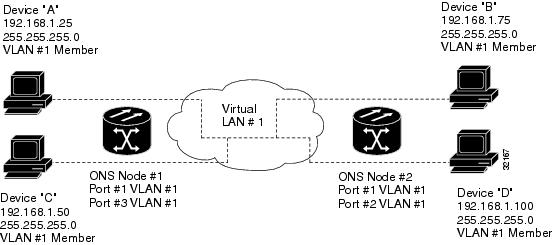
Verify Ethernet Connections
Step 1 Verify that the alarm filter is turned OFF.
Step 2 Check for SONET and DWDM alarms on the STS that carries the VLAN Ethernet circuit. Clear any alarms by looking them up in Chapter 2, "Alarm Troubleshooting."
Step 3 Check for Ethernet-specific alarms. Clear any raised alarms by looking up that alarm in Chapter 2, "Alarm Troubleshooting."
Step 4 Verify that the ACT LED on the Ethernet card is green.
Step 5 Verify that Ports 1 and 3 on ONS 15454 #1 and Ports 1 and 2 on ONS 15454 #2 have green link-integrity LEDs illuminated.
Step 6 If no green link-integrity LED is illuminated for any of these ports:
a. Verify physical connectivity between the ONS 15454s and the attached device.
b. Verify that the ports are enabled on the Ethernet cards.
c. Verify that you are using the proper Ethernet cable and that it is wired correctly, or replace the cable with a known-good Ethernet cable.
d. Check the status LED on the Ethernet card faceplate to ensure the card booted up properly. This LED should be steady green. If necessary, remove and reinsert the card and allow it to reboot.
e. It is possible that the Ethernet port is functioning properly but the link LED itself is broken. Complete the "Verify General Card LED Operation" procedure on page 1-113.
Step 7 Verify connectivity between device A and device C by pinging between these locally attached devices. Complete the "1.11.8 Verify PC Connection to the ONS 15454 (ping)" procedure on page 1-124. If the ping is unsuccessful:
a. Verify that device A and device C are on the same IP subnet.
b. Open the Ethernet card in CTC card view and click the Provisioning > VLAN tab to verify that both Port 1 and Port 3 on the card are assigned to the same VLAN.
c. If a port is not assigned to the correct VLAN, click that port column in the VLAN row and set the port to Tagged or Untag. Click Apply.
Step 8 Repeat Step 7 for devices B and D.
Step 9 Verify that the Ethernet circuit that carries VLAN #1 is provisioned and that ONS 15454 #1 and ONS 15454 #2 ports also use VLAN #1.
1.12.17 VLAN Cannot Connect to Network Device from Untag Port
Symptom Networks that have a VLAN with one ONS 15454 Ethernet card port set to Tagged and one ONS 15454 Ethernet card set to Untag might have difficulty implementing Address Resolution Protocol (ARP) for a network device attached to the Untag port (Figure 1-54). They might also see a higher than normal runt packets count at the network device attached to the Untag port. This symptom/limitation also exists when ports within the same card or ports within the same chassis are put on the same VLAN, with a mix of tagged and untagged.
Possible Cause The Tagged ONS 15454 adds the IEEE 802.1Q tag and the Untag ONS 15454 removes the Q-tag without replacing the bytes. The NIC of the network device categorizes the packet as a runt and drops the packet.
Possible Cause Dropped packets can also occur when ARP attempts to match the IP address of the network device attached to the Untag port with the physical MAC address required by the network access layer.
Recommended Action The solution is to set both ports in the VLAN to Tagged to stop the stripping of the 4 bytes from the data packet and prevent the NIC card in the network access device from recognizing the packet as a runt and dropping it. Network devices with IEEE 802.1Q-compliant NIC cards accept the tagged packets. Network devices with non IEEE 802.1Q compliant NIC cards still drop these tagged packets. The solution might require upgrading network devices with non-IEEE 802.1Q compliant NIC cards to IEEE 802.1Q compliant NIC cards. You can also set both ports in the VLAN to Untag, but you will lose IEEE 802.1Q compliance.
Figure 1-54 VLAN with Ethernet Ports at Tagged and Untag
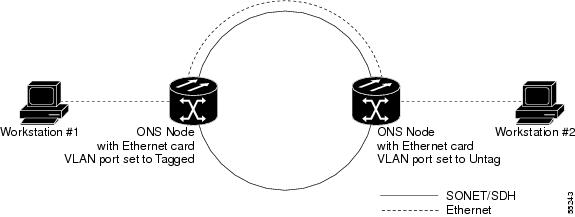
Change VLAN Port Tagged and Untag Settings
Step 1 Display the CTC card view for the Ethernet card involved in the problem VLAN.
Step 2 Click the Provisioning > Ether VLAN tab (Figure 1-55).
Figure 1-55 Configuring VLAN Membership for Individual Ethernet Ports

Step 3 If the port is set to Tagged, continue to look at other cards and their ports in the VLAN until you find the port that is set to Untag.
Step 4 At the VLAN port set to Untag, click the port and choose Tagged.
Note The attached external devices must recognize IEEE 802.1Q VLANs.
Step 5 After each port is in the appropriate VLAN, click Apply.
1.13 Circuits and Timing
This section provides solutions to circuit creation and reporting errors, as well as common timing reference errors and alarms.
1.13.1 OC-N Circuit Transitions to Partial State
Symptom An automatic or manual transition of a circuit from one state to another state results in the OOS-PARTIAL status, which indicates that not all OC-N connections in the circuit are in the IS-NR service state.
Possible Cause During a manual transition, CTC cannot communicate with one of the nodes or one of the nodes is on a version of software that does not support the new state model.
Recommended Action Repeat the manual transition operation. If the partial state persists, determine which node in the circuit is not changing to the desired state. Complete the "View the State of OC-N Circuit Nodes" procedure on page 1-140. Log into the circuit node that did not change to the desired state and determine the version of software. If the software on the node is Software R3.3 or earlier, upgrade the software. Refer to the Cisco ONS 15454 Software Upgrade Guide for software upgrade procedures.
Note If the node software cannot be upgraded to R4.0, the partial state condition can be avoided by using only the circuit state supported in the earlier software version.
Possible Cause During an automatic transition, some path-level defects and/or alarms were detected on the circuit.
Possible Cause One end of the circuit is not properly terminated.
Recommended Action Determine which node in the circuit is not changing to the desired state. Complete the "View the State of OC-N Circuit Nodes" procedure on page 1-140. Log onto the circuit node that did not change to the desired state and examine the circuit for path-level defects, improper circuit termination, or alarms. See Chapter 2, "Alarm Troubleshooting," for procedures to clear alarms. Refer to the "Manage Circuits" chapter in the Cisco ONS 15454 Procedure Guide for instructions to change circuit configuration settings. Resolve and clear the defects and/or alarms on the circuit node and verify that the circuit transitions to the desired state.
View the State of OC-N Circuit Nodes
Step 1 Click the Circuits tab.
Step 2 From the Circuits tab list, select the circuit with the *_PARTIAL status condition.
Step 3 Click Edit. The Edit Circuit window appears.
Step 4 In the Edit Circuit window, click the State tab (if you are viewing a SONET circuit).
The State tab window lists the Node, End A, End B, CRS Admin State, and CRS Service State for each of the nodes in the circuit.
1.13.2 AIS-V on DS3XM-6 or DS3XM-12 Unused VT Circuits
Symptom An incomplete circuit path causes an AIS.
Possible Cause The port on the reporting node is in-service but a node upstream on the circuit does not have an OC-N port in service.
Recommended Action An AIS-V indicates that an upstream failure occurred at the virtual tributary (VT) layer. AIS-V alarms also occur on DS3XM-6 and DS3XM-12 VT circuits that are not carrying traffic and on stranded bandwidth. Complete the "Clear AIS-V on DS3XM-6 or DS3XM-12 Unused VT Circuits" procedure on page 1-141.
Clear AIS-V on DS3XM-6 or DS3XM-12 Unused VT Circuits
Step 1 Determine the affected port.
Step 2 Record the node ID, slot number, port number, or VT number.
Step 3 Create a unidirectional VT circuit from the affected port back to itself, such as Source node/Slot 2/Port 2/VT 13 cross connected to Source node/Slot 2/Port 2/VT 13.
Step 4 Uncheck the Bidirectional check box in the circuit creation window.
Step 5 Give the unidirectional VT circuit an easily recognizable name, such as delete me.
Step 6 Display the DS3XM-6 card in CTC card view. Click the Maintenance > DS1 tab.
Step 7 Locate the VT that is reporting the alarm (for example, DS3 #2, DS1 #13).
Step 8 From the Loopback Type list, choose Facility (Line) and click Apply.
Step 9 Click Circuits.
Step 10 Find the one-way circuit you created in Step 3. Select the circuit and click Delete. Do not check any check boxes.
Step 11 Click Yes in the Delete Confirmation dialog box.
Step 12 Display the DS3XM-6 or DS3XM-12 card in CTC card view. Click Maintenance > DS1.
Step 13 Locate the VT in Facility (line) Loopback.
Step 14 From the Loopback Type list, choose None and then click Apply.
Step 15 Click the Alarms tab and verify that the AIS-V alarms have cleared.
Step 16 Repeat this procedure for all the AIS-V alarms on the DS3XM-6 or DS3XM-12 cards.
1.13.3 Circuit Creation Error with VT1.5 Circuit
Symptom You receive an "Error while finishing circuit creation. Unable to provision circuit. Unable to create connection object at node_name" message when trying to create a VT1.5 circuit in CTC.
Possible Cause You might have run out of bandwidth on the VT cross-connect matrix at the ONS 15454 indicated in the error message.
Recommended Action The matrix has a maximum capacity of 336 bidirectional VT1.5 cross-connects. Certain configurations exhaust VT capacity with less than 336 bidirectional VT1.5s in a BLSR or less than 224 bidirectional VT1.5s in a unidirectional path switched ring (path protection) or 1+1 protection group. Refer to the Cisco ONS 15454 Reference Manual for more information.
1.13.4 Unable to Create Circuit From DS-3 Card to DS3XM-6 or DS3XM-12 Card
Symptom You cannot create a circuit from a DS-3 card to a DS3XM-6 or DS3XM-12 card.
Possible Cause A DS-3 card and a DS3XM-6 or DS3XM-12 card have different functions.
Recommended Action A DS3XM-6 card converts each of its six DS-3 interfaces into 28 DS-1s for cross-connection through the network. The DS3XM-12 converts each of its 12 interfaces into up to 48 DS-1s. Thus, you can create a circuit from a DS3XM-6 or DS3XM-12 card to a DS-1 card, but not from a DS3XM card to a DS-3 card. These differences are evident in the STS path overhead. The DS-3 card uses asynchronous mapping for DS-3, which is indicated by the C2 byte in the STS path overhead that has a hex code of 04. A DS3XM-6 or DS3XM-12 has a VT payload with a C2 hex value of 02.
Note You can find instructions for creating circuits in the "Create Circuits and VT Tunnels" chapter of the Cisco ONS 15454 Procedure Guide.
1.13.5 DS-3 Card Does Not Report AIS-P From External Equipment
Symptom A DS3-12, DS3N-12, DS3-12E, or DS3N-12E card does not report STS AIS-P from the external equipment/line side.
Possible Cause The card is functioning as designed.
Recommended Action This card terminates the port signal at the backplane so STS AIS-P is not reported from the external equipment/line side. DS3-12, DS3N-12, DS3-12E, and DS3N-12E cards have DS3 header monitoring functionality, which allows you to view PM on the DS3 path. Nevertheless, you cannot view AIS-P on the STS path. For more information about the PM capabilities of the DS3-12, DS3N-12, DS3-12E or DS3N-12E cards, go to Chapter 5, "Performance Monitoring."
1.13.6 OC-3 and DCC Limitations
Symptom Limitations to OC-3 and DCC usage.
Possible Cause OC-3 and DCC have limitations for the ONS 15454.
Recommended Action For an explanation of OC-3 and DCC limitations, refer to the "Circuits and Tunnels" chapter in the Cisco ONS 15454 Reference Manual.
1.13.7 ONS 15454 Switches Timing Reference
Symptom Timing references switch when one or more problems occur.
Possible Cause The optical or BITS input is receiving loss of signal (LOS), loss of frame (LOF), or AIS alarms from its timing source.
Possible Cause The optical or building integrated timing supply (BITS) input is not functioning.
Possible Cause The synchronization status messaging (SSM) message is set to do not use for synchronization (DUS).
Possible Cause SSM indicates a Stratum 3 or lower clock quality.
Possible Cause The input frequency is off by more than 15 ppm.
Possible Cause The input clock wanders and has more than three slips in 30 seconds.
Possible Cause A bad timing reference existed for at least two minutes.
Recommended Action The ONS 15454 internal clock operates at a Stratum 3E level of accuracy. This gives the ONS 15454 a free-running synchronization accuracy of +/- 4.6 ppm and a holdover stability of less than 255 slips in the first 24 hours or 3.7 x 10⁻⁷/day, including temperature. ONS 15454 free-running synchronization relies on the Stratum 3 internal clock. Over an extended time period, using a higher quality Stratum 1 or Stratum 2 timing source results in fewer timing slips than a lower quality Stratum 3 timing source.
1.13.8 Holdover Synchronization Alarm
Symptom The clock is running at a different frequency than normal and the "HLDOVRSYNC" alarm appears.
Possible Cause The last reference input has failed.
Recommended Action The clock is running at the frequency of the last known-good reference input. This alarm is raised when the last reference input fails. See the "HLDOVRSYNC" alarm on page 2-116 for a detailed description.
Note The ONS 15454 supports holdover timing per Telcordia GR-436 when provisioned for external (BITS) timing.
1.13.9 Free-Running Synchronization Mode
Symptom The clock is running at a different frequency than normal and the "FRNGSYNC" alarm appears.
Possible Cause No reliable reference input is available.
Recommended Action The clock is using the internal oscillator as its only frequency reference. This occurs when no reliable, prior timing reference is available. See the "FRNGSYNC" condition on page 2-105 for a detailed description.
1.13.10 Daisy-Chained BITS Not Functioning
Symptom You are unable to daisy chain the BITS sources.
Possible Cause Daisy-chained BITS sources are not supported on the ONS 15454.
Recommended Action Daisy-chained BITS sources cause additional wander buildup in the network and are therefore not supported. Instead, use a timing signal generator to create multiple copies of the BITS clock and separately link them to each ONS 15454.
1.13.11 Blinking STAT LED after Installing a Card
Symptom After installing a card, the STAT LED blinks continuously for more than 60 seconds.
Possible Cause The card cannot boot because it failed the Power On Shelf Test (POST) diagnostics.
Recommended Action The blinking STAT LED indicates that POST diagnostics are being performed. If the LED continues to blink more than 60 seconds, the card has failed the POST diagnostics test and has failed to boot. If the card has truly failed, an "EQPT" alarm is raised against the slot number with an "Equipment Failure" description. Check the alarm tab for this alarm to appear for the slot where the card was installed. To attempt recovery, remove and reinstall the card and observe the card boot process. If the card fails to boot, replace the card. Complete the "Physically Replace a Traffic Card" procedure on page 2-242.
Error Message
Above paragraph is not clear. Why we need to complete Air Filter and Fan Procedure if the card is failed. If this applicable for FAN and AIR Filter, rephrase the sentence
Removing a card that currently carries traffic on one or more ports can cause a traffic hit. To avoid this, perform an external switch if a switch has not already occurred. See the procedures in the
"2.10.2 Protection Switching, Lock Initiation, and Clearing" section on page 2-231. For more information, refer to the "Maintain the Node" chapter in the
Cisco ONS 15454 Procedure Guide.
1.14 Fiber and Cabling
This section explains problems typically caused by cabling connectivity errors. It also includes instructions for crimping Category-5 cable and lists the optical fiber connectivity levels.
1.14.1 Bit Errors Appear for a Traffic Card
Symptom A traffic card has multiple bit errors.
Possible Cause Faulty cabling or low optical-line levels.
Recommended Action Bit errors on line (traffic) cards usually originate from cabling problems or low optical-line levels. The errors can be caused by synchronization problems, especially if pointer justification (PJ) errors are reported. Moving cards into different error-free slots will isolate the cause. Use a test set whenever possible because the cause of the errors could be external cabling, fiber, or external equipment connecting to the ONS 15454. Troubleshoot low optical levels using the "1.14.2 Faulty Fiber-Optic Connections" section on page 1-145.
1.14.2 Faulty Fiber-Optic Connections
Symptom A line card has multiple SONET/DWDM alarms and/or signal errors.
Possible Cause Faulty fiber-optic connections.
Recommended Action Faulty fiber-optic connections can be the source of SONET/DWDM alarms and signal errors. Complete the "Verify Fiber-Optic Connections" procedure on page 1-146.
Possible Cause Faulty Category-5 cables.
Recommended Action Faulty Category-5 cables can be the source of SONET/DWDM alarms and signal errors. Complete the "1.14.2.1 Crimp Replacement LAN Cables" section on page 1-148.
Possible Cause Faulty GBICs.
Recommended Action Faulty GBICs can be the source of SONET/DWDM alarms and signal errors. See the "1.14.2.2 Replace Faulty GBIC, SFP, or XFP Connectors" section on page 1-149.
 |
Warning Invisible laser radiation may be emitted from disconnected fibers or connectors. Do not stare into beams or view directly with optical instruments. Statement 272
|
Verify Fiber-Optic Connections
Step 1 Ensure that a single-mode fiber connects to the ONS 15454 OC-N card.
Note SM or SM Fiber should be printed on the fiber span cable. ONS 15454 OC-N cards do not use multimode fiber.
Step 2 Ensure that the connector keys on the SC fiber connector are properly aligned and locked.
Step 3 Check that the single-mode fiber power level is within the specified range:
a. Remove the Rx end of the suspect fiber.
b. Connect the Rx end of the suspect fiber to a fiber-optic power meter, such as a GN Nettest LP-5000.
c. Determine the power level of fiber with the fiber-optic power meter.
d. Verify that the power meter is set to the appropriate wavelength for the OC-N card being tested (either 1310 nm or 1550 nm depending on the specific card).
e. Verify that the power level falls within the range specified for the card if it is an OC-N card; see the "1.14.3 OC-N Card Transmit and Receive Levels" section on page 1-154.
Step 4 If the power level falls below the specified range for the OC-N card:
a. Clean or replace the fiber patch cords. Clean the fiber according to site practice or, if none exists, follow the procedure in the "Maintain the Node" chapter in the Cisco ONS 15454 Procedure Guide. If possible, do this for the OC-N card you are working on and the far-end card.
b. Clean the optical connectors on the card. Clean the connectors according to site practice or, if none exists, follow the procedure in the "Maintain the Node" chapter in the Cisco ONS 15454 Procedure Guide. If possible, do this for the OC-N card you are working on and the far-end card.
c. Ensure that the far-end transmitting card is not an ONS intermediate-range (IR) card when an ONS long-range (LR) card is appropriate.
IR cards transmit a lower output power than LR cards.
d. Replace the far-end transmitting OC-N card to eliminate the possibility of a degrading transmitter on this OC-N card.
Removing a card that currently carries traffic on one or more ports can cause a traffic hit. To avoid this, perform an external switch if a switch has not already occurred. See the procedures in the
"2.10.2 Protection Switching, Lock Initiation, and Clearing" section on page 2-231. For more information, refer to the "Maintain the Node" chapter in the
Cisco ONS 15454 Procedure Guide.
e. If the power level still falls below the specified range with the replacement fibers and replacement card, check for one of these three factors that attenuate the power level and affect link loss (LL):
•Excessive fiber distance; single-mode fiber attenuates at approximately 0.5 dB/km.
•Excessive number or fiber connectors; connectors take approximately 0.5 dB each.
•Excessive number of fiber splices; splices take approximately 0.5 dB each.
Note These are typical attenuation values. Refer to the specific product documentation for the actual values or use an optical time domain reflectometer (OTDR) to establish precise link loss and budget requirements.
Step 5 If no power level shows on the fiber, the fiber is bad or the transmitter on the OC-N card failed.
a. Check that the Tx and Rx fibers are not reversed. LOS and EOC alarms normally accompany reversed Tx and Rx fibers. Switching reversed Tx and Rx fibers clears the alarms and restores the signal.
b. Clean or replace the fiber patch cords. Clean the fiber according to site practice or, if none exists, follow the procedure in the "Maintain the Node" chapter in the Cisco ONS 15454 Procedure Guide. If possible, do this for the OC-N card you are working on and the far-end card.
c. Retest the fiber power level.
d. If the replacement fiber still shows no power, replace the OC-N card.
Removing a card that currently carries traffic on one or more ports can cause a traffic hit. To avoid this, perform an external switch if a switch has not already occurred. See the procedures in the
"2.10.2 Protection Switching, Lock Initiation, and Clearing" section on page 2-231. For more information, refer to the "Maintain the Node" chapter in the
Cisco ONS 15454 Procedure Guide.
Step 6 If the power level on the fiber is above the range specified for the card, ensure that an ONS LR card is not being used when an ONS IR card is appropriate.
LR cards transmit a higher output power than IR cards. When used with short runs of fiber, an LR transmitter is too powerful for the receiver on the receiving OC-N card.
Receiver overloads occur when maximum receiver power is exceeded.

Tip To prevent overloading the receiver, use an attenuator on the fiber between the ONS OC-N card transmitter and the receiver. Place the attenuator on the receive transmitter of the ONS OC-N cards. Refer to the attenuator documentation for specific instructions.
Tip Most fiber has text printed on only one of the two fiber strands. Use this to identify which fiber is connected to Tx and which fiber is connected to Rx.
1.14.2.1 Crimp Replacement LAN Cables
You can crimp your own LAN cables for use with the ONS 15454. Use a cross-over cable when connecting an ONS 15454 to a hub, LAN modem, or switch, and use a LAN cable when connecting an ONS 15454 to a router or workstation. Use Category-5 cable RJ-45 T-568B, Color Code (100 Mbps), and a crimping tool. Figure 1-56 shows the wiring of an RJ-45 connector. Figure 1-57 shows a LAN cable layout, and Table 1-5 shows the cable pinouts. Figure 1-58 shows a cross-over cable layout, and Table 1-6 shows the cross-over pinouts.
Figure 1-56 RJ-45 Pin Numbers

Figure 1-57 LAN Cable Layout
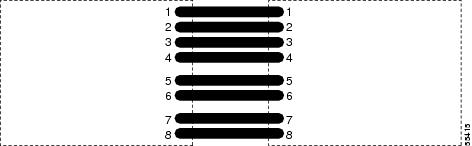
Figure 1-58 Cross-Over Cable Layout

Note Odd-numbered pins always connect to a white wire with a colored stripe.
1.14.2.2 Replace Faulty GBIC, SFP, or XFP Connectors
GBICs and Small Form-factor Pluggables (SFP or XFP) are hot-swappable and can be installed or removed while the card or shelf assembly is powered and running.
|
Warning Class 1 laser product. Statement 1008
|
|
Warning Invisible laser radiation may be emitted from disconnected fibers or connectors. Do not stare into beams or view directly with optical instruments. Statement 272
|
GBICs and SFPs/XFPs are input/output devices that plug into a Gigabit Ethernet card to link the port with the fiber-optic network. The type of GBIC or SFP determines the maximum distance that the Ethernet traffic can travel from the card to the next network device. For a description of GBICs and SFPs and their capabilities refer to the Cisco ONS 15454 Reference Manual.
Note GBICs and SFPs must be matched on either end by type: SX to SX, LX to LX, or ZX to ZX.
Note All versions of G1K-4 cards support coarse wavelength division multiplexing (CWDM) GBICs.
GBICs are available in two different models. One GBIC model has two clips (one on each side of the GBIC) that secure the GBIC in the slot on the E1000-2-G, G-Series, or G1K-4 card. The other model has a locking handle. Both models are shown in Figure 1-59.
Figure 1-59 GBICs
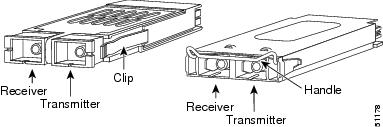
For a list of available GBICs and SFPs/XFPs for Ethernet cards and SAN (FC_MR-4) cards, refer to the Ethernet Cards" chapter in the Cisco ONS 15454 Reference Manual. For a list of available SFPs/XFPs for TXP and MXP cards, refer to the Cisco ONS 15454 DWDM Installation and Operations Guide.
Note GBICs are very similar in appearance. Check the GBIC label carefully before installing it.
Remove GBIC, SFP, or XFP Connectors
|
Warning Invisible laser radiation may be emitted from disconnected fibers or connectors. Do not stare into beams or view directly with optical instruments. Statement 272
|
Step 1 Disconnect the network fiber cable from the GBIC SC connector or XFP or SFP LC duplex connector.
Step 2 Release the GBIC or SFP/XFP from the slot by simultaneously squeezing the two plastic tab on each side.
Step 3 Slide the GBIC or SFP/XFP out of the Gigabit Ethernet module slot. A flap closes over the GBIC or SFP slot to protect the connector on the Gigabit Ethernet card.
Install a GBIC or SFP/XFP Device
|
Warning Class 1 laser product. Statement 1008
|
Note G-Series cards manufactured before August 2003 do not support DWDM GBICs. G1K-4 cards compatible with DWDM GBICs have a Common Language Equipment Identification (CLEI) code of WM5IRWPCAA.
Note All versions of G1K-4 cards support coarse wavelength division multiplexing (CWDM) GBICs.
Note GBICs, SFPs, and XFPs are hot-swappable and can therefore be installed/removed while the card/shelf assembly is powered and running.
Step 1 Remove the GBIC, SFP, or XFP from its protective packaging.
Step 2 Check the label to verify that the GBIC, SFP, or XFP is the correct type for your network.
Table 1-7 shows the available GBICs.
Note The GBICs are very similar in appearance. Check the GBIC label carefully before installing it.
Table 1-8 shows the available SFPs and XFPs.
|
|
|
|
|
|
|---|---|---|---|---|
1000BaseSX |
ML1000-2 |
Short reach |
Multimode fiber up to 550 m long |
15454E-SFP-LC-SX= |
1000BaseLX |
Long reach |
Single-mode fiber up to 5 km long |
15454E-SFP-LC-LX= |
|
1000BaseFX |
ML100X-8 |
Short reach |
1310 nm multimode fiber up to 2 km long |
ONS-SE-100-FX |
1000BaseLX-10 |
Intermediate reach |
1310 nm, single mode fiber, up to 15 km long |
ONS-SE-100-LX10 |
|
OC-48 SR |
MRC-12 |
Short reach |
1310-nm single-mode fiber up to 2 km long |
ONS-SI-2G-S1 |
OC-48 IR1 |
Intermediate reach |
1310-nm single-mode fiber, up to 15 km long |
ONS-SI-2G-I1 |
|
OC-48 LR1 |
Long reach |
1310-nm single-mode fiber up to 40 km long |
ONS-SI-2G-L1 |
|
OC-48 LR2 |
Long reach |
1550-nm single-mode fiber up to 80 km long |
ONS-SI-2G-L2 |
|
OC-48 LR2 DWDM |
Long reach |
1530.33 to 1560.61 nm single-mode fiber up to 120 km long |
ONS-SC-2G-30.3 through |
|
OC-3/OC-12 IR1 dual rate |
Intermediate reach |
1310-nm single-mode fiber up to 15 km long |
ONS-SI-622-I1 |
|
OC-12 LR1 |
Long reach |
1310-nm single-mode fiber up to 40 km long |
ONS-SI-622-L1 |
|
OC-12 LR2 |
Long reach |
1550-nm single-mode fiber up to 80 km long |
ONS-SI-622-L2 |
|
OC-12 CWDM |
Long reach |
1470 to 1610 nm single-mode fiber up to 80 km long |
ONS-SE-622-1470 through |
|
OC-3 IR1 |
Intermediate reach |
1310-nm single-mode fiber up to 15 km long |
ONS-SI-155-I1 |
|
OC-3 LR1 |
MRC-12 (cont.) |
Long reach |
1310-nm single-mode fiber up to 40 km long |
ONS-SI-155-L1 |
OC-3 LR2 |
Long reach |
1550-nm single-mode fiber up to 80 km long |
ONS-SI-155-L2 |
|
OC-3 CWDM |
Long reach |
1470 to 1610 nm single-mode fiber up to 80 km long |
ONS_SE-155-1470 through |
|
OC-192 SR1 |
OC192SR1/ |
Short reach |
1310-nm single-mode fiber up to 10 km long |
ONS-XC-10G-S1 |
OC-192 SR1, IR1, LR2 |
OC192/ |
Short reach |
1310-nm single-mode fiber up to 10 km long |
ONS-XC-10G-S1 |
Intermediate reach |
1550-nm single-mode fiber up to 15 km long |
ONS-XC-10G-I2 |
||
Long reach |
1550-nm single-mode fiber up to 80 km long |
ONS-XC-10G-L2 |
1 CTC refers to this card as OC192-XFP |
Note Before you install SFPs on the MRC-12 card, refer to the MRC-12 card information in the Cisco ONS 15454 Reference Manual for bandwidth restrictions based on the port where you install the SFP and the cross-connect card being used.
Step 3 Verify the type of GBIC, SFP, or XFP you are using:
•If you are using a GBIC with clips, go to Step 4.
•If you are using a GBIC with a handle, go to Step 5.
•If you are using an SFP or XFP, go to Step 6.
Step 4 For GBICs with clips:
a. Grip the sides of the GBIC with your thumb and forefinger and insert the GBIC into the slot on the card.
Note GBICs are keyed to prevent incorrect installation.
b. Slide the GBIC through the flap that covers the opening until you hear a click. The click indicates the GBIC is locked into the slot.
c. When you are ready to attach the network fiber-optic cable, remove the protective plug from the GBIC, save the plug for future use, then plug the fiber connector into the GBIC.
Step 5 For GBICs with a handle:
a. Remove the protective plug from the SC-type connector.
b. Grip the sides of the GBIC with your thumb and forefinger and insert the GBIC into the slot on the card.
c. Lock the GBIC into place by closing the handle down. The handle is in the correct closed position when it does not obstruct access to an SC-type connector.
d. Slide the GBIC through the cover flap until you hear a click.
The click indicates that the GBIC is locked into the slot.
e. When you are ready to attach the network fiber-optic cable, remove the protective plug from the GBIC, save the plug for future use, then plug the fiber connector into the GBIC.
Step 6 For SFPs and XFPs:
a. Plug the LC duplex connector of the fiber into a Cisco-supported SFP or XFP.
b. If the new SFP or XFP has a latch, close the latch over the cable to secure it.
c. Plug the cabled SFP or XFP into the card port until it clicks.
SFPs and XFPs must be provisioned in CTC. If you installed a multirate PPM, refer to the "Install Cards and Fiber-Optic Cable" chapter in the Cisco ONS 15454 Procedure Guide for instructions to provision it. (Single-rate XFPs do not need to be provisioned in CTC.)
1.14.3 OC-N Card Transmit and Receive Levels
Each OC-N card has a transmit and receive connector on its faceplate. Table 1-9 lists these levels.
1.15 Power Supply Problems
Symptom Loss of power or low voltage, resulting in a loss of traffic and causing the LCD clock to reset to the default date and time.
Possible Cause Loss of power or low voltage.
Possible Cause Improperly connected power supply.
Recommended Action The ONS 15454 requires a constant source of DC power to properly function. Input power is -48 VDC. Power requirements range from -42 VDC to -57 VDC. A newly installed ONS 15454 that is not properly connected to its power supply does not operate. Power problems can be confined to a specific ONS 15454 or affect several pieces of equipment on the site. A loss of power or low voltage can result in a loss of traffic and causes the LCD clock on the ONS 15454 to default to January 1, 1970, 00:04:15. To reset the clock, in node view click the Provisioning > General > General tab and change the Date and Time fields. Complete the "Isolate the Cause of Power Supply Problems" procedure on page 1-156.
|
Warning Only trained and qualified personnel should be allowed to install, replace, or service this equipment. Statement 1030
|
Operations that interrupt power supply or short the power connections to the ONS 15454 are service-affecting.
Isolate the Cause of Power Supply Problems
Step 1 If a single ONS 15454 show signs of fluctuating power or power loss:
a. Verify that the -48 VDC #8 power terminals are properly connected to a fuse panel. These power terminals are located on the lower section of the backplane EIA under the clear plastic cover.
b. Verify that the power cable is #12 or #14 AWG and in good condition.
c. Verify that the power cable connections are properly crimped. Stranded #12 or #14 AWG does not always crimp properly with Staycon type connectors.
d. Verify that 20-A fuses are used in the fuse panel.
e. Verify that the fuses are not blown.
f. Verify that a rack-ground cable attaches to the frame-ground terminal (FGND) on the right side of the ONS 15454 EIA. Connect this cable to the ground terminal according to local site practice.
g. Verify that the DC power source has enough capacity to carry the power load.
h. If the DC power source is battery-based:
•Check that the output power is high enough. Power requirements range from -42 VDC to -57 VDC.
•Check the age of the batteries. Battery performance decreases with age.
•Check for opens and shorts in batteries, which might affect power output.
•If brownouts occur, the power load and fuses might be too high for the battery plant.
Step 2 If multiple pieces of site equipment show signs of fluctuating power or power loss:
a. Check the uninterruptible power supply (UPS) or rectifiers that supply the equipment. Refer to the UPS manufacturer's documentation for specific instructions.
b. Check for excessive power drains caused by other equipment, such as generators.
c. Check for excessive power demand on backup power systems or batteries when alternate power sources are used.
1.15.1 Power Consumption for Node and Cards
Symptom You are unable to power up a node or the cards in a node.
Possible Cause Improper power supply.
Recommended Action Refer to power information in the "Hardware Specifications" appendix in the Cisco ONS 15454 Reference Manual.
 Feedback