Guest

Cisco ONS 15400 Series

Installing the OPT-AMP-L Card in the Cisco ONS 15454 SONET/SDH

Table Of Contents

Installing the OPT-AMP-L Card in the Cisco ONS 15454 SONET/SDH

OPT-AMP-L Card Description

Power Monitoring

OPT-AMP-L Card Level Indicators

OPT-AMP-L Port-Level Indicators

OPT-AMP-L Card Specifications

Install the OPT-AMP-L Card

Related Documentation

Obtaining Documentation

Cisco.com

Product Documentation DVD

Cisco Optical Networking Product Documentation CD-ROM

Ordering Documentation

Documentation Feedback

Cisco Product Security Overview

Reporting Security Problems in Cisco Products

Obtaining Technical Assistance

Cisco Technical Support & Documentation Website

Submitting a Service Request

Definitions of Service Request Severity

Obtaining Additional Publications and Information


Installing the OPT-AMP-L Card in the Cisco ONS 15454 SONET/SDH


Product Names: 15454-AMP-L

This document provides a card description, specifications, and installation procedure for the dense wavelength division multiplexer (DWDM) OPT-AMP-L card. The OPT-AMP-L card is compatible with the ONS 15454 SONET (ANSI) and the Cisco ONS 15454 SDH (ETSI) shelf assemblies. Use this document in conjunction with the Cisco ONS 15454 DWDM Procedure Guide.

This document contains the following sections:

OPT-AMP-L Card Description

OPT-AMP-L Card Specifications

Install the OPT-AMP-L Card

Related Documentation

Obtaining Documentation

Documentation Feedback

Cisco Product Security Overview

Obtaining Technical Assistance

Obtaining Additional Publications and Information

OPT-AMP-L Card Description

The OPT-AMP-L is an L-band DWDM optical amplifier module consisting of a two-stage EDFA with mid-stage access loss (MSL) for an external DCU and OSC add-and-drop capability. Using Cisco Transport Controller (CTC), the card is provisionable as a preamplifier (OPT-PRE) or booster amplifier (OPT-BST), as shown in Cisco ONS 15454 DWDM Procedure Guide. The amplifier is well suited for networks that employ DS fiber or SMF-28 single-mode fiber. The amplifier can operate up to 64 optical transmission channels at a channel spacing of 50 GHz in the wavelength range from 1570 nm to 1605 nm.

The OPT-AMP-L card is able to achieve a maximum signal power of 20 dBm throughout the gain and MSL ranges. The amplifier has a variable gain range that is settable from 12 to 24 dBm in the standard gain range and from 24 dBm to 35 dBm with uncontrolled gain tilt. It also provides up to 12 dBm MSL for an external DCU.

When an an OPT-AMP-L installed, only the OSCM needs to process the OSC. You can install the two-slot OPT-AMP-L in Slots 1 to 6 and 12 to 17. To control the gain tilt, the OPT-AMP-L is equipped with a built-in VOA.

The OPT-AMP-L has the following features:

Maximum power output of 20 dBm

True variable gain amplifier

Fast transient suppression; able to adjust power levels in hundreds of microseconds to avoid bit errors in failure or capacity growth situations

Nondistorting low frequency transfer function

Mid-stage access loss for dispersion compensation unit

Constant pump current mode (test mode)

Constant output power mode (used during optical node setup)

Constant gain mode

Internal ASE compensation in Constant Gain and in Constant Output Power mode

Programmable tilt

Full monitoring and alarm handling capability

Optical safety support through signal loss detection and alarms at any input port, fast power down control (less than one second), and reduced maximum output power in safe power mode. For details on ALS provisioning for the card, see the Cisco ONS 15454 DWDM Procedure Guide. For information on using the card to implement ALS in a network, refer to the Cisco ONS 15454 DWDM Reference Manual.


Note Before disconnecting any OPT AMP-L fiber for troubleshooting, make sure the OPT AMP-L is unplugged.


Warning Invisible laser radiation may be emitted from the end of the unterminated fiber cable or connector. Do not view directly with optical instruments. Viewing the laser output with certain optical instruments (for example, eye loupes, magnifiers, and microscopes) within a distance of 100 mm may pose an eye hazard. Statement 1056


Figure 1 shows the faceplate and block diagram. Figure 2 shows optical module functional diagram of the OPT-AMP-L card.

Figure 1 OPT-AMP-L Faceplate and Block Diagram

Figure 2 OPT-AMP-L Optical Module Functional Block Diagram

Power Monitoring

Physical photodiodes P1 through P7 monitor the power for the OPT-AMP-L card. The returned power level values are calibrated to the ports as shown in Table 1.

Table 1 OPT-AMP-L Port Calibration 

Photodiode
CTC Type Name
Calibrated to Port

P1

Input COM Power

COM RX

P2

Output DC (total power)

DC TX

Output DC (signal power)

P3

Input DC (input power)

DC RX

P4

Output Line Transmit (total power)

LINE TX

Output Line Transmit (signal power)

P5

Input Line Receive Power

LINE RX

P6

Input OSC Receive Power

P7

Output OSC Transmit Power

OSC RX


OPT-AMP-L Card Level Indicators

The OPT-AMP-L amplifier has three card-level LED indicators, described in Table 2.

Table 2 OPT-AMP-L Card-Level Indicators  

Card-Level Indicators
Description

Red FAIL LED

The red FAIL LED indicates that the card's processor is not ready or that there is an internal hardware failure. Replace the card if the red FAIL LED persists.

Green ACT LED

The green ACT LED indicates that the OPT-AMP-L is carrying traffic or is traffic-ready.

Amber SF LED

The amber SF LED indicates a signal failure or condition such as LOS on one or more of the card's ports. The amber SF LED also illuminates when the transmit and receive fibers are incorrectly connected. When the fibers are properly connected, the light turns off.


OPT-AMP-L Port-Level Indicators

You can find the status of the card ports using the LCD screen on the ONS 15454 ANSI fan-tray assembly. Use the LCD to view the status of any port or card slot; the screen displays the number and severity of alarms for a given port or slot.

The OPT-AMP-L amplifier has ten optical ports located on the faceplate:

MON RX is the output monitor port (receive section).

MON TX is the output monitor port.

COM RX is the input signal port. LINE TX is the output signal port.

LINE RX is the input signal port (receive section).

COM TX is the output signal port (receive section).

OSC RX is the OSC add input port.

OSC TX is the OSC drop output port.

DC TX is the output signal to the DCU.

DC RX is the input signal from the DCU.

OPT-AMP-L Card Specifications

The OPT-AMP-L card has the following specifications:

Optical characteristics:

DWDM channel wavelength plan, 100 GHz, 4 skip 1, ITU-T wavelength grid channels 71 (1602.3 nm) to 90 (1570.4 nm)

DWDM channel wavelength plan, 50 GHz, 8 skip 2, ITU-T wavelength grid channels 70.5 (1602.7 nm) to 90 (1570.4 nm)

Channel spacing: 100 and 50 GHz

Total operating wavelength range 1570.0 - 1605.0 nm

Gain ripple (peak to valley): 1.5 dB

Standard gain range: 12 to 24 dB

Extended gain range (uncontrolled gain tilt): 24 to 35 dB

Gain and power regulation over/undershoot: 0.5 dB

Maximum power output (standard or extended gain range): 20 dB

Input power range (full channel load): -15 to 8 dB

Input power range (single channel load): -40 to -17

Noise figure at G3 20 dB = 8.9 dB

Insertion loss (Line RX to OSC TX): 0.3 to 1.8 dB

Insertion loss (Line RX to COM TX): 0.3 to 1.0 dB

Insertion loss (OSC RX to LINE TX): 0.3 to 1.3 dB

Optical connectors: LC-UPC/2

Environmental

Operating temperature:

C-Temp: -5 to +55 degrees Celsius (+23 to +131 degrees Fahrenheit)

Operating humidity: 5 to 85 percent, noncondensing

Dimensions

Height: 12.65 in. (332 mm)

Width: 0.92 in. (24 mm)

Depth: 9.00 in. (240 mm)

Install the OPT-AMP-L Card


Warning During this procedure, wear grounding wrist straps to avoid ESD damage to the card. Do not directly touch the backplane with your hand or any metal tool, or you could shock yourself. Statement 94


Warning Class 1M laser radiation when open. Do not view directly with optical instruments. Statement 1053


Warning Invisible laser radiation may be emitted from disconnected fibers or connectors. Do not stare into beams or view directly with optical instruments. Statement 272


Caution Always use the supplied ESD wristband when working with a powered ONS 15454. Plug the wristband cable into the ESD jack located on the lower-right outside edge of the shelf assembly.


Caution Do not install the DWDM cards until you are directed to do so during DWDM node turnup.


Note If protective clips are installed on the rear connectors of the cards, remove the clips before installing the cards.


Note If you install a card incorrectly, the FAIL LED flashes continuously.


Note The automatic node setup (ANS) of the ONS 15454 DWDM system begins to determine what kind of site you are installing as soon as you install cards. The automatic power control (APC) is enabled after ANS initializes and after a channel has been provisioned. To provision a DWDM channel, see the Cisco ONS 15454 DWDM Procedure Guide. For more information about amplifier power control, see the Cisco ONS 15454 DWDM Reference Manual.


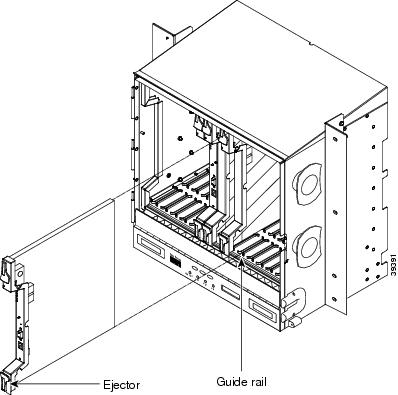
Figure 3 shows general card installation.

Figure 3 Installing a Card in the Cisco ONS 15454 (ANSI) Shelf
Install OPT-AMP-L cards in any open east and west pair of slots.


Step 1 Plan your node installation or consult the site plan. As soon as you begin installing cards, ANS determines what kind of site to set up based on the following parameters:

Hub site—Two 32DMX-O and two 32MUX-O cards are provisioned but no AD-xC or AD-xB cards are provisioned

Terminal—One 32DMX-O and one 32MUX-O card are provisioned, and no AD-xC or AD-xB cards are provisioned

Line site—Only one OPT-PRE, OPT-BST or OPT-AMP-L is provisioned per line direction. (Up to two OPT-PRE, two OPT-BST, and two OPT-AMP-L cards can be provisioned in the same shelf.)

OADM site—At least 1 AD-xC or AD-xB is provisioned and no 32DMX-O or 32MUX-O cards are provisioned

Unknown—Provisioned cards do not follow any of the previously listed categories.

Step 2 Open the card latches/ejectors.

Step 3 Use the latches/ejectors to firmly slide the DWDM card along the guide rails until the card plugs into the receptacle at the back of the slot.

Step 4 Install the card in any open east and west pair of slots. OPT-AMP-L cards are often installed in Slots 1 to 6 and 12 to 17.

Step 5 Verify that the card is inserted correctly and close the latches/ejectors on the card.


Note It is possible to close the latches/ejectors when the card is not completely plugged into the backplane. Ensure that you cannot insert the card any further.


Step 6 Verify the LED activity described in Table 3.

Table 3 LED Activity During OPT-AMP-L Card Installation

Card Type
LED Activity
OPT-AMP-L

1. The FAIL LED turns on for approximately 35 seconds

2. The FAIL LED blinks for approximately 40 seconds

3. All LEDs turn on and then turn off within 5 seconds

4. If new software is being downloaded to the card, the ACT and SF LEDs blink for 20 seconds to 3.5 minutes, depending on the card type

5. The ACT LED turns on

6. The signal fail (SF) LED stays on until all card ports connect to their far-end counterparts and a signal is present


Step 7 If the card does not boot up properly, or the LED activity does not mimic Step 6, check the following:

When a physical card type does not match the type of card provisioned for that slot in CTC, the card might not boot. If a OPT-AMP-L card does not boot, open CTC and ensure that the slot is not provisioned for a different card type before assuming the card is faulty.

If the red FAIL LED does not turn on, check the power.

If you insert a card into a slot provisioned for a different card, all LEDS turn off.

If the red FAIL LED is on continuously or the LEDs behave erratically, the card is not installed properly. Remove the card and repeat steps 2 to 6.


Related Documentation

Cisco ONS 15454 DWDM Procedure Guide

Cisco ONS 15454 DWDM Reference Manual

Cisco ONS 15454 DWDM Troubleshooting Guide

Cisco MetroPlanner DWDM Operations Guide

Obtaining Documentation

Cisco documentation and additional literature are available on Cisco.com. Cisco also provides several ways to obtain technical assistance and other technical resources. These sections explain how to obtain technical information from Cisco Systems.

Cisco.com

You can access the most current Cisco documentation at this URL:

http://www.cisco.com/techsupport

You can access the Cisco website at this URL:

http://www.cisco.com

You can access international Cisco websites at this URL:

http://www.cisco.com/public/countries_languages.shtml

Product Documentation DVD

Cisco documentation and additional literature are available in the Product Documentation DVD package, which may have shipped with your product. The Product Documentation DVD is updated regularly and may be more current than printed documentation.

The Product Documentation DVD is a comprehensive library of technical product documentation on portable media. The DVD enables you to access multiple versions of hardware and software installation, configuration, and command guides for Cisco products and to view technical documentation in HTML. With the DVD, you have access to the same documentation that is found on the Cisco website without being connected to the Internet. Certain products also have .pdf versions of the documentation available.

The Product Documentation DVD is available as a single unit or as a subscription. Registered Cisco.com users (Cisco direct customers) can order a Product Documentation DVD (product number DOC-DOCDVD=) from Cisco Marketplace at this URL:

http://www.cisco.com/go/marketplace/

Cisco Optical Networking Product Documentation CD-ROM

Optical networking-related documentation, including Cisco ONS 15xxx product documentation, is available in a CD-ROM package that ships with your product. The Optical Networking Product Documentation CD-ROM is updated periodically and may be more current than printed documentation.

Ordering Documentation

Beginning June 30, 2005, registered Cisco.com users may order Cisco documentation at the Product Documentation Store in the Cisco Marketplace at this URL:

http://www.cisco.com/go/marketplace/

Nonregistered Cisco.com users can order technical documentation from 8:00 a.m. to 5:00 p.m. (0800 to 1700) PDT by calling 1 866 463-3487 in the United States and Canada, or elsewhere by calling 011 408 519-5055. You can also order documentation by e-mail at tech-doc-store-mkpl@external.cisco.com or by fax at 1 408 519-5001 in the United States and Canada, or elsewhere at 011 408 519-5001.

Documentation Feedback

You can rate and provide feedback about Cisco technical documents by completing the online feedback form that appears with the technical documents on Cisco.com.

You can send comments about Cisco documentation to bug-doc@cisco.com.

You can submit comments by using the response card (if present) behind the front cover of your document or by writing to the following address:

Cisco Systems
Attn: Customer Document Ordering
170 West Tasman Drive
San Jose, CA 95134-9883

We appreciate your comments.

Cisco Product Security Overview

Cisco provides a free online Security Vulnerability Policy portal at this URL:

http://www.cisco.com/en/US/products/products_security_vulnerability_policy.html

From this site, you can perform these tasks:

Report security vulnerabilities in Cisco products.

Obtain assistance with security incidents that involve Cisco products.

Register to receive security information from Cisco.

A current list of security advisories and notices for Cisco products is available at this URL:

http://www.cisco.com/go/psirt

If you prefer to see advisories and notices as they are updated in real time, you can access a Product Security Incident Response Team Really Simple Syndication (PSIRT RSS) feed from this URL:

http://www.cisco.com/en/US/products/products_psirt_rss_feed.html

Reporting Security Problems in Cisco Products

Cisco is committed to delivering secure products. We test our products internally before we release them, and we strive to correct all vulnerabilities quickly. If you think that you might have identified a vulnerability in a Cisco product, contact PSIRT:

Emergencies — security-alert@cisco.com

An emergency is either a condition in which a system is under active attack or a condition for which a severe and urgent security vulnerability should be reported. All other conditions are considered nonemergencies.

Nonemergencies — psirt@cisco.com

In an emergency, you can also reach PSIRT by telephone:

1 877 228-7302

1 408 525-6532


Tip We encourage you to use Pretty Good Privacy (PGP) or a compatible product to encrypt any sensitive information that you send to Cisco. PSIRT can work from encrypted information that is compatible with PGP versions 2.x through 8.x.

Never use a revoked or an expired encryption key. The correct public key to use in your correspondence with PSIRT is the one linked in the Contact Summary section of the Security Vulnerability Policy page at this URL:

http://www.cisco.com/en/US/products/products_security_vulnerability_policy.html

The link on this page has the current PGP key ID in use.


Obtaining Technical Assistance

Cisco Technical Support provides 24-hour-a-day award-winning technical assistance. The Cisco Technical Support & Documentation website on Cisco.com features extensive online support resources. In addition, if you have a valid Cisco service contract, Cisco Technical Assistance Center (TAC) engineers provide telephone support. If you do not have a valid Cisco service contract, contact your reseller.

Cisco Technical Support & Documentation Website

The Cisco Technical Support & Documentation website provides online documents and tools for troubleshooting and resolving technical issues with Cisco products and technologies. The website is available 24 hours a day, at this URL:

http://www.cisco.com/techsupport

Access to all tools on the Cisco Technical Support & Documentation website requires a Cisco.com user ID and password. If you have a valid service contract but do not have a user ID or password, you can register at this URL:

http://tools.cisco.com/RPF/register/register.do


Note Use the Cisco Product Identification (CPI) tool to locate your product serial number before submitting a web or phone request for service. You can access the CPI tool from the Cisco Technical Support & Documentation website by clicking the Tools & Resources link under Documentation & Tools. Choose Cisco Product Identification Tool from the Alphabetical Index drop-down list, or click the Cisco Product Identification Tool link under Alerts & RMAs. The CPI tool offers three search options: by product ID or model name; by tree view; or for certain products, by copying and pasting show command output. Search results show an illustration of your product with the serial number label location highlighted. Locate the serial number label on your product and record the information before placing a service call.


Submitting a Service Request

Using the online TAC Service Request Tool is the fastest way to open S3 and S4 service requests. (S3 and S4 service requests are those in which your network is minimally impaired or for which you require product information.) After you describe your situation, the TAC Service Request Tool provides recommended solutions. If your issue is not resolved using the recommended resources, your service request is assigned to a Cisco engineer. The TAC Service Request Tool is located at this URL:

http://www.cisco.com/techsupport/servicerequest

For S1 or S2 service requests or if you do not have Internet access, contact the Cisco TAC by telephone. (S1 or S2 service requests are those in which your production network is down or severely degraded.) Cisco engineers are assigned immediately to S1 and S2 service requests to help keep your business operations running smoothly.

To open a service request by telephone, use one of the following numbers:

Asia-Pacific: +61 2 8446 7411 (Australia: 1 800 805 227)
EMEA: +32 2 704 55 55
USA: 1 800 553-2447

For a complete list of Cisco TAC contacts, go to this URL:

http://www.cisco.com/techsupport/contacts

Definitions of Service Request Severity

To ensure that all service requests are reported in a standard format, Cisco has established severity definitions.

Severity 1 (S1)—Your network is "down," or there is a critical impact to your business operations. You and Cisco will commit all necessary resources around the clock to resolve the situation.

Severity 2 (S2)—Operation of an existing network is severely degraded, or significant aspects of your business operation are negatively affected by inadequate performance of Cisco products. You and Cisco will commit full-time resources during normal business hours to resolve the situation.

Severity 3 (S3)—Operational performance of your network is impaired, but most business operations remain functional. You and Cisco will commit resources during normal business hours to restore service to satisfactory levels.

Severity 4 (S4)—You require information or assistance with Cisco product capabilities, installation, or configuration. There is little or no effect on your business operations.

Obtaining Additional Publications and Information

Information about Cisco products, technologies, and network solutions is available from various online and printed sources.

Cisco Marketplace provides a variety of Cisco books, reference guides, documentation, and logo merchandise. Visit Cisco Marketplace, the company store, at this URL:

http://www.cisco.com/go/marketplace/

Cisco Press publishes a wide range of general networking, training and certification titles. Both new and experienced users will benefit from these publications. For current Cisco Press titles and other information, go to Cisco Press at this URL:

http://www.ciscopress.com

Packet magazine is the Cisco Systems technical user magazine for maximizing Internet and networking investments. Each quarter, Packet delivers coverage of the latest industry trends, technology breakthroughs, and Cisco products and solutions, as well as network deployment and troubleshooting tips, configuration examples, customer case studies, certification and training information, and links to scores of in-depth online resources. You can access Packet magazine at this URL:

http://www.cisco.com/packet

iQ Magazine is the quarterly publication from Cisco Systems designed to help growing companies learn how they can use technology to increase revenue, streamline their business, and expand services. The publication identifies the challenges facing these companies and the technologies to help solve them, using real-world case studies and business strategies to help readers make sound technology investment decisions. You can access iQ Magazine at this URL:

http://www.cisco.com/go/iqmagazine

or view the digital edition at this URL:

http://ciscoiq.texterity.com/ciscoiq/sample/

Internet Protocol Journal is a quarterly journal published by Cisco Systems for engineering professionals involved in designing, developing, and operating public and private internets and intranets. You can access the Internet Protocol Journal at this URL:

http://www.cisco.com/ipj

Networking products offered by Cisco Systems, as well as customer support services, can be obtained at this URL:

http://www.cisco.com/en/US/products/index.html

Networking Professionals Connection is an interactive website for networking professionals to share questions, suggestions, and information about networking products and technologies with Cisco experts and other networking professionals. Join a discussion at this URL:

http://www.cisco.com/discuss/networking

World-class networking training is available from Cisco. You can view current offerings at this URL:

http://www.cisco.com/en/US/learning/index.html


Printed in the USA on recycled paper containing 10% postconsumer waste.