Guest

Cisco Aironet Antennas and Accessories

Cisco Aironet 13.5-dBi Yagi Mast Mount Antenna (AIR-ANT1949)

Table Of Contents

Cisco Aironet 13.5-dBi Yagi Mast Mount Antenna (AIR-ANT1949)

Overview

Technical Specifications

System Requirements

Safety Precautions

Installation Notes

General Installation Instructions for Mast-Mounted Antennas

Grounding the Antenna

Choosing a Mounting Location

Site Selection

Tools and Equipment Required

Mounting the Antenna

Suggested Cable

Obtaining Documentation

Cisco.com

Product Documentation DVD

Ordering Documentation

Documentation Feedback

Cisco Product Security Overview

Reporting Security Problems in Cisco Products

Obtaining Technical Assistance

Cisco Technical Support & Documentation Website

Submitting a Service Request

Definitions of Service Request Severity

Obtaining Additional Publications and Information


Cisco Aironet 13.5-dBi Yagi Mast Mount Antenna (AIR-ANT1949)


Overview

This document describes the 13.5-dBi Yagi mast mount antenna and provides instructions for mounting it. The antenna operates in the 2.4- to 2.5-GHz frequency range and is designed for point-to-point communications. The antenna is a completely enclosed 16-element, vertically polarized directional Yagi and is designed to be mounted outdoors on a mast. The antenna can also be used indoors and can be mounted on a flat vertical surface, such as a wall.

The following information is provided in this document.

Technical Specifications

System Requirements

Installation Notes

Choosing a Mounting Location

Tools and Equipment Required

Mounting the Antenna

Obtaining Documentation

Documentation Feedback

Cisco Product Security Overview

Obtaining Technical Assistance

Obtaining Additional Publications and Information

Technical Specifications

Antenna type

Yagi

Operating frequency range

2400 - 2484 MHz

Nominal input impedence

50W

1.5:1 VSWR bandwidth

2400 - 2485 MHz

Environment

Outdoor/indoor

Gain

13.5 dBi

Polarization

Vertical

H-Plane (3dB bandwidth)

30°

V-Plane (3dB bandwidth)

30°

Cable length and type

3 ft. (0.91 m)
Plenum rated RG-58

Dimensions (H x W)

16.5 in. x 3 in.
(41.9 cm x 7.6 cm)

Wind rating

125 MPH
(201.2 KMH)

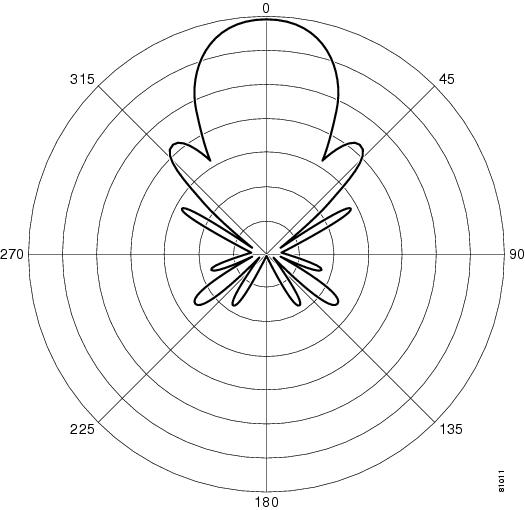
Azimuth Radiation Pattern
Elevation Radiation Pattern


System Requirements

This antenna is designed for use with Cisco Aironet access points and bridges but can be used with any 2.4-GHz Cisco Aironet radio device that uses a reverse-polarity threaded naval connector (RP-TNC).

Safety Precautions

Warning


IMPORTANT SAFETY INSTRUCTIONS

This warning symbol means danger. You are in a situation that could cause bodily injury. Before you work on any equipment, be aware of the hazards involved with electrical circuitry and be familiar with standard practices for preventing accidents. Use the statement number provided at the end of each warning to locate its translation in the translated safety warnings that accompanied this device. Statement 1071

SAVE THESE INSTRUCTIONS


Warning


In order to comply with FCC radio frequency (RF) exposure limits, antennas should be located at a minimum of 7.9 inches (20 cm) or more from the body of all persons. Statement 332


Each year hundreds of people are killed or injured when attempting to install an antenna. In many of these cases, the victim was aware of the danger of electrocution, but did not take adequate steps to avoid the hazard.

For your safety, and to help you achieve a good installation, please read and follow these safety precautions. They may save your life!

1. If you are installing an antenna for the first time, for your own safety as well as others, seek professional assistance. Your Cisco sales representative can explain which mounting method to use for the size and type antenna you are about to install.

2. Select your installation site with safety, as well as performance in mind. Remember: electric power lines and phone lines look alike. For your safety, assume that any overhead line can kill you.

3. Call your electric power company. Tell them your plans and ask them to come look at your proposed installation. This is a small inconvenience considering your life is at stake.

4. Plan your installation carefully and completely before you begin. Successful raising of a mast or tower is largely a matter of coordination. Each person should be assigned to a specific task, and should know what to do and when to do it. One person should be in charge of the operation to issue instructions and watch for signs of trouble.

5. When installing your antenna, remember:

a. Do not use a metal ladder.

b. Do not work on a wet or windy day.

c. Do dress properly—shoes with rubber soles and heels, rubber gloves, long sleeved shirt or jacket.

6. If the assembly starts to drop, get away from it and let it fall. Remember, the antenna, mast, cable, and metal guy wires are all excellent conductors of electrical current. Even the slightest touch of any of these parts to a power line complete an electrical path through the antenna and the installer: you!

7. If any part of the antenna system should come in contact with a power line, don't touch it or try to remove it yourself. Call your local power company. They will remove it safely.

8. If an accident should occur with the power lines call for qualified emergency help immediately.

Installation Notes

General Installation Instructions for Mast-Mounted Antennas

The following instructions are common to most mast-mounted installations.


Step 1 Assemble your new antenna on the ground at the installation site.

Step 2 Attach the antenna to the mast and connect its coaxial cable while you are on the ground.

Step 3 If you lose control of the mast while raising it, make sure that it does not fall in the wrong direction. Use a durable non-conductive rope secured at each 2-foot level as the mast is raised. Have an assistant tend the rope, ready to pull the mast clear of any hazards (such as power lines) if it begins to fall.

Step 4 Use the mounting bracket provided with the antenna.

Step 5 If the installation will use guy wires:

a. Install guy anchor bolts.

b. Estimate the length of guy wire and cut it before raising the mast.

c. Attach guy wires to a mast using guy rings.

Step 6 Carefully connect the antenna and mast assembly to its mounting bracket and tighten the clamp bolts.

a. For a guyed installation, you must have at least one assistant to hold the mast upright while you attach and tighten the guy wires to the anchor bolts.

Step 7 Attach the provided self-adhering DANGER label at eye level on the mast.

Step 8 Install ground rods to remove any static electricity buildup and connect a ground wire to the mast and ground rod. Use ground rods designed for that purpose, not a spare piece of pipe.


Grounding the Antenna

Follow these guidelines to ground the antenna in accordance with national electrical code instructions.

1. Use No. 10 AWG copper or No. 8 or larger copper-clad steel or bronze wire as ground wires for both mast and lead-in. Securely clamp the wire to the bottom of the mast.

2. Secure the lead-in wire to an antenna discharge unit and the mast ground wire to the building with stand-off insulators spaced from 4 ft (1.2 m) to 8 ft (2.4 m) apart.

3. Mount the antenna discharge unit as closely as possible to where the lead-in wire enters the building.

4. Drill a hole in the building's wall as closely as possible to the equipment to which you will connect the lead-in cable.


Caution There may be wires in the wall. Make sure your drilling location is clear of any any obstructions or other hazards.

5. Pull the cable through the hole and form a drip loop close to where it enters the building.

6. Thoroughly waterproof the lead-in area.

7. Install a lightning arrestor.

8. Connect the lead-in cable to the equipment.

Choosing a Mounting Location

The antenna is designed to create a directional broadcast pattern. To achieve this pattern, the antenna should be mounted clear of any obstructions to the sides of the radiating element. If the mounting location is on the side of a building or tower, the antenna pattern is degraded on the building or tower side.

Site Selection

Before attempting to install your antenna, determine where you can best place the antenna for safety and performance.

Follow these steps to determine a safe distance from wires, power lines, and trees.


Step 1 Measure the height of your antenna.

Step 2 Add this length to the length of your tower or mast and then double this total for the minimum recommended safe distance.


Caution If you are unable to maintain this safe distance, stop and get professional help.


Generally, the higher an antenna is above the ground, the better it performs. Good practice is to install your antenna about 5 to 10 ft (1.5 to 3 m) above the roof line and away from all power lines and obstructions. If possible, find a mounting place directly above your wireless device so that the lead-in cable can be as direct as possible.

Tools and Equipment Required

A mast mounting installation kit is shipped with the antenna. To install the antenna on a mast, you need the following tools and equipment.

A 7/16-in. (11.1 mm) wrench

Cable ties or electrical tape

Coaxial cable weatherproofing material (such as CoaxSeal)


Note The antenna can also be mounted on a wall or other flat vertical surface. Mounting hardware is not provided.


The following sections contain a typical procedure for installing the antenna on a mast. Your installation may vary. Before you begin, you may want to refer to Figure 1.

Mounting the Antenna

The antenna is provided with a mast mounting kit that allows you to mount the antenna to masts up to
1 5/8 in. in diameter. Figure 1 shows how the antenna should be mounted to a mast or wall.

Figure 1 Antenna Mounting

Follow these instructions to mount the antenna on a mast.


Step 1 Attach the U-bolts, clamps, and backing plate to the antenna as shown in Figure 1.

Step 2 Install a washer and start a locknut on each U-bolt.

Step 3 Position the loose mounting assembly over the mast.


Note To ensure correct antenna polarization orientation, make sure the arrows on the antenna are pointed up.


Step 4 Use a 7/16-in (11.1-mm) wrench or suitable adjustable wrench to secure the assembly to the mast. Tighten the locknuts to a point where the antenna does not slide down the mast but is loose enough for you to rotate.

Step 5 Rotate the antenna until it points towards the other WLAN antenna your wireless device is to communicate with.


Note The accuracy of the orientation should be within 15 degrees to achieve maximum gain. This is especially important if the path length is over 1 mile (1.6 kilometers). If you use this antenna to connect to several terminals, aim it in the general direction of the group. If the paths are not obstructed or are less than 1 mile (1.6 kilometers), this arrangement should work well.


Step 6 Tighten the locknuts.


Note Tighten the locknuts evenly and do not exceed 45 in-lbs of torque on the locknuts.


Step 7 Secure the antenna cable to the mast with cable ties or electrical tape.

Step 8 Apply the danger label to a plainly visible area of the antenna support structure.


Note The antenna is not DC grounded. It is recommended that you install lightning-protection devices in your system. See the Installation Instructions for Cisco Aironet Lightning Arrestors. This document is available on the World Wide Web at the following URL:

http://www.cisco.com/univercd/cc/td/doc/product/wireless/aironet/miscell/ltng_arr.htm


Suggested Cable

Cisco recommends a high-quality, low-loss cable for use with the antenna.


Note The higher the frequency, the greater the loss through the cable. Also, the longer the run, the greater the loss.


The antenna terminates with a RP-TNC plug after a short, 3-ft (0.91-m) cable. The mating connector to the antenna is an appropriate RP-TNC jack. The connector on the opposite end will vary according to the type of equipment used.

After the cable is attached to the antenna, make sure that the connections are sealed (if outdoors) to prevent moisture and other weathering elements from affecting performance. Cisco recommends using a coax seal (such as CoaxSeal) for outdoor connections. Silicon sealant or electrical tape is not recommended for sealing outdoor connections.

Obtaining Documentation

Cisco documentation and additional literature are available on Cisco.com. Cisco also provides several ways to obtain technical assistance and other technical resources. These sections explain how to obtain technical information from Cisco Systems.

Cisco.com

You can access the most current Cisco documentation at this URL:

http://www.cisco.com/techsupport

You can access the Cisco website at this URL:

http://www.cisco.com

You can access international Cisco websites at this URL:

http://www.cisco.com/public/countries_languages.shtml

Product Documentation DVD

Cisco documentation and additional literature are available in the Product Documentation DVD package, which may have shipped with your product. The Product Documentation DVD is updated regularly and may be more current than printed documentation.

The Product Documentation DVD is a comprehensive library of technical product documentation on portable media. The DVD enables you to access multiple versions of hardware and software installation, configuration, and command guides for Cisco products and to view technical documentation in HTML. With the DVD, you have access to the same documentation that is found on the Cisco website without being connected to the Internet. Certain products also have .pdf versions of the documentation available.

The Product Documentation DVD is available as a single unit or as a subscription. Registered Cisco.com users (Cisco direct customers) can order a Product Documentation DVD (product number DOC-DOCDVD=) from the Ordering tool or Cisco Marketplace.

Cisco Ordering tool:

http://www.cisco.com/en/US/partner/ordering/

Cisco Marketplace:

http://www.cisco.com/go/marketplace/

Ordering Documentation

Beginning June 30, 2005, registered Cisco.com users may order Cisco documentation at the Product Documentation Store in the Cisco Marketplace at this URL:

http://www.cisco.com/go/marketplace/

Cisco will continue to support documentation orders using the Ordering tool:

Registered Cisco.com users (Cisco direct customers) can order documentation from the Ordering tool:

http://www.cisco.com/en/US/partner/ordering/

Instructions for ordering documentation using the Ordering tool are at this URL:

http://www.cisco.com/univercd/cc/td/doc/es_inpck/pdi.htm

Nonregistered Cisco.com users can order documentation through a local account representative by calling Cisco Systems Corporate Headquarters (California, USA) at 408 526-7208 or, elsewhere in North America, by calling 1 800 553-NETS (6387).

Documentation Feedback

You can rate and provide feedback about Cisco technical documents by completing the online feedback form that appears with the technical documents on Cisco.com.

You can send comments about Cisco documentation to bug-doc@cisco.com.

You can submit comments by using the response card (if present) behind the front cover of your document or by writing to the following address:

Cisco Systems
Attn: Customer Document Ordering
170 West Tasman Drive
San Jose, CA 95134-9883

We appreciate your comments.

Cisco Product Security Overview

Cisco provides a free online Security Vulnerability Policy portal at this URL:

http://www.cisco.com/en/US/products/products_security_vulnerability_policy.html

From this site, you can perform these tasks:

Report security vulnerabilities in Cisco products.

Obtain assistance with security incidents that involve Cisco products.

Register to receive security information from Cisco.

A current list of security advisories and notices for Cisco products is available at this URL:

http://www.cisco.com/go/psirt

If you prefer to see advisories and notices as they are updated in real time, you can access a Product Security Incident Response Team Really Simple Syndication (PSIRT RSS) feed from this URL:

http://www.cisco.com/en/US/products/products_psirt_rss_feed.html

Reporting Security Problems in Cisco Products

Cisco is committed to delivering secure products. We test our products internally before we release them, and we strive to correct all vulnerabilities quickly. If you think that you might have identified a vulnerability in a Cisco product, contact PSIRT:

Emergencies — security-alert@cisco.com

An emergency is either a condition in which a system is under active attack or a condition for which a severe and urgent security vulnerability should be reported. All other conditions are considered nonemergencies.

Nonemergencies — psirt@cisco.com

In an emergency, you can also reach PSIRT by telephone:

1 877 228-7302

1 408 525-6532


Tip We encourage you to use Pretty Good Privacy (PGP) or a compatible product to encrypt any sensitive information that you send to Cisco. PSIRT can work from encrypted information that is compatible with PGP versions 2.x through 8.x.

Never use a revoked or an expired encryption key. The correct public key to use in your correspondence with PSIRT is the one linked in the Contact Summary section of the Security Vulnerability Policy page at this URL:

http://www.cisco.com/en/US/products/products_security_vulnerability_policy.htm

The link on this page has the current PGP key ID in use.


Obtaining Technical Assistance

Cisco Technical Support provides 24-hour-a-day award-winning technical assistance. The Cisco Technical Support & Documentation website on Cisco.com features extensive online support resources. In addition, if you have a valid Cisco service contract, Cisco Technical Assistance Center (TAC) engineers provide telephone support. If you do not have a valid Cisco service contract, contact your reseller.

Cisco Technical Support & Documentation Website

The Cisco Technical Support & Documentation website provides online documents and tools for troubleshooting and resolving technical issues with Cisco products and technologies. The website is available 24 hours a day, at this URL:

http://www.cisco.com/techsupport

Access to all tools on the Cisco Technical Support & Documentation website requires a Cisco.com user ID and password. If you have a valid service contract but do not have a user ID or password, you can register at this URL:

http://tools.cisco.com/RPF/register/register.do


Note Use the Cisco Product Identification (CPI) tool to locate your product serial number before submitting a web or phone request for service. You can access the CPI tool from the Cisco Technical Support & Documentation website by clicking the Tools & Resources link under Documentation & Tools. Choose Cisco Product Identification Tool from the Alphabetical Index drop-down list, or click the Cisco Product Identification Tool link under Alerts & RMAs. The CPI tool offers three search options: by product ID or model name; by tree view; or for certain products, by copying and pasting show command output. Search results show an illustration of your product with the serial number label location highlighted. Locate the serial number label on your product and record the information before placing a service call.


Submitting a Service Request

Using the online TAC Service Request Tool is the fastest way to open S3 and S4 service requests. (S3 and S4 service requests are those in which your network is minimally impaired or for which you require product information.) After you describe your situation, the TAC Service Request Tool provides recommended solutions. If your issue is not resolved using the recommended resources, your service request is assigned to a Cisco engineer. The TAC Service Request Tool is located at this URL:

http://www.cisco.com/techsupport/servicerequest

For S1 or S2 service requests or if you do not have Internet access, contact the Cisco TAC by telephone. (S1 or S2 service requests are those in which your production network is down or severely degraded.) Cisco engineers are assigned immediately to S1 and S2 service requests to help keep your business operations running smoothly.

To open a service request by telephone, use one of the following numbers:

Asia-Pacific: +61 2 8446 7411 (Australia: 1 800 805 227)
EMEA: +32 2 704 55 55
USA: 1 800 553-2447

For a complete list of Cisco TAC contacts, go to this URL:

http://www.cisco.com/techsupport/contacts

Definitions of Service Request Severity

To ensure that all service requests are reported in a standard format, Cisco has established severity definitions.

Severity 1 (S1)—Your network is "down," or there is a critical impact to your business operations. You and Cisco will commit all necessary resources around the clock to resolve the situation.

Severity 2 (S2)—Operation of an existing network is severely degraded, or significant aspects of your business operation are negatively affected by inadequate performance of Cisco products. You and Cisco will commit full-time resources during normal business hours to resolve the situation.

Severity 3 (S3)—Operational performance of your network is impaired, but most business operations remain functional. You and Cisco will commit resources during normal business hours to restore service to satisfactory levels.

Severity 4 (S4)—You require information or assistance with Cisco product capabilities, installation, or configuration. There is little or no effect on your business operations.

Obtaining Additional Publications and Information

Information about Cisco products, technologies, and network solutions is available from various online and printed sources.

Cisco Marketplace provides a variety of Cisco books, reference guides, documentation, and logo merchandise. Visit Cisco Marketplace, the company store, at this URL:

http://www.cisco.com/go/marketplace/

Cisco Press publishes a wide range of general networking, training and certification titles. Both new and experienced users will benefit from these publications. For current Cisco Press titles and other information, go to Cisco Press at this URL:

http://www.ciscopress.com

Packet magazine is the Cisco Systems technical user magazine for maximizing Internet and networking investments. Each quarter, Packet delivers coverage of the latest industry trends, technology breakthroughs, and Cisco products and solutions, as well as network deployment and troubleshooting tips, configuration examples, customer case studies, certification and training information, and links to scores of in-depth online resources. You can access Packet magazine at this URL:

http://www.cisco.com/packet

iQ Magazine is the quarterly publication from Cisco Systems designed to help growing companies learn how they can use technology to increase revenue, streamline their business, and expand services. The publication identifies the challenges facing these companies and the technologies to help solve them, using real-world case studies and business strategies to help readers make sound technology investment decisions. You can access iQ Magazine at this URL:

http://www.cisco.com/go/iqmagazine

or view the digital edition at this URL:

http://ciscoiq.texterity.com/ciscoiq/sample/

Internet Protocol Journal is a quarterly journal published by Cisco Systems for engineering professionals involved in designing, developing, and operating public and private internets and intranets. You can access the Internet Protocol Journal at this URL:

http://www.cisco.com/ipj

Networking products offered by Cisco Systems, as well as customer support services, can be obtained at this URL:

http://www.cisco.com/en/US/products/index.html

Networking Professionals Connection is an interactive website for networking professionals to share questions, suggestions, and information about networking products and technologies with Cisco experts and other networking professionals. Join a discussion at this URL:

http://www.cisco.com/discuss/networking

World-class networking training is available from Cisco. You can view current offerings at this URL:

http://www.cisco.com/en/US/learning/index.html