Introduction
This document describes how to configure and debug Secure Shell (SSH) on Cisco routers or switches that run Cisco IOS® Software.
Prerequisites
Requirements
The Cisco IOS image used must be a k9 (crypto) image in order to support SSH.
Components Used
The information in this document is based on Cisco IOS Software.
The information in this document was created from the devices in a specific lab environment. All of the devices used in this document started with a cleared (default) configuration. If your network is live, ensure that you understand the potential impact of any command.
Network Diagram
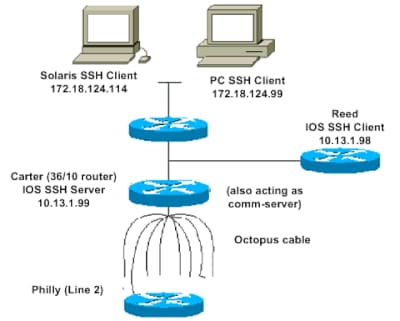
Configure SSH
Set Up a Cisco IOS Router as SSH Client
There are a few steps required to enable SSH support on a Cisco IOS router:
1. Configure the hostname command.
2. Configure the DNS domain.
3. Generate the SSH key.
4. Enable SSH transport support for the vty.
If you want to have one device act as an SSH client to the other, you can add SSH to a second device called Reed. This puts these devices in a client-server arrangement, where Carter acts as the server, and Reed acts as the client. The Cisco IOS SSH client configuration on Reed is the same as required for the SSH server configuration on Carter.
!--- Step 1: Configure the hostname if you have not previously done so.

hostname carter

!--- The aaa new-model command causes the local username and password on the router to be used in the absence of other AAA statements.

aaa new-model
username cisco password 0 cisco

!--- Step 2: Configure the DNS domain of the router.

ip domain-name rtp.cisco.com

!--- Step 3: Generate an SSH key to be used with SSH.

crypto key generate rsa
ip ssh time-out 60
ip ssh authentication-retries 2

!--- Step 4: By default the vty transport is Telnet. In this case, Telnet is disabled and only SSH is supported.

line vty 0 4
transport input ssh

!--- Instead of aaa new-model, you can use the login local command.
Issue this command to SSH from the Cisco IOS SSH client (Reed) to the Cisco IOS SSH server (Carter) to test this:
ssh -v 2 -c aes256-cbc -m hmac-sha1-160 -l cisco 10.31.1.99
Set Up a Cisco IOS Router as an SSH Server that Performs RSA-based User Authentication
Complete these steps to configure the SSH server to perform RSA-based authentication.
1. Specify the Host name.
Router(config)#hostname <host name>
2. Define a default domain name.
Router(config)#ip domain-name <Domain Name>
3. Generate RSA key pairs.
Router(config)#crypto key generate rsa
4. Configure SSH-RSA keys for user and server authentication.
Router(config)#ip ssh pubkey-chain
5. Configure the SSH username.
Router(conf-ssh-pubkey)#username <user name>
6. Specify the RSA public key of the remote peer.
Router(conf-ssh-pubkey-user)#key-string
7. Specify the SSH key type and version. (This step is optional.)
Router(conf-ssh-pubkey-data)#key-hash ssh-rsa <key ID>
8. Exit the current mode and return to privileged EXEC mode.
Router(conf-ssh-pubkey-data)#end
Test Authentication
Authentication Test without SSH
First test the authentication without SSH to make sure that authentication works with the router Carter before you add SSH. Authentication can be with a local username and password or with an authentication, authorization, and accounting (AAA) server that runs TACACS+ or RADIUS. (Authentication through the line password is not possible with SSH.) This example shows local authentication, which lets you Telnet into the router with username cisco and password cisco.
Note: Throughout this document, vty is used to indicate Virtual Terminal Type.
!--- The aaa new-model command causes the local username and password on the router to be used in the absence of other AAA statements.

aaa new-model
username cisco password 0 cisco
line vty 0 4
transport input telnet

!--- Instead of aaa new-model, you can use the login local command.
Authentication Test with SSH
In order to test authentication with SSH, you have to add to the previous statements in order to enable SSH on Carter, and test SSH from the PC and UNIX stations.
ip domain-name rtp.cisco.com

!--- Generate an SSH key to be used with SSH.

crypto key generate rsa
ip ssh time-out 60
ip ssh authentication-retries 2
At this point, the show crypto key mypubkey rsa command must show the generated key. After you add the SSH configuration, test your ability to access the router from the PC and UNIX station.
Additional Configuration Sets
Configure SSH Version 2
When configuring SSH, ensure that SSHv2 is enabled, as it provides stronger encryption and significantly better security than SSHv1.
carter(config)#ip ssh version 2
Prevent Non-SSH Connections
If you want to prevent Non-SSH connections, add the transport input ssh command under the lines to limit the router to SSH connections only. Straight (non-ssh) Telnets are refused.
line vty 0 4

!--- Prevent non-SSH Telnets.

transport input ssh
Test to ensure that Non-SSH users cannot Telnet to the router Carter.
Add SSH Terminal-Line Access
If you need outbound SSH terminal-line authentication, you can configure and test Reverse SSH for outbound connections through Carter, which acts as a comm server to Philly.
Restrict SSH Access to a Subnet
You need to limit SSH connectivity to a specific subnetwork where all other SSH attempts from IPs outside the subnetwork are dropped.
You can use these steps to do the same:
- Define an access-list that permits the traffic from that specific subnetwork.
- Restrict access to the VTY line interface with an access-class.
This is an example configuration. In this example, only SSH access to the 10.10.10.0 255.255.255.0 subnet is permitted, any other is denied access.
Router(config)#access-list 23 permit 10.10.10.0 0.0.0.255
Router(config)#line vty 5 15
Router(config-line)#transport input ssh
Router(config-line)#access-class 23 in
Router(config-line)#exit
Note: The same procedure to lock down the SSH access is also used for switch platforms.
Variations on Banner Command Output
The banner command output varies between the Telnet and different versions of SSH connections. This table illustrates how different banner command options work with various types of connections.
|
Banner Command Options
|
Telnet
|
SSH v2
|
|
banner log
|
Displays before log in to device.
|
Displays before log in to device.
|
|
banner motd
|
Displays before log in to device.
|
Displays after log in to device.
|
|
banner exec
|
Displays after log in to device.
|
Displays after log in to device.
|
Note: SSH version 1 is no longer recommended.
Debug and Show Commands
Before you issue the debug commands described here, refer to Important Information on Debug Commands. Certain show commands are supported by the Output Interpreter Tool (registered to customers only), which allows you to view an analysis of show command output.
carter#show ssh
  Connection    Version Encryption    State              Username
   0            2.0     DES           Session started    cisco
carter#show ip ssh
  SSH Enabled - version 2.0
  Authentication timeout: 120 secs; Authentication retries: 3
Sample Debug Output
Router Debug
00:23:20: SSH0: starting SSH control process
00:23:20: SSH0: sent protocol version id SSH-2.0-Cisco-1.25
00:23:20: SSH0: protocol version id is - SSH-2.0-1.2.26
00:23:20: SSH0: SSH_SMSG_PUBLIC_KEY msg
00:23:21: SSH0: SSH_CMSG_SESSION_KEY msg - length 112, type 0x03
00:23:21: SSH: RSA decrypt started
00:23:21: SSH: RSA decrypt finished
00:23:21: SSH: RSA decrypt started
00:23:21: SSH: RSA decrypt finished
00:23:21: SSH0: sending encryption confirmation
00:23:21: SSH0: keys exchanged and encryption on
00:23:21: SSH0: SSH_CMSG_USER message received
00:23:21: SSH0: authentication request for userid cisco
00:23:21: SSH0: SSH_SMSG_FAILURE message sent
00:23:23: SSH0: SSH_CMSG_AUTH_PASSWORD message received
00:23:23: SSH0: authentication successful for cisco
00:23:23: SSH0: requesting TTY
00:23:23: SSH0: setting TTY - requested: length 24, width 80; set:
   length 24, width 80
00:23:23: SSH0: invalid request - 0x22
00:23:23: SSH0: SSH_CMSG_EXEC_SHELL message received
00:23:23: SSH0: starting shell for vty
Server Debug
Note: This is Solaris machine output.
rtp-evergreen.rtp.cisco.com#ssh -c 3des -l cisco -v 10.31.1.99
rtp-evergreen#/opt/CISssh/bin/ssh -c 3des -l cisco -v 10.13.1.99
SSH Version 1.2.26 [sparc-sun-solaris2.5.1], protocol version 1.5.
Compiled with RSAREF.
rtp-evergreen: Reading configuration data /opt/CISssh/etc/ssh_config
rtp-evergreen: ssh_connect: getuid 0 geteuid 0 anon 0
rtp-evergreen: Allocated local port 1023.
rtp-evergreen: Connecting to 10.13.1.99 port 22.
rtp-evergreen: Connection established.
rtp-evergreen: Remote protocol version 2.0,
   remote software version Cisco-1.25
rtp-evergreen: Waiting for server public key.
rtp-evergreen: Received server public key (768 bits)
   and host key (512 bits).
rtp-evergreen: Host '10.13.1.99' is known and matches the host key.
rtp-evergreen: Initializing random; seed file //.ssh/random_seed
rtp-evergreen: Encryption type: 3des
rtp-evergreen: Sent encrypted session key.
rtp-evergreen: Installing crc compensation attack detector.
rtp-evergreen: Received encrypted confirmation.
rtp-evergreen: Doing password authentication.
cisco@10.13.1.99's password:
rtp-evergreen: Requesting pty.
rtp-evergreen: Failed to get local xauth data.
rtp-evergreen: Requesting X11 forwarding with authentication spoofing.
Warning: Remote host denied X11 forwarding, perhaps xauth program
   could not be run on the server side.
rtp-evergreen: Requesting shell.
rtp-evergreen: Entering interactive session.
Incorrect Configurations
These sections have sample debug output from several incorrect configurations.
SSH from an SSH Client not Compiled with Data Encryption Standard (DES)
Bad Password
Router Debug
00:26:51: SSH0: starting SSH control process
00:26:51: SSH0: sent protocol version id SSH-2.0-Cisco-1.25
00:26:52: SSH0: protocol version id is - SSH-2.0-1.2.26
00:26:52: SSH0: SSH_SMSG_PUBLIC_KEY msg
00:26:52: SSH0: SSH_CMSG_SESSION_KEY msg - length 112, type 0x03
00:26:52: SSH: RSA decrypt started
00:26:52: SSH: RSA decrypt finished
00:26:52: SSH: RSA decrypt started
00:26:52: SSH: RSA decrypt finished
00:26:52: SSH0: sending encryption confirmation
00:26:52: SSH0: keys exchanged and encryption on
00:26:52: SSH0: SSH_CMSG_USER message received
00:26:52: SSH0: authentication request for userid cisco
00:26:52: SSH0: SSH_SMSG_FAILURE message sent
00:26:54: SSH0: SSH_CMSG_AUTH_PASSWORD message received
00:26:54: SSH0: password authentication failed for cisco
00:26:54: SSH0: SSH_SMSG_FAILURE message sent
00:26:54: SSH0: authentication failed for cisco (code=7)
00:26:54: SSH0: Session disconnected - error 0x07
SSH Client Sends Unsupported (Blowfish) Cipher
Router Debug
00:39:26: SSH0: starting SSH control process
00:39:26: SSH0: sent protocol version id SSH-2.0-Cisco-1.25
00:39:26: SSH0: protocol version id is - SSH-2.0-W1.0
00:39:26: SSH0: SSH_SMSG_PUBLIC_KEY msg
00:39:26: SSH0: SSH_CMSG_SESSION_KEY msg - length 112, type 0x03
00:39:26: SSH0: Session disconnected - error 0x20
Get "%SSH-3-PRIVATEKEY: Unable to Retrieve RSA Private Key for" Error
A change in the domain name or host name can trigger this error message. Use these workarounds:
crypto key zeroize rsa label key_name
crypto key generate rsa label key_name modulus key_size
Tips
-
If your SSH configuration commands are rejected as illegal commands, you have not successfully generated a RSA key pair for your router. Ensure you have specified a host name and domain. Then use the crypto key generate rsa command to generate a RSA key pairs and enable the SSH server.
-
When you configure RSA key pairs, you can get these error messages:
-
"No hostname specified".
You must use the hostname global configuration command to configure a host name for the router.
-
"No domain specified".
You must use the ip domain-name global configuration command to configure a host domain for the router.
-
The number of allowable SSH connections is limited to the maximum number of vty configured for the router. Each SSH connection uses a vty resource.
-
SSH uses either local security or the security protocol configured through AAA on your router for user authentication. When you configure AAA, you must ensure that the console is not run under AAA. Apply a keyword in the global configuration mode to disable AAA on the console.
-
No SSH server connections running:
carter#show ssh

%No SSHv2 server connections running.
This output suggests that the SSH server is disabled or not enabled properly. If you have already configured SSH, it is recommended that you reconfigure the SSH server in the device. Complete these steps in order to reconfigure the SSH server on the device.
- Delete the RSA key pairs. After the RSA key pairs are deleted, the SSH server is automatically disabled.
carter(config)#crypto key zeroize rsa
Note: It is important to generate key pairs with at least 768 as bit size when you enable SSH v2.
Caution: This command cannot be undone after you save your configuration. Also, after RSA keys are deleted, you cannot use certificates or the CA or participate in certificate exchanges with other IP Security (IPSec) peers unless you regenerate the RSA keys to reconfigure CA interoperability, get the CA certificate, and request your own certificate again.
2. Reconfigure the hostname and domain name of the device.
carter(config)#hostname hostname

carter(config)#ip domain-name domainname
3. Generate RSA key pairs for your router. This automatically enables SSH.
carter(config)#crypto key generate rsa
Note: Refer to Crypto Key Generate RSA - Cisco IOS Security Command Reference, Release 12.3 for more information on the usage of this command.
Note: You can receive the "SSH2 0: Unexpected mesg type received" error message due to a packet received that is not understandable by the router. Increase the key length while you generate RSA keys for SSH in order to resolve this issue.
4. Configure the SSH server.
5. To enable and configure a Cisco router/switch for the SSH server, you must configure SSH parameters. If you do not configure SSH parameters, the default values are used.
ip ssh {[timeout seconds] | [authentication-retries integer]}
carter(config)# ip ssh
Related Information

 Feedback