Configure Backup and Restore from GUI in CUCM
Available Languages
Introduction
This document describes the setup requirements for Backup and Restore features in CUCM from the Graphic User Interface (GUI).
Prerequisites
Requirements
Cisco recommends knowledge of these topics:
Cisco Unified Communications Manager (CUCM)Secure File Transfer Protocol (SFTP)
Components Used
The information in this document is based on these software versions:
Cisco Unified Communications Managerversion 10.5.2.15900-8
The information in this document was created from the devices in a specific lab environment. All of the devices used in this document started with a cleared (default) configuration. If your network is live, ensure that you understand the potential impact of any command.
Background Information
The Disaster Recovery System (DRS),which can be invoked from CUCM Administration, provides full data backup and restore capabilities for all servers in the cluster. The DRS enables regularly scheduled automatic or user-invoked data backups.
DRS restores its own parameters (backup device and schedule parameters) as part of the platform backup/restore. DRS backs up and restores the drfDevice.xml and drfSchedule.xml files. When the server is restored with these files, there is no need to reconfigure DRS backup device and schedule.
The Disaster Recovery System includes these capabilities:
- A user interface in order to perform backup and restore tasks.
- A distributed system architecture with backup and restore functions.
- Scheduled backups
- Archive backups to a physical tape drive or remote SFTP server.
The Disaster Recovery System contains two key functions: Master Agent (MA) and Local Agent (LA).
The Master Agent coordinates backup and restore activity with Local Agents. The system automatically activates the Master Agent and Local Agent on all nodes in the cluster.
CUCM cluster (this involves the CUCM nodes and the Cisco Instant Messaging & Presence (IM&P) servers) must fulfill these requirements:
Port 22open in order to establish the communication with SFTP server-
Validated that the
IPsecandTomcatcertificates are not expired.In order to verify the validity of the certificates, navigate to
Cisco Unified OS Administration > Security > Certificate Management.
- Ensure that the Database Replication setup is completed and does not show any errors or mismatches from the CUCM Publisher and the IM&P Publisher servers.
SFTP server settings must cover these requirements:
- Log in credentials are available.
- It must be reachable from the CUCM server.
- Files are included in the path selected when a restore is performed.
Configure
Backup
The Disaster Recovery System performs a cluster-level backup, which means that it collects backups for all servers in a CUCM cluster to a central location and archives the backup data to physical storage device.
Step 1. To create backup devices on which data is saved; navigate to Disaster Recovery System > Backup > Backup Device.
Step 2. Select Add New;define a Backup Device Name and enter the SFTP values. Save.
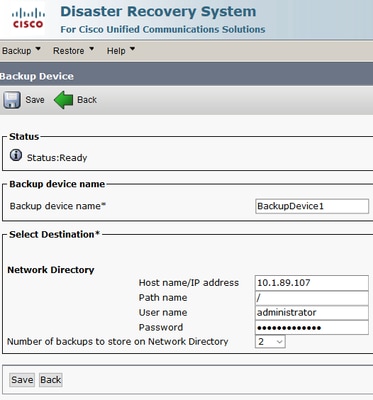
Step 3. Create and edit backup schedules in order to back up data. Navigate to Backup > Scheduler.
Step 4. Define a Schedule Name.Select the Device Name and check the Features based on your scenario.
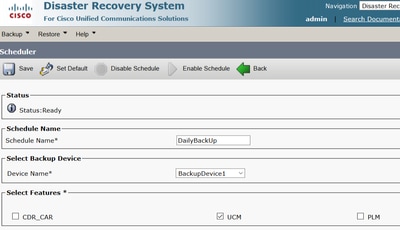
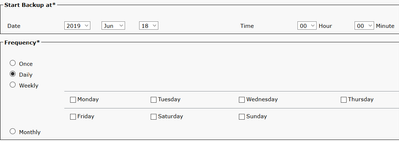
Step 5. Configure a scheduled backup based on your scenario.
Step 6. Select Save and notice the warning as shown in the image. Select OK in order to move forward.

Step 7. Once that Backup Schedule is created, select Enable Schedule.
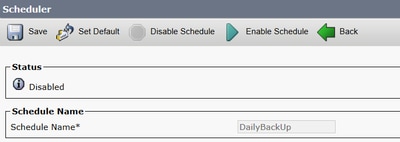
Step 8. Wait until the status is changed to Enabled.
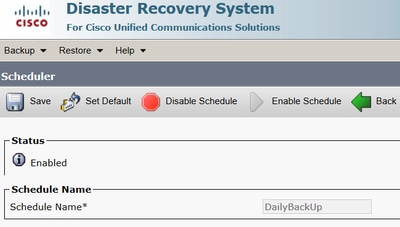
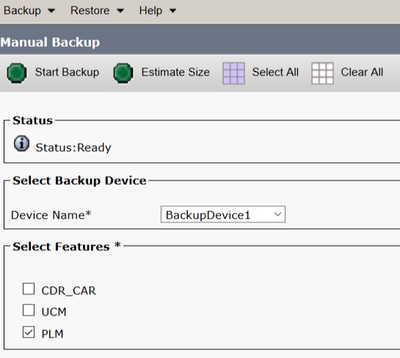
Step 9. If a Manual backup is required, navigate to Backup > Manual Backup.
Step 10. Select the Device Name and check the Features based on your scenario.
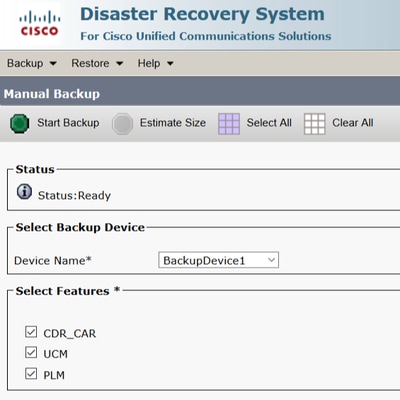
Step 11. Select Start Backup and the operation is displayed in progress.
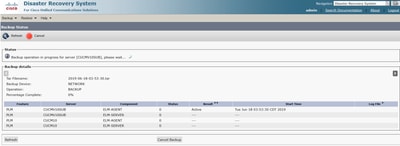
Step 12. When the manual backup is completed, the completion message is displayed.
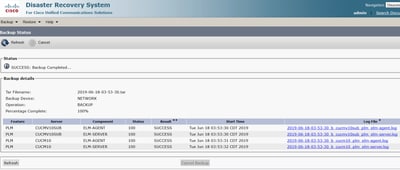
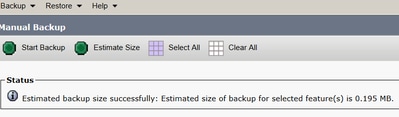
Step 13. To estimate the size of backup tar file that SFTP device uses, select Estimate Size.
Step 14. Estimate size is displayed as shown in the image
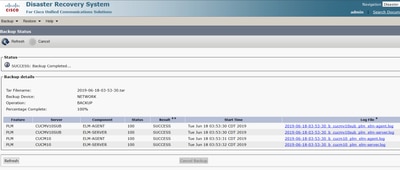
Step 15. To check the Status of the Backup while a backup runs, navigate to Backup > Backup Status.
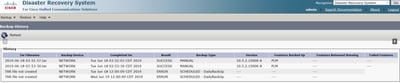
Step 16. To consult the backup procedures performed in the system, navigate to Backup > History.
Restore
DRS restores mainly drfDevice.xml and drfSchedule.xml files. However, when a system data restoration is performed, you can choose which nodes in the cluster require to get restored.
Step 1. Navigate to Disaster Recovery System > Restore > Restore Wizard.
Step 2. Select the Device Name which stores the backup file to use for the restore. Select Next.
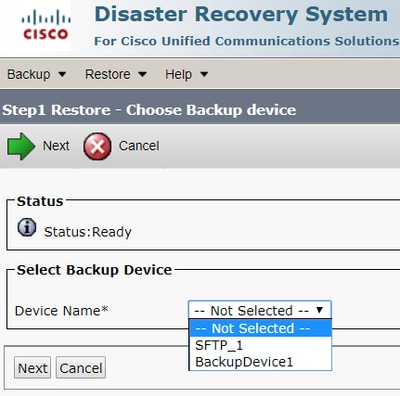
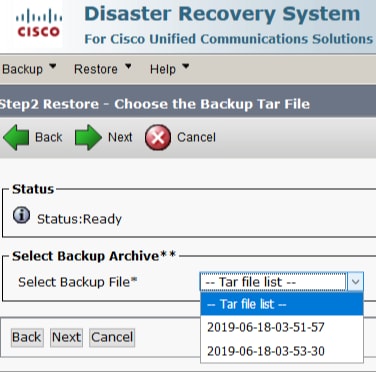
Step 3. Select the Backup File from the displayed list of available files as shown in the image. Selected backup file must include the information to restore.
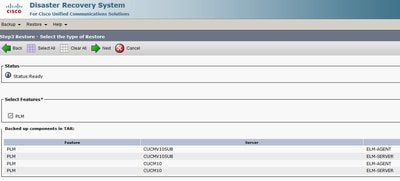
Step 4. From the list of available features, select the feature to restore.
Step 5. Select the nodes in which to apply the restore.
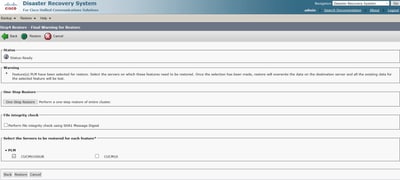
Step 6. Select Restore to start the process and Restore status is updated.
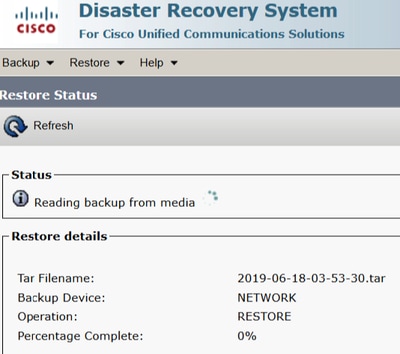
Step 7. To verify the status of the restore, navigate to Restore > Current Status.
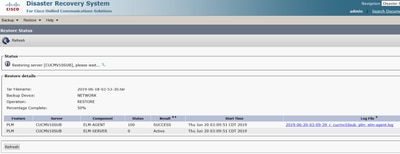
Step 8. Restore Status changes to SUCCESS when it is complete.
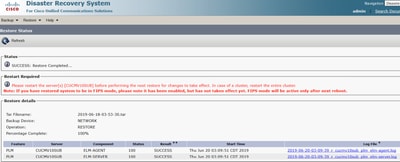
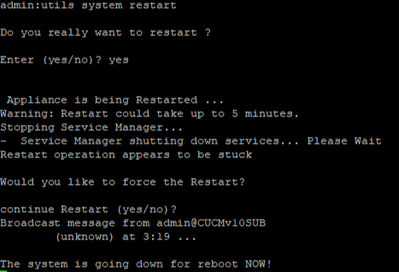
Step 9. For the changes to take effect, the system must be restarted.
Step 10. In order to consult the restore procedures performed in the system, navigate to Restore > History.

Troubleshoot
This section provides information to troubleshoot your configuration.
CUCM cluster (this involves the CUCM nodes and the Cisco Instant Messaging & Presence servers) must fulfill these requirements:
Port 22open in order to establish the communication with SFTP server.-
Validated that the
IPsecandTomcatcertificates are not expired.In order to verify the validity of the certificates, navigate to
Cisco Unified OS Administration > Security > Certificate Management.
- Ensure that the Database Replication setup is completed and does not show any errors or mismatches from the CUCM Publisher and the IM&P Publisher servers.
- Validate reachability between the servers and the SFTP Server.
- Validate that all the servers in the cluster are authenticated with the command
show network cluster.
When Backup or Restore failures are reported and further assistance is required, this set of logs must be collected and shared with Technical Assistance Center (TAC):
- Cisco DRF Master Logs
- Cisco DRF Local Logs
- Failure logs from the DRF Current Status page
- Timestamp of the issue
Related Information
Revision History
| Revision | Publish Date | Comments |
|---|---|---|
6.0 |
10-Jun-2026
|
Updated Style Requirements and Formatting. |
5.0 |
15-Jul-2025
|
Updated Alt Text, SEO, and Formatting. |
4.0 |
04-Nov-2022
|
Requested documentation has been found to adhere to addressing and domain standards and is ready for external publication. |
3.0 |
29-Oct-2021
|
Minor change |
2.0 |
28-Oct-2021
|
Background information was expanded with information for the SFTP settings DB replication. |
1.0 |
30-Oct-2019
|
Initial Release |

 Feedback
Contact Cisco
- Open a Support Case

- (Requires a Cisco Service Contract)