Integrating Secure Firewall Management Center and Cisco Security Analytics and Logging (SaaS)
If you require additional space to store Secure Firewall Threat Defense events, you can send them to the Secure Cloud Analytics for storage using Cisco Security Analytics and Logging (SaaS), and optionally make your Firewall Threat Defense event data available for security analytics using Secure Cloud Analytics. Depending on the license, you can view the events in Security Cloud Control or Secure Cloud Analytics.
This integration is specifically for Firewall Threat Defense devices that are managed by the Firewall Management Center. This document does not apply to devices that are not running Firewall Threat Defense software, devices managed by Firewall Device Manager, or non-Firewall Threat Defense devices managed by the Firewall Management Center.
For more information about Cisco Security Analytics and Logging (SaaS), see Cisco Security Analytics and Logging Product Page.
Comparison of Cisco Security Analytics and Logging Remote Event Storage Options
Different options are available for storing event data externally to your Firewall Management Center:
|
On Premises |
SaaS |
|---|---|
|
Purchase, obtain the license for, and set up the storage system behind your firewall. |
Purchase licenses and a data storage plan and send your data to the Cisco Security Cloud. |
|
Supported event types:
|
Supported event types:
|
|
Supports both syslog and direct integration. |
Supports both syslog and direct integration. See Comparison of Methods for Sending Events to the Cloud. |
|
View events in Security Cloud Control or Secure Network Analytics, depending on your license. Cross-launch from Firewall Management Center event viewer. |
|
For more information, refer to the Data Purge and Storage chapter in the Cisco Secure Firewall Management Center Administration Guide. |
|
Comparison of Methods for Sending Events to the Cloud
|
Sending via Syslog |
Sending Directly |
|---|---|
|
|
Requirements and Prerequisites for SAL (SaaS) Integration
The following requirements apply to both methods of sending events to SAL (SaaS).
|
Requirement or Prerequisite Type |
Requirement |
|---|---|
|
Devices and manager |
Firewall Management Center managing Firewall Threat Defense devices To send via syslog: version 6.4 or later To send directly: version 7.0 The required version applies to the Firewall Management Center and all managed Firewall Threat Defense devices. Your system must be deployed and successfully generating events. |
|
Regional cloud |
|
|
Data plan |
Determine the amount of cloud storage that your system requires. For more information, see See Calculate Storage Requirements and Purchase a Data Plan. |
|
Licensing |
|
|
Accounts |
When you purchase license for this integration, you will be provided with a Security Cloud Control tenant account to support this functionality. |
|
Supported event types |
Intrusion, connection, Security-related connection, file, and malware events. |
|
User roles |
In Firewall Management Center:
|
|
Additional requirements when sending events directly |
SAL (SaaS) Licenses
Security Analytics and Logging (SaaS) subscription overview
You can combine Security Analytics and Logging (SaaS) with your Security Cloud Control subscription. When managing your firewalls with Security Cloud Control, you can obtain Security Analytics and Logging entitlement in these ways:
-
Device management with unlimited logging: This option provides a per-device license. It includes device management capabilities for your Firewall Threat Defense device and unlimited log storage for a rolling period of 90 days.
-
Device management only with optional cloud logging: This option involves purchasing a per-device license for management only. You can then add Security Analytics and Logging as a separate cloud logging subscription. This allows you to customize logging data storage and log retention based on your specific operational and compliance needs.
90-day free trial
You can request a 90-day trial to accurately estimate your daily ingest rate by logging in to Security Cloud Control and navigating to tab. You can purchase the desired subscription plan to continue the service by following the instructions in the Security Cloud Control Firewall Management Ordering Guide.
Security Analytics and Logging paid subscription tiers
If you don’t want to use the device management with unlimited logging option, you can purchase logging capacity separately. This standalone Security Analytics and Logging subscription offering provides greater flexibility, longer default retention, and increased storage entitlements. The default minimum retention period for these subscription tiers is 1 year.
Choose these flexible Security Analytics and Logging subscription tiers if:
-
You have already purchased your Firewall Threat Defense devices as part of a different order.
-
You have specific logging estimates and want to buy a tier based on a fixed amount of ingest, storage, and logging retention.
-
You want a log retention period that is more than 90 days.
Security Analytics and Logging subscription is categorized into three tiers—Essentials, Advantage, and Premier. This table describes the storage capacities and log retention periods available for each tier.
| Description | Retention Period | Storage Limit | Subscription Term |
|---|---|---|---|
|
Cisco SAL Essentials Subscriptions |
1, 2, or 3 year |
2 TB |
0-5 years |
|
Cisco SAL Advantage Subscriptions |
1, 2, or 3 year |
4 TB |
0-5 years |
| Cisco SAL Premier Subscriptions |
1, 2, or 3 year |
10 TB |
0-5 years |
For more information, refer to Security Cloud Control Firewall Management Ordering Guide.
Estimate your daily ingest rate
You need to purchase a subscription plan that reflects the number of events the Cisco cloud receives from your on-boarded Firewall Threat Defense devices on a daily basis. This is called your daily ingest rate. You can use the Logging Volume Estimator tool to estimate your daily ingest rate and as that rate changes you can update your subscription plan
Calculate Storage Requirements and Purchase a Data Plan
You need to buy a data plan that reflects the number of events the Cisco cloud receives from your Firewall Threat Defenses on a daily basis. This is called your "daily ingest rate."
To estimate your data storage requirements:
-
(Recommended) Participate in a free trial of Cisco Security Analytics and Logging (SaaS) before you buy it. See SAL (SaaS) Licenses.
-
Use the Logging Volume Estimator Tool at https://ngfwpe.cisco.com/ftd-logging-estimator.
Data plans are available in various daily volumes, and in various yearly terms. For more information, refer to Security Cloud Control Firewall Management Ordering Guide.
 Note |
If you have a SAL (SaaS) license and data plan, then obtain a different license at a later date, that alone does not require you to obtain a different data plan. If your network traffic throughput changes and you obtain a different data plan, that alone does not require you to obtain a different SAL (SaaS) license. |
How to Send Events from Firewall Management Center to SAL SaaS
To successfully deploy this integration, follow all of the steps in one of these topics:
How to Set Up Event Data Storage in SAL (SaaS) Using Syslog
|
Do This |
More Information |
|
|---|---|---|
|
Step |
Review requirements and prerequisites |
See Requirements and Prerequisites for SAL (SaaS) Integration. |
|
Step |
Obtain required licenses, accounts, and a data storage plan |
Contact your authorized Cisco sales representative. |
|
Step |
Set up Security Cloud Control access using multi-factor authentication |
For more information, refer to the Sign in to Security Cloud Control section in Security Cloud Control's online help. |
|
Step |
Set up an on-premises Secure Device Connector (SDC) on a VMWare virtual machine |
This component is required solely to enable installation of the SEC, which is the component to which your devices will send events. Use one of the following, as described in the Security Cloud Control online help: You can install one SEC on the same virtual machine as a Secure Device Connector, if you have one; or you can install the SEC on it's own Security Cloud Control Connector virtual machine that you maintain in your network. For more information, refer to the Secure Event Connector section in Security Cloud Control's online help. |
|
Step |
Install the Secure Event Connector (SEC) on the SDC virtual machine you just created. |
This is the component to which your devices will send events. For more information, refer to the Secure Event Connector section in Security Cloud Control's online help. |
|
Step |
Configure your Firewall Management Center to have managed devices send syslog events to the SEC. |
Send Security Event Syslog Messages from Firewall Threat Defense Devices |
|
Step |
Verify that your events are being sent successfully |
|
|
Step |
(Optional) If you are sending connection events to the cloud and you don't want to store them on the Firewall Management Center, disable that storage on the Firewall Management Center. |
In the Firewall Management Center online help, see information about connection events in the Database Event Limits topics. |
|
Step |
(Optional) Configure cross-launches from Firewall Management Center to Security Cloud Control so you can easily pivot from events displayed in Firewall Management Center to related events in the cloud. |
See the online help in Firewall Management Center. |
|
Step |
(Optional) Create Security Cloud Control user accounts for colleagues to view and work with your events. |
For more information, refer to the Manage Tenants and Users section in Security Cloud Control's online help. |
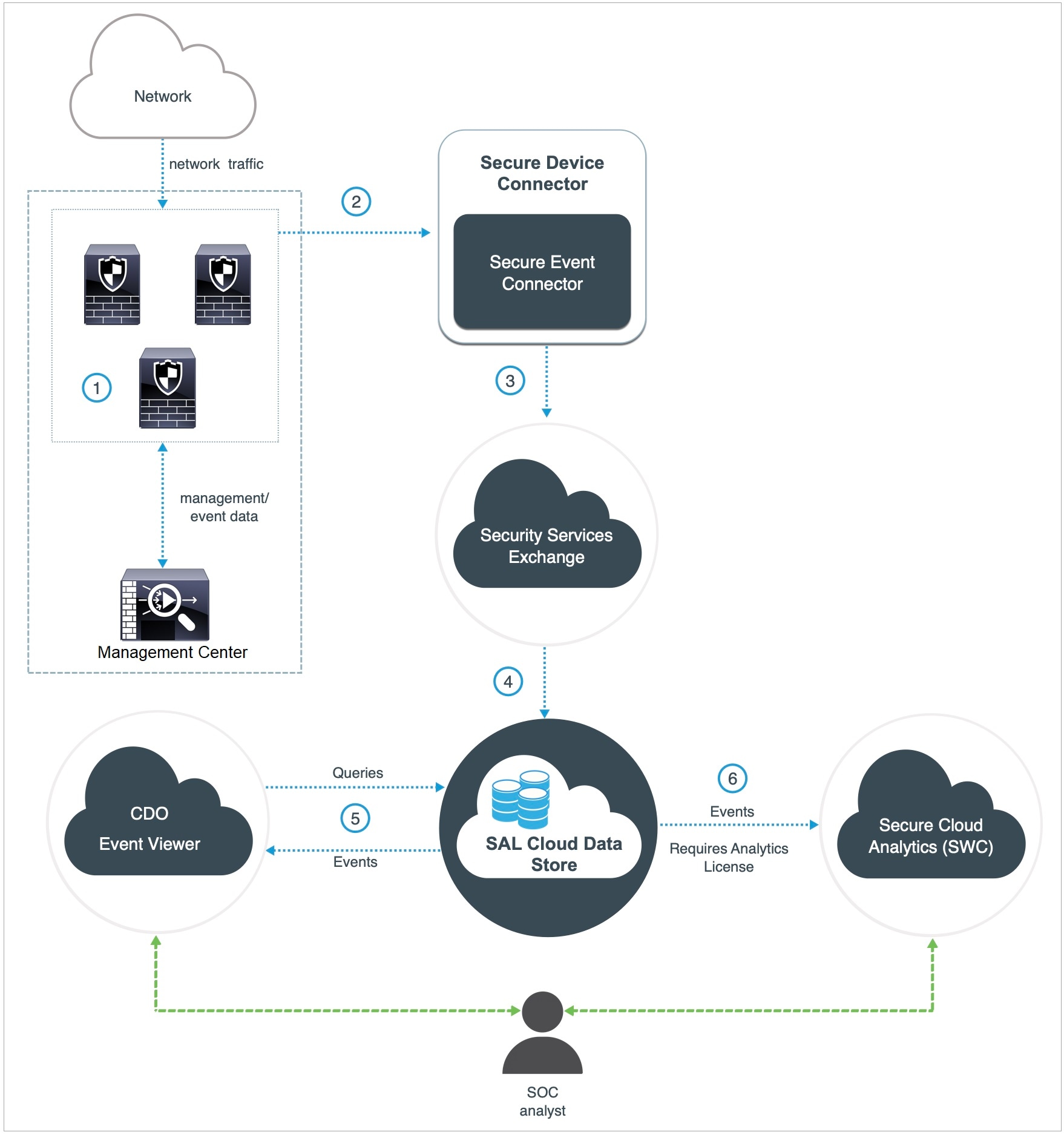
Overview of Sending Events to SAL (SaaS) Using Syslog
 |
The Firewall Management Center-managed devices generate events. |
 |
The Firewall Threat Defense devices send supported events as syslog messages to a Secure Event Connector (SEC) installed on a virtual machine on your network. |
 |
The SEC forwards the events to Security Services Exchange (SSE), a secure intermediary cloud service that handles cloud-to-cloud and premises-to-cloud identification, authentication, and data storage for use in Cisco cloud security products. |
 |
The SSE forwards the events to the Cisco Security Analytics and Logging (SAL) Cloud Data Store. |
 |
The Security Cloud Control Event Viewer queries SAL Cloud Data Store for events and provides the SOC analyst with additional context. |
 |
(Only with Analytics License) Cisco Secure Cloud Analytics (formerly SWC) receives the events from the SAL Cloud Data Store and provides the SOC analyst access to the analytics features of the product. |
Note |
Most features in the Security Cloud Control portal are not applicable to this integration. For example, Security Cloud Control does not manage your devices, so your devices are not onboarded to Security Cloud Control. |
Send Security Event Syslog Messages from Firewall Threat Defense Devices
This procedure documents the best practice configuration for sending syslog messages for security events (connection, Security-related connection, intrusion, file, and malware events) from Firewall Threat Defense devices managed by Firewall Management Center.
Note |
|
Before you begin
-
In Firewall Management Center, configure policies to generate security events and verify that the events you expect to see appear in the applicable tables under the Analysis menu.
-
Gather the syslog server IP address, port, and protocol (UDP or TCP):
Sign in to Security Cloud Control. Then, from the user menu at the top right side of the Security Cloud Control browser window, select Secure Connectors. Click Secure Event Connector and you will see the required information at the right side.
-
Ensure that your devices can reach the syslog server(s).
-
See additional information in the "Connection Logging" chapter in the Firewall Management Center online help.
Procedure
|
Step 1 |
Sign in to your Firewall Management Center web interface. |
|
Step 2 |
Configure syslog settings for your Firewall Threat Defense device: |
|
Step 3 |
Configure general logging settings for the access control policy (including file and malware logging):
|
|
Step 4 |
Enable logging for Security-related connection events for the access control policy:
|
|
Step 5 |
Enable syslog logging for each rule in the access control policy: |
|
Step 6 |
To send intrusion events, follow this procedure. This configuration is supported only on devices running Snort 2. For devices with Snort 3, syslog destinations are inherited from the logging settings in the access control policy. |
 )
)What to do next
-
If you are done making changes, deploy your changes to managed devices.
How to Set Up Event Data Storage in SAL (SaaS) Using a Direct Connection
This section describes how to set up event data storage in SAL (SaaS) using a direct connection.
How Does It Work
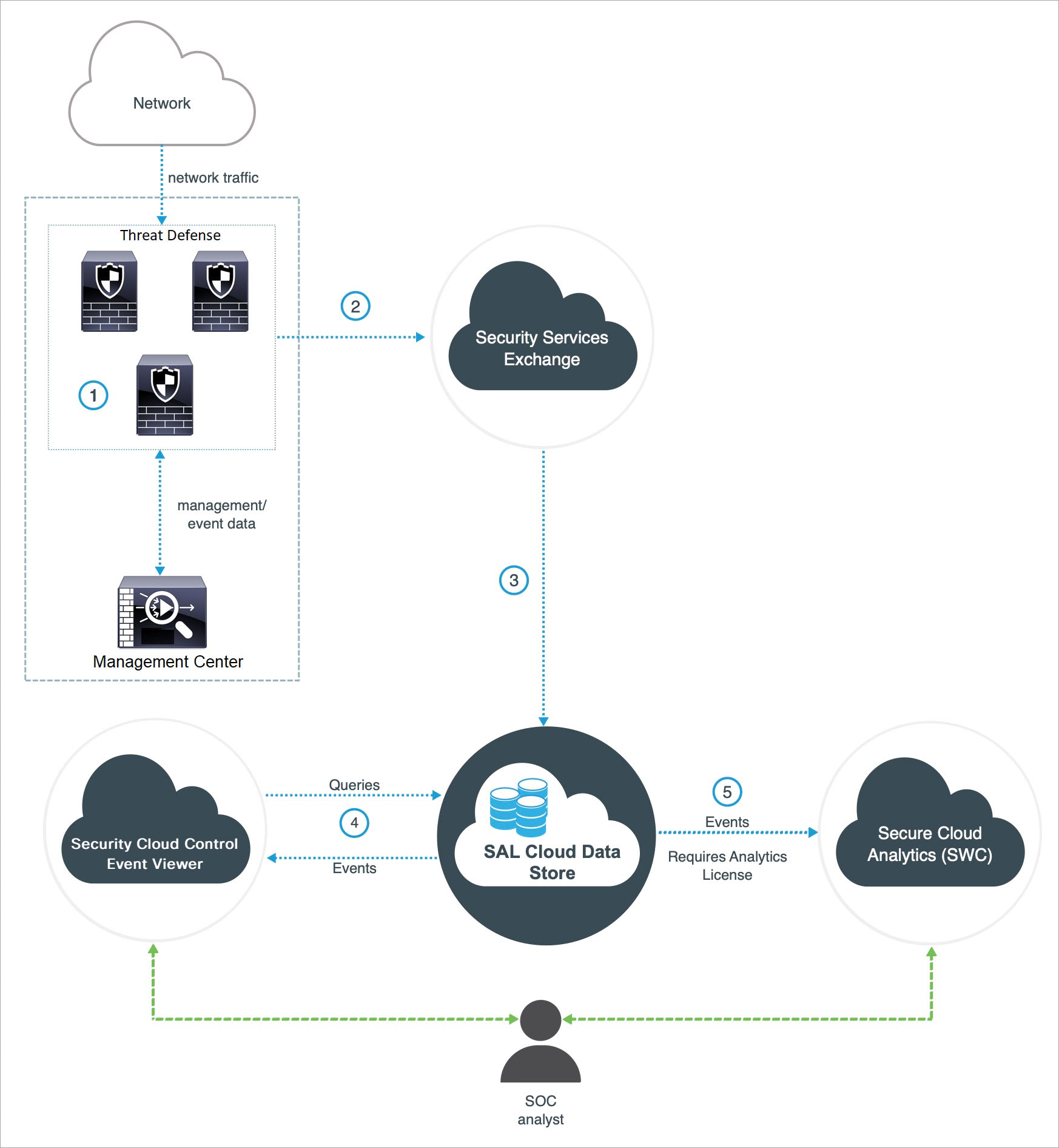
The following diagram shows how the direct integration works.
|
The Firewall Management Center-managed devices generate events. |
|
The Firewall Threat Defense devices send supported events to Security Services Exchange (SSE), a secure intermediary cloud service that handles cloud-to-cloud and premises-to-cloud identification, authentication, and data storage for use in Cisco cloud security products. |
|
The SSE forwards the events to the Cisco Security Analytics and Logging (SAL) Cloud Data Store. |
|
The Security Cloud Control queries SAL cloud data store for events and provides the SOC analyst with additional context in the Event Logging page. |
|
(Only with Analytics License) Cisco Secure Cloud Analytics (formerly SWC) receives the events from the SAL Cloud Data Store and provides the SOC analyst access to the analytics features of the product. |
Key Components of This Integration
|
Component |
Description |
|---|---|
|
Firewall Threat Defense |
A next generation firewall with capabilities such as protection from malware and application-layer attacks, integrated intrusion prevention, and cloud-delivered threat intelligence. |
|
Firewall Management Center |
An administrative nerve center for select Cisco security products running on multiple platforms. It provides unified management of Firewall Threat Defense software for port and protocol control, application control, IPS, URL filtering, and malware protection functions. |
|
Security Services Exchange |
A secure intermediary cloud service that handles cloud-to-cloud and premises-to-cloud identification, authentication, and data storage for use in Cisco cloud security products. |
|
Security Cloud Control |
A cloud-based multidevice manager you can use to manage security policy changes across various security products. This platform enables the efficient management of policies in branch offices and other highly distributed environments to achieve a consistent security implementation. In direct integration, both the Firewall Management Center and its managed devices get onboarded to the Security Cloud Control tenant. This integration connects the Firewall Management Center to a suite of Cisco cloud services. When the Firewall Management Center is onboarded to Security Cloud Control, you can view its managed devices, view managing network objects, and cross-launch to Firewall Management Center UI to manage associated devices and objects. |
|
Cisco Secure Cloud Analytics (formerly Secure Network Analytics Cloud) |
A cloud platform that applies dynamic entity modeling to Firewall Threat Defense events, generating detections based on this information. This provides a deeper analysis of telemetry gathered from your network, allowing you to identify trends and examine anomalous behavior in your network traffic. |
Prerequisites for Direct Integration
|
Prerequisite Type |
Requirement |
|---|---|
|
General requirements for sending events to SAL (SaaS) |
In addition to the requirements in this table, you must satisfy the items in Requirements and Prerequisites for SAL (SaaS) Integration and subtopics. |
|
Licensing |
Register your Firewall Management Center with the Cisco Smart Software Manager. In the Firewall Management Center web interface, click System (
Keep in mind that:
|
|
Account |
|
|
Connectivity |
The Firewall Management Center and managed devices must be able to connect outbound on port 443 to the Cisco cloud at the following addresses:
|
 ) > Smart Licenses
Set Up Event Data Storage in SAL (SaaS) Using a Direct Connection
Perform the following tasks to set up event data storage in SAL (SaaS) using a direct integration.

|
Workspace |
||
|---|---|---|
|
Firewall Management Center | |
 |
Security Services Exchange | Launch Security Services Exchange |
 |
Security Services Exchange | Link Smart or Virtual Accounts on Security Services Exchange |
 |
Security Services Exchange | Link Security Cloud Control Accounts on Security Services Exchange |
 |
Security Services Exchange | Configure Cloud Services on Security Services Exchange |
 |
Security Cloud Control | View and Work with Events |
 |
Security Cloud Control | View and Work with Events in Cisco Secure Cloud Analytics: Cross-launch into Secure Cloud Analytics |
 |
Cisco Secure Cloud Analytics | View and Work with Events in Cisco Secure Cloud Analytics |
Configure the Firewall Management Center (version 7.1 and earlier) to Send Events to Security Services Exchange
If your Firewall Management Center version is 7.1 or earlier (except version 7.0.2 to 7.0.X), follow this procedure to configure your Firewall Management Center to have the managed Firewall Threat Defense devices send events directly to SSE. If your Firewall Management Center version is 7.0.2 to 7.0.X, follow the steps in Configure the Management Center (version 7.2 and later) to Send Events to Security Services Exchange.
Before you begin
In the Firewall Management Center web interface, do the following:
-
Go to the System > Configuration page and give your Firewall Management Center a unique name to clearly identify it in the Devices list in the cloud.
-
Add your Firewall Threat Defense devices to the Firewall Management Center, assign licenses to them, and ensure that the system works correctly. Create the necessary policies and ensure that the generated events appear as expected in the Firewall Management Center web interface under the Analysis tab.
Procedure
|
Step 1 |
In the Firewall Management Center web interface, click . |
|||||||||||||
|
Step 2 |
In the Cisco Cloud Region widget, from the Region drop-down list, choose a regional cloud, and click Save.
Consider the following points to choose the regional cloud:
|
|||||||||||||
|
Step 3 |
In the Cisco Cloud Event Configuration widget, configure the Firewall Management Center to send events to SSE.
|
|||||||||||||
|
Step 4 |
Click Save. |
What to do next
Configure the Firewall Management Center (version 7.2 and later) to Send Events to Security Services Exchange
If your Firewall Management Center version is 7.0.2 to 7.0.X or version 7.2 and later, follow this procedure to configure your Firewall Management Center to have the managed devices send events directly to SSE.
Before you begin
In the Firewall Management Center web interface, do the following:
-
Add your Firewall Threat Defense devices to the Firewall Management Center, assign licenses to them, and ensure that the system works correctly. Create the necessary policies and ensure that the generated events appear as expected in the Firewall Management Center web interface.
-
Integrate your Firewall Management Center with Security Cloud Control to allow your devices to send firewall events to the cloud. For more information, see Integrate Firewall Management Center with Cisco Security Cloud in Cisco Secure Firewall Management Center Administration Guide.
-
If you are currently sending events to the cloud using syslog, disable it to avoid duplication.
Procedure
|
Step 1 |
Depending on the version of your Firewall Management Center:
|
|||||||||||||||
|
Step 2 |
(Optional) Choose a regional cloud from the Current Region drop-down. Consider the following points to choose the regional cloud:
|
|||||||||||||||
|
Step 3 |
Check the Send events to the cloud check box. |
|||||||||||||||
|
Step 4 |
Choose the event types that you want to send to the cloud.
|
|||||||||||||||
|
Step 5 |
Click Save. |
What to do next
Launch Security Services Exchange
Procedure
|
Step 1 |
Navigate to https://admin.sse.itd.cisco.com/login and click Login. |
|
Step 2 |
Click Login via Security Cloud Sign On and sign in using your Security Cloud Sign On account. |
|
Step 3 |
When prompted, complete the authentication using Duo Security to gain access to the Security Services Exchange portal. |
What to do next
Link Smart or Virtual Accounts on Security Services Exchange
Link Smart or Virtual Accounts on Security Services Exchange
To integrate products registered under different licensing Smart Accounts (or Virtual Accounts) into a single view in the cloud, you must link those licensing accounts to the account that you use to access SSE.
Before you begin
-
To link licensing accounts, you must have administrator-level Smart Account or Virtual Account privileges for all of the licensing accounts (from which your products are licensed) and for the account you use to access SSE.
-
If you have linked accounts already for use with Cisco XDR, you do not need to link them again for SAL (SaaS).
Procedure
|
Step 1 |
|
|
Step 2 |
In the top-right corner, click the Tools ( 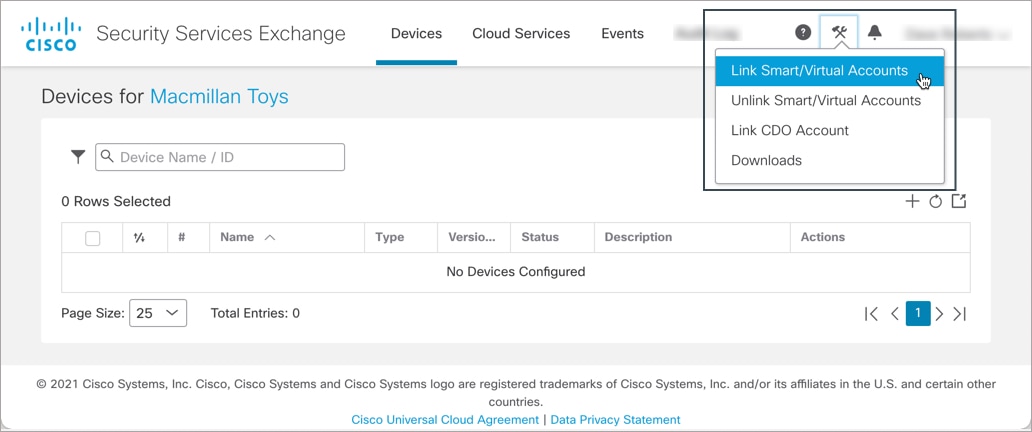 |
|
Step 3 |
Click Link more accounts. |
|
Step 4 |
If prompted, sign in using your Cisco.com credentials. |
|
Step 5 |
Select the accounts to integrate with this cloud account.
|
|
Step 6 |
Click Link Smart/Virtual Accounts. |
|
Step 7 |
Click OK to continue. |
|
Step 8 |
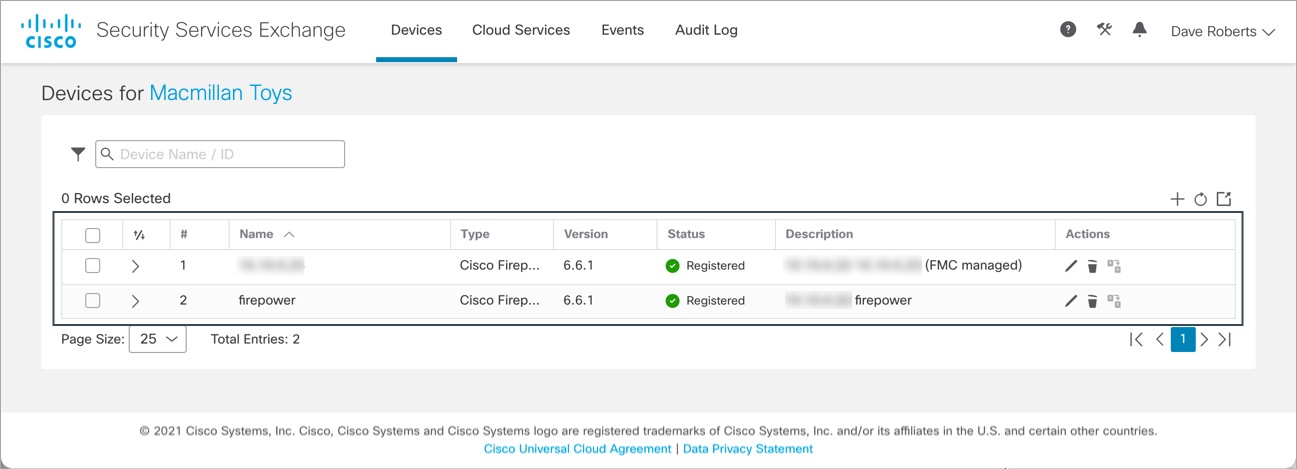
Verify that your Firewall Management Center and its managed devices appear under the Devices tab.
|
 ) button, and choose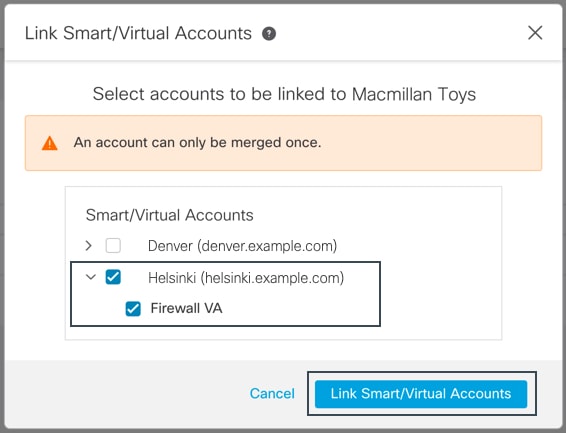
What to do next
Link Security Cloud Control Accounts on Security Services Exchange
Link Security Cloud Control Accounts on Security Services Exchange
You must merge your Security Cloud Control account with the account that is associated with the device in SSE. Keep in mind that if you have accounts on more than one regional cloud, you must merge accounts separately for each regional cloud.
Before you begin
-
Ensure that your Security Cloud Control account has Admin or Super Admin privileges.
-
In Security Cloud Control, do the following to generate a new API token for your account:
-
Sign in to the Security Cloud Control account which you want to merge.
-
Choose the tenant account to merge.
-
From the user menu in the top-right corner of the window, select Settings.
-
In the My Tokens section, click Generate API Token or Refresh.
-
Copy the token.
For more information about API tokens, see API Tokens section in the Security Cloud Control online help.
-
Procedure
|
Step 1 |
Go to your Security Services Exchange admin portal. For more information, see Launch Security Services Exchange. |
|
Step 2 |
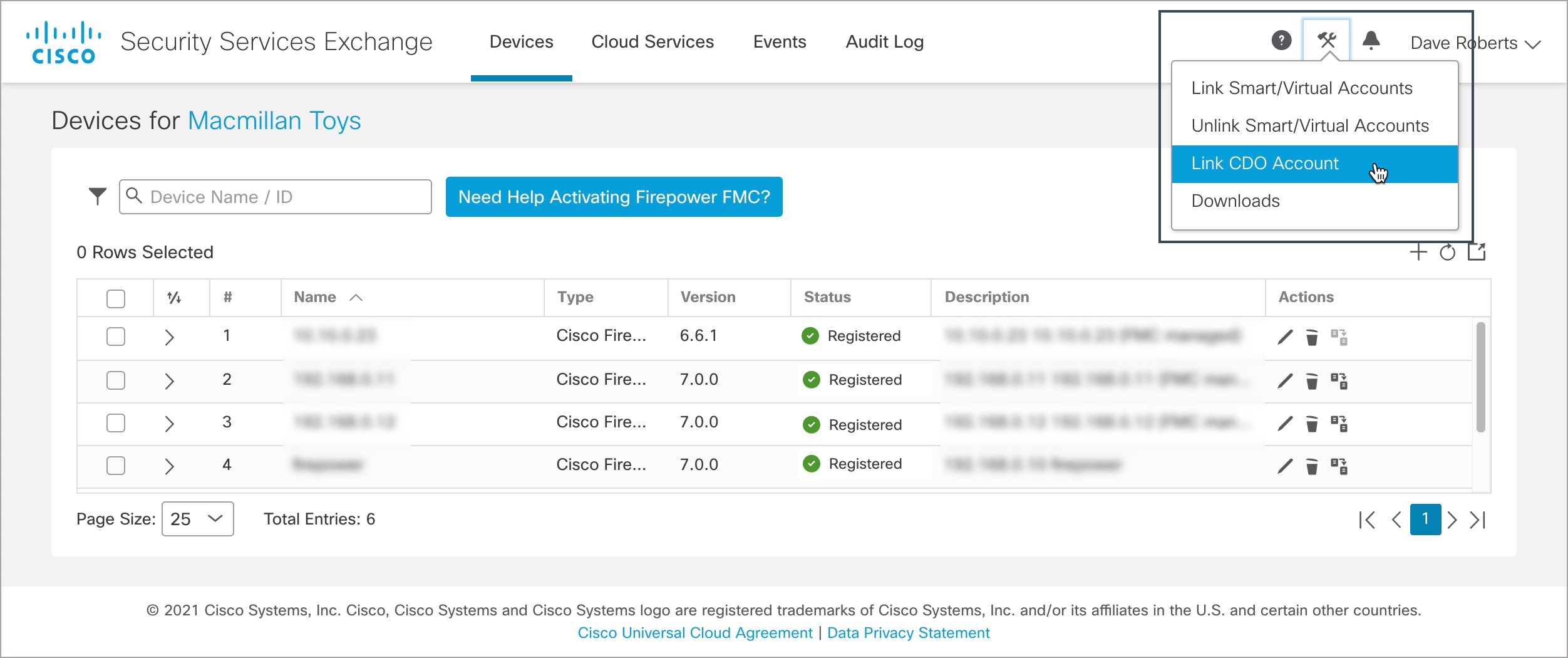
On the top-right corner, click the Tools (
|
|
Step 3 |
Paste the token that you copied from Security Cloud Control. 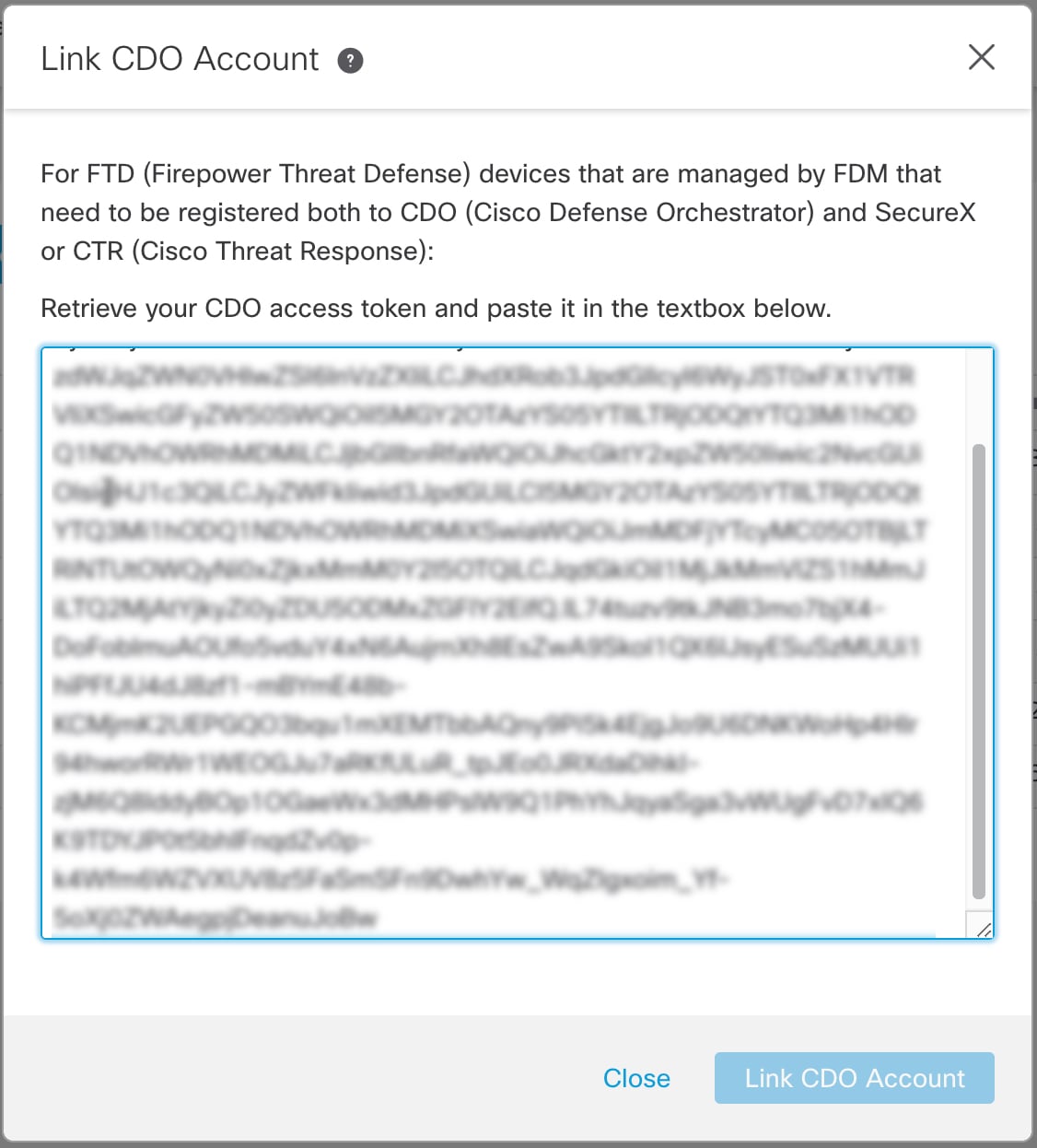 |
|
Step 4 |
Verify that you are linking the accounts that you intended to link, and click Link CDO Account. |
What to do next
Configure Cloud Services on Security Services Exchange
Procedure
|
Step 1 |
|
|
Step 2 |
Click the Cloud Services tab. |
|
Step 3 |
Verify that the Eventing services option is enabled. |
|
Step 4 |
Verify that your events appear as expected under the Events tab. |
What to do next
View and Work with Events
To view and search your events in the cloud:
Procedure
|
Step 1 |
Sign in to Security Cloud Control. |
|
Step 2 |
From the navigation bar, select . |
|
Step 3 |
Use the Historical tab to view historical events data. By default, the viewer displays this tab. |
|
Step 4 |
To view the live events, click the Live tab. For more information, refer to the View Events in Security Cloud Control section in the Security Cloud Control online help. |
View and Work with Events in Cisco Secure Cloud Analytics
To view and search your events in Cisco Secure Cloud Analytics:
Procedure
|
Step 1 |
Sign in to the corresponding Security Cloud Control regional cloud using the credentials for the account to be merged. |
|
Step 2 |
From the navigation bar, click Monitoring > Security Analytics. The Stealthwatch Cloud portal opens in a new browser tab. |
|
Step 3 |
(One-time Activity) To ensure seamless flow of events, before using the Event Viewer, do the following in the Stealthwatch Cloud portal:
For more information, see the Secure Cloud Analytics online help. |
|
Step 4 |
To view events, click Investigate > Event Viewer. For more information, see the Secure Cloud Analytics online help. |
FAQs
Where can I find more information about SAL?
See also the SAL Getting Started and Frequently Asked Questions.
Do I need to onboard my devices to Security Cloud Control?
If you are sending events using a direct connection, both the Firewall Management Center and its managed devices get onboarded to the Security Cloud Control tenant. When the Firewall Management Center is onboarded to Security Cloud Control, you can view its managed devices, view managing network objects, and cross-launch to Firewall Management Center UI to manage associated devices and objects.
If I use Cisco XDR, do I need to merge my Security Cloud Control account?
Only if you are sending events directly to the cloud using the process described in How to Set Up Event Data Storage in SAL (SaaS) Using a Direct Connection.
 Feedback