Overview
Provides instructions for configuring OSPF on a Threat Defense (FTD) hub to route traffic across a route-based site-to-site VPN using Firewall Management Center (FMC).
OSPF is configured between Hub and Spoke device to allow traffic to be sent across the VPN tunnel. For reference, static routing is underlay, over which Spoke to Hub tunnel is established and OSPF is considered as overlay.
Procedure
| 1. | To edit the hub node, choose Devices > Device Management and click the Edit ( |
|
| 2. | In the Interfaces tab, verify the Loopback1 interface that was created earlier and serves as the IP address for the DVTI interface. |
|
| 3. | Click Routing. |
|
| 4. | Click OSPF in the left panel. |
|
| 5. | Check the Process 1 checkbox to enable an OSPF instance. |
|
| 6. | Click the Interface tab. |
|
| 7. | Click +Add. The Add Interface dialog box appears. Modify the following fields:
A row is added in the Interface tab for outside_dynamic_vti_1. |
|
| 8. | Click the Area tab. |
|
| 9. | Click +Add. The Add Area dialog box appears. Modify the following fields:
A row is added in the Area tab. 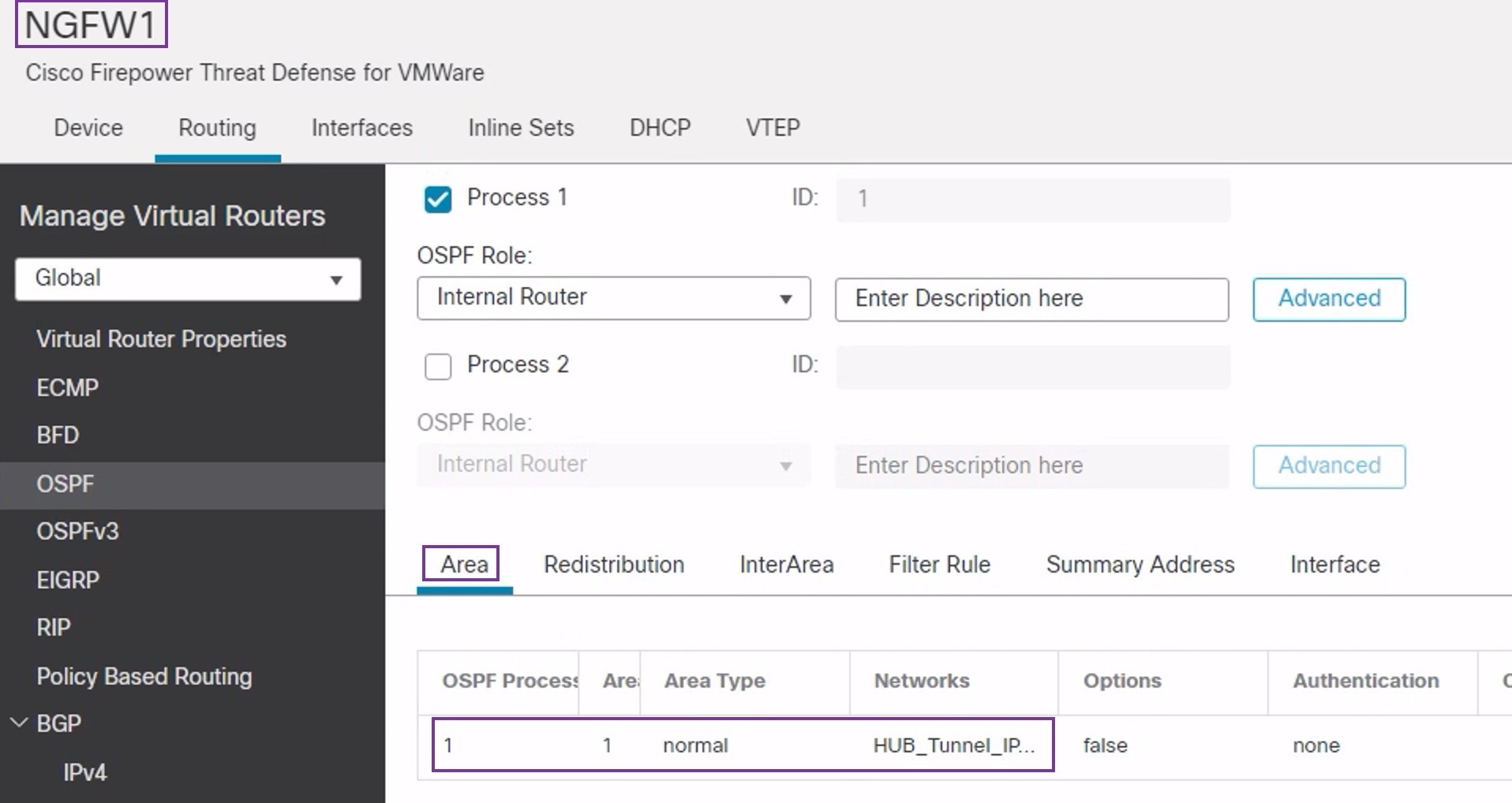
|
|
| 10. | Click Save to save the OSPF configuration for the hub node. |

 . Enter these details: